ESP32 DevKit V1: What It Is and How to Get Started
What is the ESP32 DevKit V1?
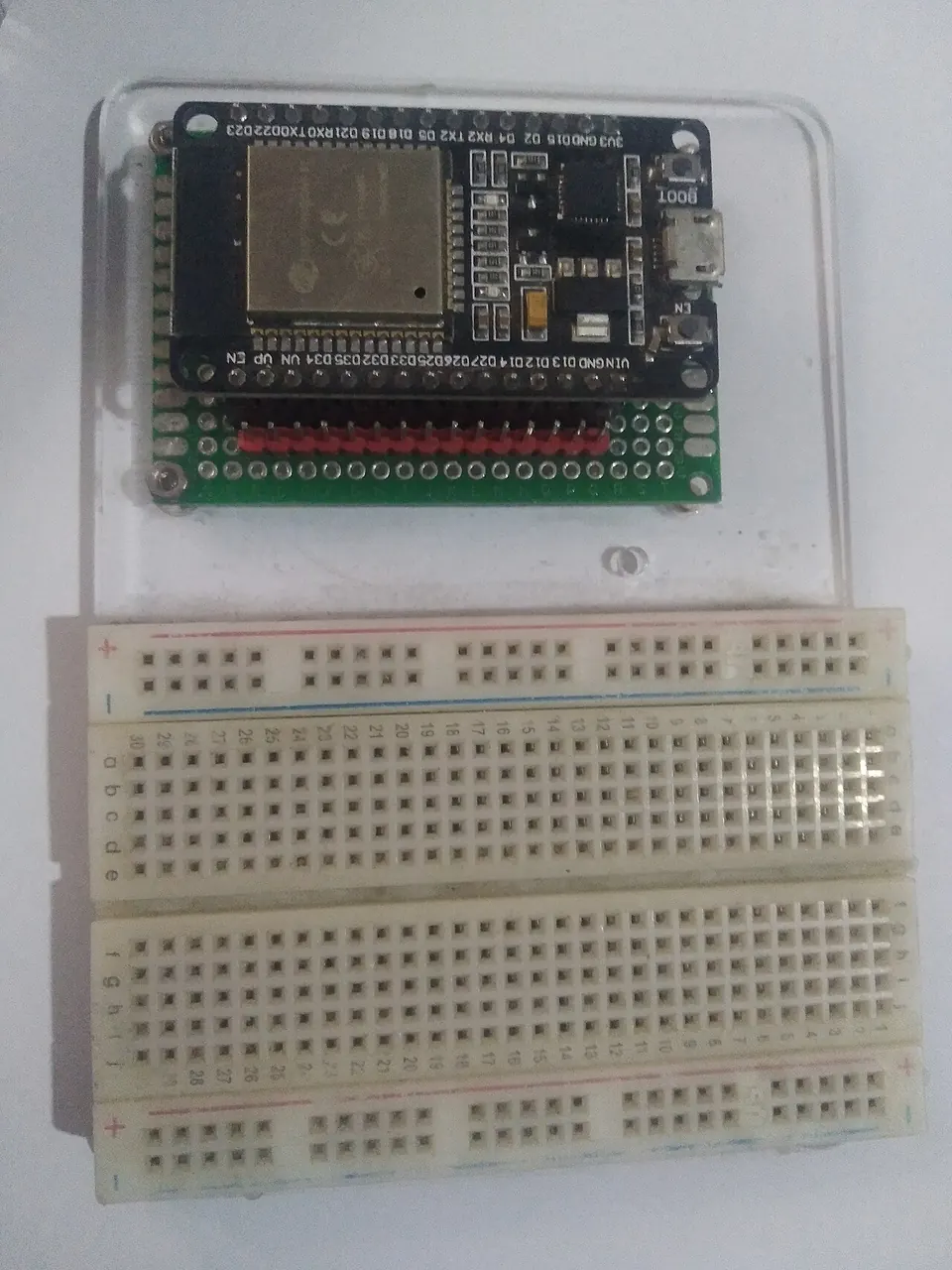
The DOIT ESP32 DevKit V1 is a development board produced by DOIT and built around Espressif's ESP32-WROOM module. It is one of the most commonly encountered ESP32 breakout boards in the maker community, and Espressif's own documentation refers to the equivalent Espressif-branded board as the ESP32-DevKitC. Because the board pairs the ESP32-WROOM with an on-board 3.3 V voltage regulator and a USB-to-serial bridge, you can plug it straight into a computer and start writing firmware without sourcing additional hardware.
The board is supported by both the Arduino IDE ecosystem and Espressif's native ESP-IDF framework. That dual-toolchain support means you can start with familiar Arduino sketches and later migrate to ESP-IDF for more control over the hardware — or run both styles of example without switching boards.
 \2
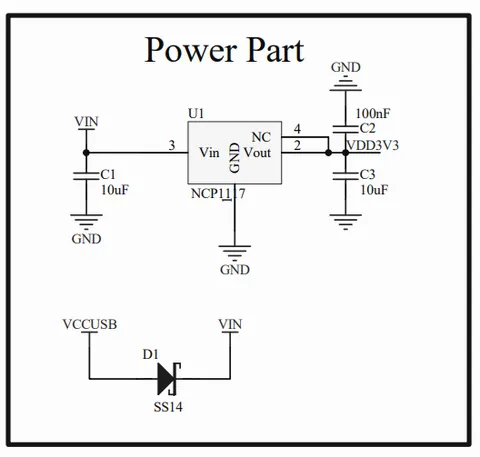
\2Power supply schematic section of the DOIT ESP32 DevKit V1, showing the 3.3 V regulator and decoupling capacitor layout
What do the schematic and pinout tell you?
The schematic PDF for the DOIT ESP32 DevKit V1 is publicly available — the embedded-systems-design.github.io overview page links directly to it. It is worth having open when you are troubleshooting power problems or designing a custom board around the same ESP32-WROOM module.
The power supply section of the schematic shows a 3.3 V regulator with two main decoupling capacitors: a 100 nF bypass cap and a 10 µF bulk capacitor. If you are reproducing the design with your own components, ceramic capacitors are appropriate for all positions — they have lower equivalent series resistance than tantalum types and are generally slightly better for power supply decoupling. The one constraint worth remembering: ceramic capacitors lose rated capacitance when biased near their voltage rating, so make sure the 10 µF capacitor is rated significantly higher than 3.3 V. Going with anything below a 16 V rating is not recommended.
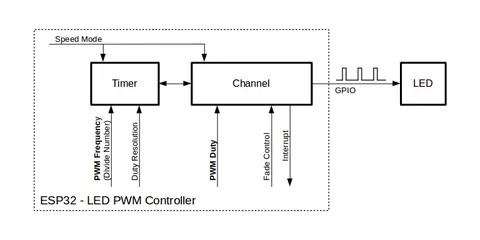
For the header pins, the GPIO lines from the ESP32-WROOM are broken out on both sides of the board. A concrete example from Espressif's own documentation: GPIO 25, GPIO 26, and GPIO 27 can drive the three channels of an RGB LED, illustrating the kind of general-purpose output these headers support.
 \2
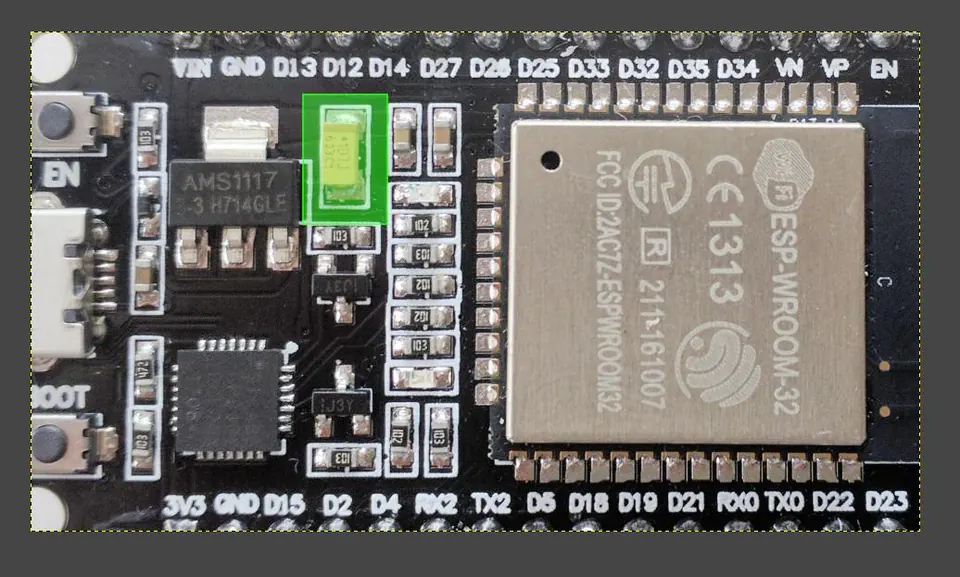
\2Top view of the DOIT ESP32 DevKit V1 development board with the ESP32-WROOM module visible
How do I set up the Arduino IDE for the DevKit V1?
Setting up the Arduino IDE for the DOIT ESP32 DEVKIT V1 involves three steps:
- Open Arduino IDE and navigate to File → Preferences.
- Paste the following URL into the Additional Boards Manager URLs field:
https://dl.espressif.com/dl/package_esp32_index.json
- Open Tools → Board → Boards Manager, search for
esp32, and install the Espressif package.
Once installed, go to Tools → Board and select DOIT ESP32 DEVKIT V1 from the list before you compile or upload any sketch. Selecting the wrong board at this step is a common source of confusing upload failures, so double-check it every time you open a new project.
If you also work with ESP8266 boards, you can add a second URL on a separate line:
http://arduino.esp8266.com/stable/package_esp8266com_index.json
Both URLs can coexist in the Preferences field.
 \2
\2Full pin-out diagram for the ESP32 DevKit V1 showing all GPIO headers on both sides of the board Image: Vishnu Maiea, CC BY-SA 4.0, via Wikimedia Commons
How do I build and flash firmware with ESP-IDF?
ESP-IDF uses the idf.py command-line tool as its primary interface. The three commands you will use on almost every project are:
idf.py menuconfig
idf.py build
idf.py flash
menuconfig opens a text-based configuration menu where you can adjust settings such as board selection, Wi-Fi credentials, and component options. build compiles the project, and flash uploads the binary to the connected board.
To speed up compilation on a multi-core machine, pass the -j flag with the number of parallel jobs:
idf.py -j 6 build
When flashing, you can target a specific serial port by setting ESPPORT. On Linux or macOS the syntax looks like:
ESPPORT=/dev/ttyUSB0 ninja flash
On Windows using make:
make -j3 app-flash ESPPORT=COM4 ESPBAUD=2000000
The menuconfig step matters most when running examples that support board selection — for instance, Espressif's BLE Mesh demos let you explicitly choose between ESP32-DevKitC and ESP-WROVER-KIT through the menu.
 \2
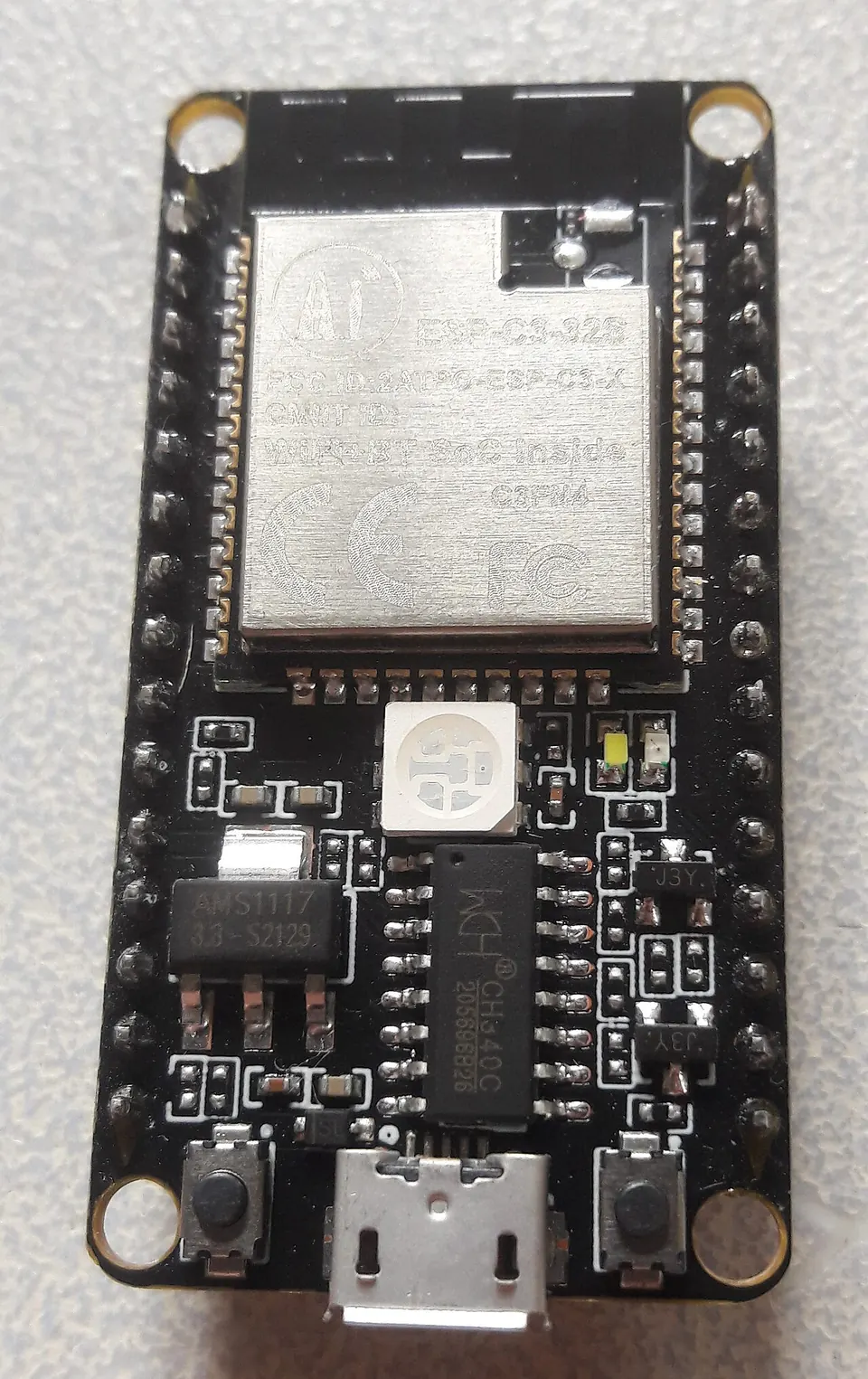
\2An ESP32 development board showing the WROOM module and USB connector Image: Edwiyanto, CC BY-SA 4.0, via Wikimedia Commons
What is a good first project for the ESP32 DevKit V1?
One of the most complete beginner projects available in the ESP-IDF repository is the BLE Mesh on/off demo. It ships at the path bluetooth/esp_ble_mesh/onoff_models/onoff_server and is designed to run on three DevKit V1 boards simultaneously, demonstrating a small peer-to-peer mesh network.
To run it:
- Enter the example directory and run
idf.py menuconfig. Under Example Configuration → Board selection for ESP-BLE-MESH, choose ESP32-DevKitC. - Connect an RGB LED to GPIO 25, 26, and 27 (one channel per pin).
- Run
idf.py buildfollowed byidf.py flashto load the same binary onto each board. - When a board powers on, the RGB LED turns green.
- Use the nRF Mesh app (available for Android and iOS) to scan for unprovisioned devices. Select a device, tap IDENTIFY, then PROVISION.
- After successful provisioning the LED turns off, and the app shows the node's assigned unicast address along with its decoded Composition Data.
The underlying BLE Mesh stack supports Proxy, Relay, Low Power, and Friend node roles, so even this simple demo gives you a foundation for larger sensor network projects.
If the app fails to reconnect immediately after provisioning — which can happen occasionally — tap CONNECT in the top-right corner of the app to retry. You may need to attempt the Bluetooth connection more than once before the Composition Data appears.
What are the most common pitfalls?
1. Arduino compilation error: bits/c++config.h: No such file or directory
This error appears when the ESP32 board support package is installed in the wrong location and the /hardware/espressif/esp32 folder hierarchy does not exist where the compiler expects it. Simply reinstalling the board through Arduino's Board Manager often does not fix it. The reliable fix is to:
- Remove the ESP32 board from Board Manager entirely.
- Create the
/hardware/espressif/esp32folder structure manually. - Reinstall the ESP32 Arduino core by following the GitHub-based manual installation method (SparkFun's ESP32 Thing hookup guide documents the exact directory steps).
After doing this, compilation for DOIT ESP32 DEVKIT V1 should succeed.
2. Wrong capacitor voltage rating in a custom design
If you are building your own board based on the DevKit V1 schematic, do not source a 10 µF ceramic capacitor rated at 4 V or 6.3 V for the 3.3 V rail. Ceramic capacitors of those sizes lose a significant portion of their rated capacitance under DC bias. The schematic's bulk capacitor should be rated at 16 V or higher.
3. Forgetting to select the board in the Arduino IDE
Every time you open a new sketch or workspace, confirm that DOIT ESP32 DEVKIT V1 is still selected under Tools → Board. Arduino IDE does not always persist the board selection across projects, and uploading with the wrong board selected produces errors that look like serial or driver problems rather than a board mismatch.
4. Skipping menuconfig in ESP-IDF examples
Many ESP-IDF examples that support multiple boards default to a target that is not ESP32-DevKitC. Running idf.py build without first running idf.py menuconfig to confirm the board selection can produce firmware that behaves unexpectedly — for instance, assuming different GPIO mappings for LEDs or buttons.
Frequently asked questions
Where can I find the DOIT ESP32 DevKit V1 datasheet or schematic?
The schematic PDF is publicly hosted. The embedded-systems-design.github.io overview page for the ESP32 DevKit DOIT V1 links directly to the PDF.
Which board manager URL do I add in Arduino IDE for the DevKit V1?
Add https://dl.espressif.com/dl/package_esp32_index.json under File → Preferences → Additional Boards Manager URLs, then install the ESP32 package from Boards Manager.
Can I use ceramic capacitors on a custom ESP32-WROOM board instead of tantalum?
Yes. Ceramic caps are slightly preferred for power supply decoupling because of their lower series resistance. Just make sure the 10 µF bulk capacitor is rated well above 3.3 V — anything below a 16 V rating is not recommended.
What GPIO pins does the ESP32 DevKit V1 use for an RGB LED?
Espressif's BLE Mesh example wires an RGB LED to GPIO 25, 26, and 27 on the ESP32-DevKitC.
How do I fix the bits/c++config.h error when compiling for the DevKit V1?
Remove the ESP32 board from Arduino's Board Manager, manually create the /hardware/espressif/esp32 folder structure, and reinstall the ESP32 Arduino core using the GitHub-based method.
The DOIT ESP32 DevKit V1 is a solid entry point into ESP32 development — it supports both Arduino IDE and ESP-IDF, has a publicly available schematic, and Espressif ships ready-to-run examples that target it directly. The most common stumbling blocks are an Arduino IDE folder structure issue on first install and capacitor voltage-rating mistakes in custom board designs, both of which are easy to avoid once you know what to watch for. If you want to explore wireless mesh networking, the built-in BLE Mesh on/off example is a well-documented starting project that runs on the board out of the box.
Sources
github.comESP-BLE-MESH (esp-idf docs)github.comBuild System (esp-idf docs)stackoverflow.comHow to fix compilation error for ESP32 in Arduino IDE?electronics.stackexchange.comDOIT esp32 devkit v1 schematic confusionThis guide summarises the public sources listed above in our own words. Check the original documentation before relying on exact figures.