ESP32 Wi-Fi Example: Connect to a Network Step-by-Step
What can the ESP32 Wi-Fi module actually do?
The ESP32's built-in Wi-Fi module supports three operating modes: station (STA), where the board connects to an existing router; soft-AP, where it creates its own access point; and a combined mode where it does both at the same time, effectively making the ESP32 a Wi-Fi NAT router. On most ESP32 variants, the driver manages up to four virtual Wi-Fi interfaces — STA, AP, Sniffer, and a reserved slot.
Security support is wide: WPA, WPA2, WPA3, WPA2-Enterprise, WPA3-Enterprise, WAPI, WPS, and DPP are all covered. For device-to-device links without a router, Espressif's ESP-NOW protocol with Long Range mode can reach up to 1 km. Peak over-the-air throughput is 20 MBit/s for TCP and 30 MBit/s for UDP.
One hard constraint applies to every mode and every example you run: the ESP32 radio is 2.4 GHz only. It cannot associate with a 5 GHz band even if your router supports it.
 \2
\2ESP32-C3 RISC-V NodeMCU development board based on ESP32-C3-32S SoC Image: Popolon, CC BY-SA 4.0, via Wikimedia Commons
What do you need before you start?
Hardware
- An ESP32 development board with built-in Wi-Fi
- A USB cable that carries data, not just power
Software — Arduino path
- Arduino IDE with the ESP32 board support package installed
- Serial Monitor ready to open at 115200 baud
Software — ESP-IDF path
- Espressif's IoT Development Framework installed and on your PATH
- Python, which the IDF build system requires
Network
- A 2.4 GHz Wi-Fi network — the ESP32 does not support 5 GHz
- Your SSID and password ready to hand
If your router broadcasts both bands under the same SSID name, give each band a separate name before you start. Attempting to join a shared SSID that your router resolves to the 5 GHz band is one of the most common reasons ESP32 Wi-Fi connections fail without any obvious error message.
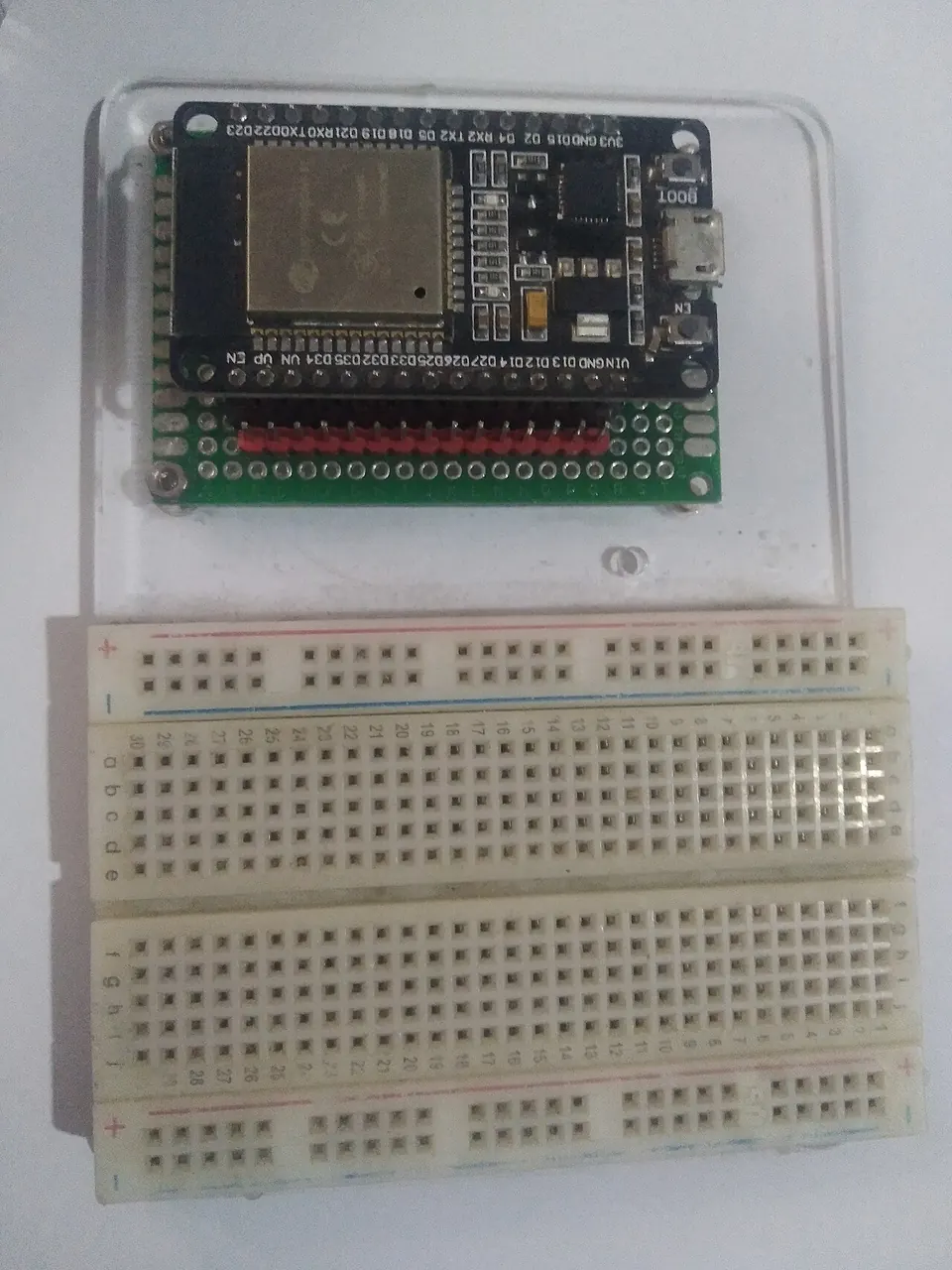
 \2
\2ESP32 microcontroller chip Image: Edwiyanto, CC BY-SA 4.0, via Wikimedia Commons
How do I run an ESP32 Arduino Wi-Fi example (station mode)?
The Arduino WiFi.h library keeps the API straightforward. The following steps follow the code pattern that appears in known working Arduino ESP32 Wi-Fi projects.
Step 1. Open the Arduino IDE and create a new sketch.
Step 2. Include the library and declare your network credentials near the top of the file. Replace the placeholder strings with your actual SSID and password before uploading.
#include <WiFi.h>

const char* ssid     = "REMOVED";
const char* password = "REMOVED";
Step 3. If you plan to serve HTTP requests, declare a server object at global scope.
WiFiServer server(80);
Step 4. Inside setup(), start the serial port and begin the Wi-Fi connection.
void setup() {
  Serial.begin(115200);
  WiFi.begin(ssid, password);
}
Step 5. Poll WiFi.status() until it returns WL_CONNECTED — this can be done in setup() with a loop or checked at the top of loop(). Once connected, print WiFi.localIP() to the Serial Monitor so you can see the IP address the router assigned.
Step 6. If you declared a WiFiServer, call server.begin() after the connection succeeds, then use server.available() in loop() to accept and respond to incoming clients.
Step 7. Select your ESP32 board and COM port in the Tools menu, upload the sketch, and open the Serial Monitor at 115200 baud. The IP address printed there is your confirmation that the connection worked.
 \2
\2ESP32 development board Image: Edwiyanto, CC BY-SA 4.0, via Wikimedia Commons
How do I use the official ESP-IDF Wi-Fi station example?
The ESP-IDF ships with a curated set of Wi-Fi examples. Espressif recommends picking the one closest to your use case and porting the relevant parts into your own project rather than building the stack from scratch.
For station mode, the starting point is wifi/getting_started/station. It demonstrates the full event lifecycle: start, connect, receive an IP address, disconnect, and reconnect automatically.
Step 1. Navigate to the example directory inside your ESP-IDF installation.
Step 2. Run the interactive configuration tool (idf.py menuconfig), open the Example Configuration section, and enter your SSID and password. Save and exit.
Step 3. Build the firmware with the IDF build command (idf.py build).
Step 4. Flash the binary and open the serial monitor in one step, specifying your serial port.
Other examples in the same library are worth knowing:
| Example path | What it demonstrates |
|---|---|
wifi/getting_started/softAP |
Configures the ESP32 as an access point |
wifi/scan / wifi/fast_scan |
Lists nearby APs and their signal strength |
wifi/wps |
Connects via WPS PIN or push-button mode |
wifi/smart_config |
Uses the ESPTOUCH app to push credentials from a phone |
wifi/softap_sta |
Runs AP and station simultaneously as a NAT router |
wifi/power_save |
Demonstrates modem-sleep to reduce idle current |
wifi/iperf |
Measures real-world TCP and UDP throughput |
wifi/roaming/roaming_app |
Handles smooth handoffs between compatible APs |
 \2
\2ESP32 module on Lolin32 Lite clone board (cropped view) Image: Ubahnverleih, CC0, via Wikimedia Commons
How do I verify the ESP32 Wi-Fi connection is working?
Arduino path: Once WL_CONNECTED is reached, WiFi.localIP() returns the IP address the router assigned to the board. Print it to the Serial Monitor, then ping that address from a computer on the same network. A successful ping confirms the board is reachable on the LAN. If you started a WiFiServer, navigate to http://<board-ip> in a browser — any response, even a blank page, confirms the TCP stack is working end to end.
ESP-IDF path: The serial monitor shows the internal event log. Look for WIFI_EVENT_STA_CONNECTED followed by IP_EVENT_STA_GOT_IP, which includes the assigned address. Repeated WIFI_EVENT_STA_DISCONNECTED events with no successful follow-up are a signal to check band selection and credentials.
For throughput verification, the wifi/iperf example implements the iPerf protocol and lets you benchmark actual TCP and UDP speeds between the ESP32 and a laptop running the standard iPerf tool.
What are the most common ESP32 Wi-Fi mistakes?
1. Trying to connect to a 5 GHz SSID The ESP32 radio is 2.4 GHz only. When a router uses the same name for both bands, the chip may attempt to join the 5 GHz network and fail. The fix is to assign separate SSIDs to each band and point the ESP32 at the 2.4 GHz one.
2. Using analog pins that conflict with the Wi-Fi driver When Wi-Fi is active, the following GPIO pins cannot be used for analog (ADC) input because the Wi-Fi driver takes over the ADC2 peripheral they share: 0, 2, 4, 12, 13, 14, 15, 25, and 26. If a sensor is wired to one of these and Wi-Fi starts, the ADC reading will be stuck at the maximum value — 4095 for a 12-bit reading — rather than reflecting the real sensor output. Move the sensor to one of the ADC1 pins that remain available: 32, 33, 34, 35, 36, or 39.
3. Underestimating flash consumption A basic Wi-Fi sketch in Arduino IDE occupies roughly 50% of the default 1 MB app partition, leaving about 500 KB for your own code and libraries. For most projects that is enough, but it can become a ceiling as complexity grows. Adjust the partition scheme in the Arduino IDE before assuming a larger-flash module is necessary.
4. Hardcoding credentials in source code
For a private prototype this is convenient, but SSID and password strings committed to a public repository are a security exposure. For anything beyond a bench test, consider a provisioning approach such as SmartConfig (wifi/smart_config), which uses the ESPTOUCH app to deliver credentials at runtime without embedding them in firmware.
What can I build next with ESP32 Wi-Fi?
A working station connection is the foundation for a wide range of projects. The ESP-IDF example library points to several natural next steps:
- Power saving:
wifi/power_savedemonstrates modem-sleep mode, which reduces idle current draw — essential for battery-operated devices. - Provisioning:
wifi/smart_configlets a smartphone push Wi-Fi credentials to the ESP32 via the ESPTOUCH app, eliminating hardcoded SSIDs entirely. - Throughput testing:
wifi/iperfbenchmarks real-world TCP and UDP speeds between the ESP32 and a computer running the iPerf tool, with a documented ceiling of 20 MBit/s TCP and 30 MBit/s UDP over the air. - Roaming:
wifi/roaming/roaming_apphandles smooth handoffs between multiple compatible APs in larger deployments. - Combined AP+station:
wifi/softap_staturns the ESP32 into a NAT router that bridges a local Wi-Fi network to an upstream internet connection. - Long-range device links: ESP-NOW with Long Range mode extends reach to up to 1 km without requiring a traditional AP at all.
Frequently asked questions
Does the ESP32 support 5 GHz Wi-Fi?
No. The ESP32 radio operates on 2.4 GHz only. If your router uses the same name for both bands, give each band a separate SSID and connect the ESP32 to the 2.4 GHz network.
Which analog (ADC) pins can I use while Wi-Fi is running?
Only ADC1 pins work when Wi-Fi is active: GPIOs 32, 33, 34, 35, 36, and 39. GPIOs 0, 2, 4, 12, 13, 14, 15, 25, and 26 share the ADC2 peripheral with the Wi-Fi driver and will return a stuck maximum reading instead of real sensor data.
How much flash does an ESP32 Wi-Fi example use in Arduino IDE?
A basic Wi-Fi sketch takes up roughly 50% of the default 1 MB app partition, leaving about 500 KB for your own code and libraries.
Can the ESP32 be a Wi-Fi access point and a station at the same time?
Yes. The ESP32 supports a combined station/AP coexistence mode. The ESP-IDF example wifi/softap_sta demonstrates this, enabling the chip to act as a NAT router bridging two networks.
What security protocols does ESP32 Wi-Fi support?
WPA, WPA2, WPA3, WPA2-Enterprise, WPA3-Enterprise, WAPI, WPS, and DPP are all supported on most ESP32 variants.
The ESP32 Wi-Fi module is genuinely approachable — a handful of lines in Arduino IDE is enough to reach a connected state, and the official ESP-IDF examples cover everything from basic station mode to NAT routing and long-range ESP-NOW links. The main traps are the 2.4 GHz-only radio, ADC pin conflicts when the Wi-Fi driver is active, and flash space awareness as your sketch grows. Get the basics working first, then layer in power saving or provisioning once the connection is solid.
Sources
github.comOverview (esp-idf docs)stackoverflow.comnanoframework esp32 wifi connection failsstackoverflow.comESP32 WiFi initialization disrupting GPIO analog readingelectronics.stackexchange.comwhat is the maximum ESP32 app code space for 16mb flash?This guide summarises the public sources listed above in our own words. Check the original documentation before relying on exact figures.