ESP32 LED Example: Blink and PWM Dimming Step-by-Step
What do I need before starting?
Gather these items before writing a single line of code.
Hardware
- An ESP32 development board (DevKit v1 or similar)
- A 5 mm LED in any color, plus a current-limiting resistor matched to the LED's forward voltage and your supply voltage
- A breadboard and a handful of jumper wires
- A USB cable to connect the board to your computer
Software
- Arduino IDE with the arduino-esp32 board package installed, or the Espressif ESP-IDF toolchain
- A serial monitor — the Arduino IDE serial monitor or ESP-IDF's
idf.py monitorboth work; note that some terminal programs such as PuTTY control the DTR line, which can cause unexpected resets when you close the window
Knowledge baseline
- You know how to compile and upload a sketch to an ESP32
- You understand that every GPIO drives a limited current — an external LED always needs a series resistor to avoid damaging the pin or the LED
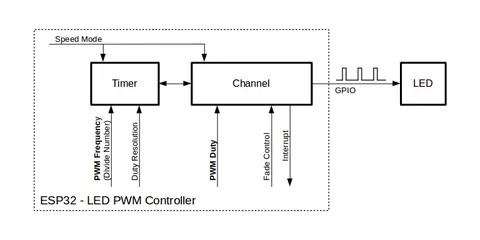 \2
\2Key settings of the ESP32 LED PWM Controller (LEDC) API reference
How do I blink an LED on the ESP32?
A digital blink is the classic first project: the firmware toggles a GPIO pin between HIGH and LOW on a timed loop. Espressif ships an official blink example with ESP-IDF that you can load and flash without writing any code yourself.
Steps
- Wire your LED (with resistor in series) between the target GPIO pin and GND, or locate the on-board LED on your specific DevKit board and note which pin it is tied to.
- Open the official blink example from your IDE or ESP-IDF components directory.
- Set the GPIO number in the example to match your wiring.
- Build and flash the firmware over USB.
- Watch the LED — it should turn on and off at a steady interval.
- Keep your serial monitor open during testing. If you are using a program like PuTTY and the LED stops blinking the moment you close the terminal window, that is a known behavior: closing the serial port drops DTR to inactive, which the ESP32 interprets as a reset signal. Switch to
idf.py monitoror the Arduino IDE serial monitor to avoid this.
How do I control LED brightness with PWM (LEDC)?
The ESP32 includes a dedicated LED Control peripheral — LEDC — that generates pulse-width modulation (PWM) signals. Dimming an LED is its primary purpose, though it works for any application that needs a controllable waveform. Setting up LEDC follows three steps:
- Configure the timer — choose PWM frequency, duty cycle resolution, and clock source.
- Configure the channel — link the timer to the GPIO pin that drives the LED.
- Change the PWM signal — adjust duty cycle to set brightness.
With the Arduino-ESP32 library, steps 1 and 2 collapse into a single call. These are the exact signatures from the arduino-esp32 API:
bool ledcAttach(uint8_t pin, uint32_t freq, uint8_t resolution);
bool ledcWrite(uint8_t pin, uint32_t duty);
pin— the GPIO number wired to your LEDfreq— PWM frequency in Hzresolution— bit depth; 1–20 bits on ESP32, 1–14 bits on ESP32-S2, S3, C3 and othersduty— value between 0 and (2^resolution − 1)- Both functions return
trueon success andfalseif an error occurs
To produce a smooth fade, call ledcWrite() in a loop and increment or decrement duty in small steps. The LEDC hardware also supports automatic fades that raise or lower the duty cycle gradually with no processor involvement at all — useful for breathing effects that run in the background.
If you need to assign a specific channel, use ledcAttachChannel(uint8_t pin, uint32_t freq, uint8_t resolution, int8_t channel) instead. On the original ESP32, channels 0–7 belong to group 0 and channels 8–15 to group 1; the other SoCs have a single group.
How do I verify my LED circuit is working?
Run through these checks in order before assuming the code is broken.
| Check | What to look for |
|---|---|
| Visual | LED illuminates or blinks as expected |
ledcAttach() return value |
Returns true on success, false on failure — print to serial if false |
| Frequency range | At 8-bit resolution with a 40 MHz XTAL clock the minimum frequency is ~153 Hz; requests below that fail |
| Serial output | Open monitor at the correct baud rate and watch for error messages during setup() |
| Resistor | If LED does not light at all and code checks out, confirm resistor is present and in the correct orientation |
If ledcAttach() returns false, the most common cause is asking for a frequency that falls outside the achievable range for the chosen resolution and clock source. Increase resolution (for example, from 8 to 10 bits) to unlock lower frequencies.
What are the most common mistakes with the ESP32 LED example?
1. No current-limiting resistor Connecting an LED directly between a GPIO and GND without a series resistor risks burning out the LED and damaging the GPIO. Always size the resistor for the LED's forward voltage and the GPIO's supply level.
2. Frequency too low for the chosen resolution
Frequency and duty resolution are tightly coupled in the LEDC peripheral — the higher the frequency, the lower the maximum achievable resolution, and vice versa. At 8-bit resolution with the default 40 MHz XTAL clock, the minimum PWM frequency is roughly 153 Hz. Requesting anything lower causes ledcAttach() to fail. The fix is to increase resolution (9–14 bits) rather than continuing to lower the frequency.
3. Unintentional timer sharing
ledcAttach() reuses an existing timer whenever another channel in the same group is already configured with the same frequency and resolution. That saves hardware resources but means calling ledcChangeFrequency() on one pin changes every channel tied to that timer. To keep two outputs at independent frequencies, either start them at different frequencies from the beginning or, on the original ESP32, place them in different channel groups (channels 0–7 vs. 8–15).
4. LED stops when the serial terminal closes
Closing a serial terminal program drops DTR to its inactive state. The ESP32 interprets this as a reset signal, halting whatever firmware is running — including a blink sketch. This is not a code bug. Use idf.py monitor or the Arduino IDE serial monitor, which do not assert DTR on close.
5. High-speed vs. low-speed channels on original ESP32 The original ESP32 divides its 16 LEDC channels into a high-speed group (8 channels, duty changes handled entirely in hardware with no glitches) and a low-speed group (8 channels, duty changes managed by the driver in software). If you need glitch-free PWM transitions — for example when smoothly dimming an LED — use a channel from the high-speed group.
What ESP32 LED projects can I build next?
Once blinking and PWM dimming feel comfortable, the ESP32 hardware scales up to much more capable LED projects.
Addressable LED strips WLED is a community-maintained open-source firmware that turns an ESP32 into a full-featured controller for addressable LED strips. It supports WS2812B, WS2811, WS2815, SK6812, WS2805, TM1914, APA102, WS2801, LPD8806, and many other protocols out of the box. A single ESP32 can drive up to 17 LED outputs simultaneously using parallel I2S and RMT hardware.
Effects library WLED ships with over 200 built-in effects — classic animations, audio-reactive responses, and 2D matrix patterns — plus 50+ color palettes and a custom palette editor. Up to 250 presets can be saved, and a playlist feature cycles through them on a schedule.
Home automation integration WLED connects to Home Assistant via MQTT with automatic device discovery, responds to Alexa voice commands for on/off and brightness, and synchronizes state across multiple WLED devices over UDP — all without additional programming.
RGB LED devices Because LEDC provides up to 16 independent channels on the original ESP32, you can assign separate PWM signals to the R, G, and B channels of an RGB LED and mix any color by adjusting three duty cycles independently.
Frequently asked questions
How many LEDC channels does the ESP32 have?
The original ESP32 has 16 LEDC channels split into two groups of 8. Newer variants such as ESP32-S2, S3, C3, C6, and H2 have 6–8 channels in a single group. Each group has its own pool of four timers.
Can the ESP32 fade an LED automatically without CPU involvement?
Yes. The LEDC peripheral includes hardware fade support that increases or decreases duty cycle gradually on its own, freeing the CPU for other work. You can also set up an interrupt to fire when a fade completes.
Why does my LED stop blinking when I close my serial terminal?
Closing most terminal programs (such as PuTTY) drops the DTR line to inactive. The ESP32 interprets this as a reset signal and halts execution. Switch to idf.py monitor or the Arduino IDE serial monitor, which do not trigger this behavior.
What is the minimum PWM frequency I can use for LED dimming?
It depends on resolution and clock source. With 8-bit resolution and the default 40 MHz XTAL clock (used by arduino-esp32 on supported SoCs), the minimum is approximately 153 Hz. Increasing resolution to 9–14 bits allows lower frequencies.
What addressable LED strips work with an ESP32 and WLED?
WLED supports WS2812B, WS2811, WS2815, SK6812, WS2805, TM1914, APA102, WS2801, LPD8806, and many more. A single ESP32 can run up to 17 LED outputs at once using parallel I2S and RMT.
The ESP32 LED example is one of the best starting points for embedded development: a blink sketch proves your toolchain and wiring in minutes, and the built-in LEDC peripheral extends that into smooth PWM dimming with just two function calls. From there, projects like WLED show how far the same hardware can go — hundreds of effects, addressable strips, and home-automation integration without ever leaving the ESP32 ecosystem.
Sources
github.comLED Control (LEDC) (esp-idf docs)github.comLED Control (LEDC) (arduino-esp32 docs)electronics.stackexchange.comESP32 program completely halts when serial terminal is disconnectedgithub.comwled/WLED (GitHub README)This guide summarises the public sources listed above in our own words. Check the original documentation before relying on exact figures.