ESP32 ST7789 Example: Drive the Display with ESP-IDF esp_lcd
What do I need before starting an ESP32 ST7789 example?
This guide follows the official ESP-IDF esp_lcd approach, which is the most direct way to bring up an ST7789 panel on an ESP32 without third-party libraries. Here is what you should have ready:
| Item | Why it matters |
|---|---|
| An ESP32 development board | Any target supported by ESP-IDF; note the default LCD clock source can differ between ESP targets |
| An ST7789-based LCD module | Most hobby modules expose SPI (SCLK, MOSI, DC/RS, CS, RST); some expose an 8080 parallel bus instead |
| A working ESP-IDF toolchain | The code below uses spi_bus_initialize, esp_lcd_new_panel_io_spi and esp_lcd_new_panel_st7789 from ESP-IDF |
| Your module's datasheet | Command/parameter bit widths, maximum pixel clock and RGB/BGR order are chip- and module-specific |
One thing to be clear about: the ESP-IDF docs use placeholder macros such as EXAMPLE_PIN_NUM_SCLK and EXAMPLE_PIN_NUM_LCD_DC. There is no universal pin map for an ST7789 on ESP32. You define those macros yourself based on how you wired the module, so decide your wiring first and write the GPIO numbers down.
The flow has three layers: a bus (SPI or I80), an LCD IO device on that bus, and the panel driver on top. Once you understand that stack, swapping interfaces becomes a small change rather than a rewrite.
 \2
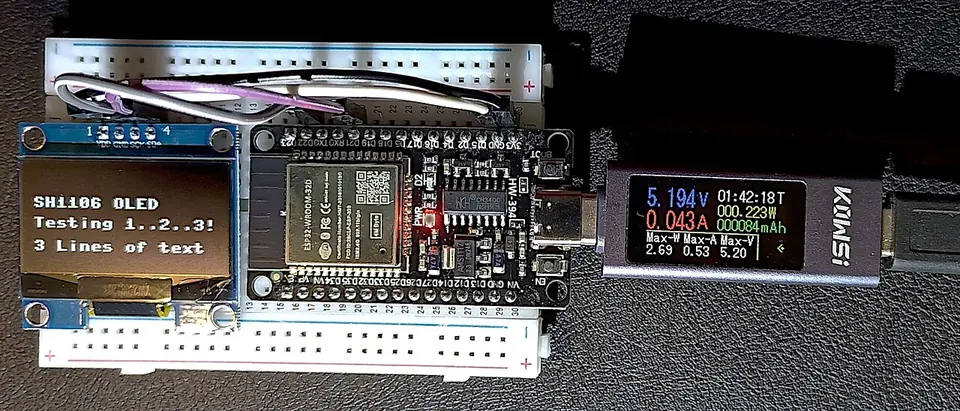
\2A typical ESP32 development board, the kind used to drive an ST7789 LCD over SPI. Image: Edwiyanto, CC BY-SA 4.0, via Wikimedia Commons
Step 1: How do I set up the SPI bus for the ST7789?
The ST7789 is attached through an SPI master bus. The ESP-IDF driver supports plain SPI, Quad SPI and Octal SPI (the latter simulates Intel 8080 timing).
- Define your pin macros for SCLK, MOSI and (optionally) MISO.
- Fill in
spi_bus_config_t. The quad pins are set to-1because a standard ST7789 module does not use them. - Set
max_transfer_szlarge enough for the biggest transfer you plan to send. The reference example budgets 80 lines of RGB565 pixels per transaction. - Call
spi_bus_initializewithSPI_DMA_CH_AUTOso DMA is enabled.
spi_bus_config_t buscfg = {
    .sclk_io_num = EXAMPLE_PIN_NUM_SCLK,
    .mosi_io_num = EXAMPLE_PIN_NUM_MOSI,
    .miso_io_num = EXAMPLE_PIN_NUM_MISO,
    .quadwp_io_num = -1,
    .quadhd_io_num = -1,
    .max_transfer_sz = EXAMPLE_LCD_H_RES * 80 * sizeof(uint16_t),
};
ESP_ERROR_CHECK(spi_bus_initialize(LCD_HOST, &buscfg, SPI_DMA_CH_AUTO));
LCD_HOST is the SPI host you choose for the display. EXAMPLE_LCD_H_RES is the horizontal resolution of your panel; the docs do not fix a value, so take it from your module's spec. Because the size calculation uses sizeof(uint16_t), it assumes 16-bit RGB565 pixels, which lines up with the bits_per_pixel = 16 setting used later.
Step 2: How do I attach the ST7789 as an SPI IO device?
Next, allocate an LCD IO handle on the bus. This layer knows how to toggle the DC line between command and data and how to clock bytes out.
- Set
dc_gpio_numto the GPIO wired to the module's DC pin (some datasheets call it RS). - Set
cs_gpio_numto the chip-select GPIO. If the ST7789 is the only device on this SPI bus, you may use-1to hold the bus exclusively. - Set
pclk_hzto a pixel clock that stays inside the range your LCD spec recommends. - Set
lcd_cmd_bitsandlcd_param_bitsto the widths your controller expects; these are chip-specific values you should take from the ST7789 documentation, not guess. - Keep
spi_mode = 0as in the reference example andtrans_queue_depth = 10.
esp_lcd_panel_io_handle_t io_handle = NULL;
esp_lcd_panel_io_spi_config_t io_config = {
    .dc_gpio_num = EXAMPLE_PIN_NUM_LCD_DC,
    .cs_gpio_num = EXAMPLE_PIN_NUM_LCD_CS,
    .pclk_hz = EXAMPLE_LCD_PIXEL_CLOCK_HZ,
    .lcd_cmd_bits = EXAMPLE_LCD_CMD_BITS,
    .lcd_param_bits = EXAMPLE_LCD_PARAM_BITS,
    .spi_mode = 0,
    .trans_queue_depth = 10,
};
ESP_ERROR_CHECK(esp_lcd_new_panel_io_spi((esp_lcd_spi_bus_handle_t)LCD_HOST, &io_config, &io_handle));
Two optional fields are worth knowing about: cs_ena_pretrans and cs_ena_posttrans set how many SPI bit-cycles CS is asserted before and after a transfer (0-16 each). You normally leave them at default, but they are the knobs to reach for if a particular module needs extra CS setup or hold time.
A larger trans_queue_depth lets more transactions wait in line, at the cost of memory. Ten is the value the docs use and is a sensible starting point.
Step 3: How do I install the ST7789 panel driver?
With the IO handle in place, install the ST7789 controller driver. This is the part that actually understands ST7789 commands and parameters.
- Set
reset_gpio_numto the GPIO wired to the module's RST pin, or-1if your module has no reset line. - Set
rgb_ele_order. The SPI reference usesLCD_RGB_ELEMENT_ORDER_BGR; the I80 reference usesLCD_RGB_ELEMENT_ORDER_RGB. Pick the one that matches your module. - Set
bits_per_pixel = 16. The driver uses this to compute how many bytes to send per pixel. - Call
esp_lcd_new_panel_st7789and keep the returnedpanel_handle.
esp_lcd_panel_handle_t panel_handle = NULL;
esp_lcd_panel_dev_config_t panel_config = {
    .reset_gpio_num = EXAMPLE_PIN_NUM_RST,
    .rgb_ele_order = LCD_RGB_ELEMENT_ORDER_BGR,
    .bits_per_pixel = 16,
};
ESP_ERROR_CHECK(esp_lcd_new_panel_st7789(io_handle, &panel_config, &panel_handle));
There is also a data_endian field in esp_lcd_panel_dev_config_t. It specifies the byte order sent to the screen for multi-byte colour formats; for single-byte formats like RGB232 it is unnecessary, and drivers that do not support it ignore the field.
At this point the stack is complete: SPI bus, IO device, ST7789 panel. Every subsequent drawing operation goes through panel_handle.
How do I verify the ST7789 example is working?
The example wraps every call in ESP_ERROR_CHECK, which is your first verification tool. If any step fails, the firmware aborts and prints the failing expression and error code on the serial console, so a clean boot with no abort means the bus, IO device and panel driver were all created successfully.
A practical checklist:
| Check | What success looks like |
|---|---|
| Build | Compiles with no missing-symbol errors for esp_lcd_new_panel_st7789 |
| Boot log | No ESP_ERROR_CHECK abort after spi_bus_initialize, esp_lcd_new_panel_io_spi or esp_lcd_new_panel_st7789 |
| Colours | Red and blue appear where you expect; if they are swapped, flip rgb_ele_order between RGB and BGR |
| Stability | No flicker or tearing; if present, reduce pclk_hz toward what the LCD spec allows |
If the init passes but the screen stays blank, re-check the DC and CS wiring against the macros you defined, and confirm reset_gpio_num matches your RST pin (or is -1 if there is none). Wrong lcd_cmd_bits/lcd_param_bits also lead to a panel that initializes without errors on the ESP32 side yet shows nothing, because the controller misreads every command.
What are the most common mistakes with ESP32 and ST7789?
Guessing pin numbers. The docs deliberately use EXAMPLE_PIN_NUM_* placeholders. Copying them without defining your own values will not compile, and inventing values without checking your wiring is the top cause of a dead screen.
Pixel clock too high. pclk_hz must stay within the range your LCD spec recommends. On the parallel I80 bus there are additional guidelines: below 80 MHz for an 8-bit bus and below 40 MHz for a 16-bit bus. Pushing past this causes flicker or corrupt images.
Wrong colour order. Some ST7789 modules want BGR, others RGB. The two ESP-IDF references even differ from each other on this. Swapped red/blue is a config issue, not a wiring fault.
Undersized transfer buffer. max_transfer_sz caps how much you can send per SPI transaction. The reference budgets 80 lines of RGB565; if you later push bigger blocks, size this accordingly.
Forgetting DMA. Pass SPI_DMA_CH_AUTO to spi_bus_initialize. Without DMA you lose the throughput the driver is designed around.
Mismatched command and parameter widths. lcd_cmd_bits and lcd_param_bits are chip-specific. Take them from the ST7789 spec rather than from a different panel's example.
Unnecessary CS pin. If the ST7789 is alone on the bus, cs_gpio_num = -1 is valid and frees a GPIO. Conversely, if you share the bus with another device, you must wire and configure CS.
Can I use ST7789 over a parallel bus or with Arduino instead?
Intel 8080 parallel (I80). Some ST7789 modules expose an 8- or 16-bit parallel interface. ESP-IDF supports this through esp_lcd_new_i80_bus, and the final step is identical: esp_lcd_new_panel_st7789 on an I80 IO handle. The bus config needs a wr_gpio_num (pixel clock, WR), dc_gpio_num (RS), a data_gpio_nums array whose length equals bus_width, and max_transfer_bytes. The I80 reference budgets 100 lines of RGB565 per transaction.
esp_lcd_i80_bus_config_t bus_config = {
    .clk_src = LCD_CLK_SRC_DEFAULT,
    .dc_gpio_num = EXAMPLE_PIN_NUM_DC,
    .wr_gpio_num = EXAMPLE_PIN_NUM_PCLK,
    .data_gpio_nums = { EXAMPLE_PIN_NUM_DATA0, /* ... */ EXAMPLE_PIN_NUM_DATA7 },
    .bus_width = 8,
    .max_transfer_bytes = EXAMPLE_LCD_H_RES * 100 * sizeof(uint16_t),
};
ESP_ERROR_CHECK(esp_lcd_new_i80_bus(&bus_config, &i80_bus));
The I80 IO config adds dc_levels (idle, command, dummy and data levels for the DC line) alongside the usual cs_gpio_num, pclk_hz, lcd_cmd_bits and lcd_param_bits.
FabGL (Arduino). If you prefer the Arduino environment, FabGL is an ESP32 graphics library that includes SPI display drivers and has a demo running a TFT ST7789 240x240 alongside an ILI9341 and an SSD1306 OLED. It bundles fonts, sprites, a GUI with windows and widgets, and a sound engine. Two caveats from its README: it requires ESP32 revision 1 or later, and the latest Espressif ESP32 Arduino core it runs on is 2.0.17 or earlier, because newer cores leave too little free memory for a library of that size. It is GPL v3, with commercial licensing available on request.
| Approach | Best for |
|---|---|
| ESP-IDF esp_lcd over SPI | Standard ST7789 modules, full control, modern IDF |
| ESP-IDF esp_lcd over I80 | Parallel-interface ST7789 modules needing higher bandwidth |
| FabGL | Arduino users wanting GUI, fonts and demos out of the box, on an older core |
Frequently asked questions
Which function creates the ST7789 panel in ESP-IDF?
esp_lcd_new_panel_st7789(io_handle, &panel_config, &panel_handle). It works with either an SPI or an I80 IO handle.
Do I need a CS pin for the ST7789 on ESP32?
Only if other devices share the SPI bus. If the display is alone, set cs_gpio_num to -1 to occupy the bus exclusively.
Why are red and blue swapped on my ST7789?
The rgb_ele_order setting does not match your module. Switch between LCD_RGB_ELEMENT_ORDER_RGB and LCD_RGB_ELEMENT_ORDER_BGR.
What pixel clock should I use?
The docs do not give a fixed number for SPI; stay within your LCD spec. For I80, keep below 80 MHz on an 8-bit bus and below 40 MHz on a 16-bit bus.
Can I run an ST7789 with FabGL on Arduino?
Yes, FabGL supports SPI displays including a 240x240 ST7789 demo, but it needs ESP32 Arduino core 2.0.17 or earlier and ESP32 revision 1 or later.
For most makers, the ESP-IDF esp_lcd three-layer flow (SPI bus, IO device, esp_lcd_new_panel_st7789) is the most reliable ESP32 ST7789 example to build on. Define your own pin macros, take command widths and colour order from your module's spec, and let ESP_ERROR_CHECK tell you when something is off. Reach for I80 only if your panel has a parallel interface, and for FabGL only if you are committed to an older Arduino core.
Sources
github.comI80 Interfaced LCD (esp-idf docs)github.comSPI Interfaced LCD (esp-idf docs)github.comfdivitto/FabGL (GitHub README)This guide summarises the public sources listed above in our own words. Check the original documentation before relying on exact figures.