ESP-IDF Examples: How to Find, Build, and Run Them
What do you need before running ESP-IDF examples?
Before any example will build, three things must be in place.
First, ESP-IDF itself must be installed. The framework is standalone — it is not bundled inside your project. Instead, your project finds it through the IDF_PATH environment variable, which points to the directory where ESP-IDF lives on your machine.
Second, your system needs Python 3.11 or later. The idf.py command-line tool and other helper scripts depend on it.
Third, and most importantly, you must activate the ESP-IDF environment in the terminal you plan to use. On Windows, navigate to your ESP-IDF installation folder and run:
.\export.bat
On Linux or macOS the equivalent is export.sh. This step loads the compiler toolchain, idf.py, and all supporting tools onto your PATH. If you skip it and use a plain terminal, builds will fail with confusing errors about missing commands — the most common stumbling block reported by new users.
| Requirement | Detail |
|---|---|
| Python | 3.11 or later |
| IDF_PATH | Set automatically by export.bat / export.sh |
| Serial driver | Required to flash firmware over USB |
| Shell | Bash-compatible recommended; plain Windows CMD has limitations |
 \2
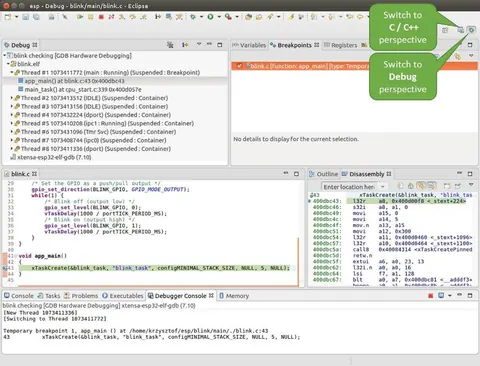
\2A ninja build failure in ESP-IDF — typically caused by missing environment activation or misconfigured linker flags
Where are ESP-IDF examples and how are they organized?
Every ESP-IDF installation includes a large library of ready-to-run projects. They all live under ${IDF_PATH}/examples. A few directories worth knowing immediately:
${IDF_PATH}/examples/get-started/hello_world— the classic first project. It prints "Hello world!" over the serial monitor and is the example referenced throughout the official ESP-IDF getting-started documentation.${IDF_PATH}/examples/bluetooth/gatt_server_service_table— a Bluetooth Low Energy example demonstrating how to define a GATT server with services and characteristics.
Beyond examples, Espressif also keeps test applications in two additional locations: ${IDF_PATH}/tools/test_apps and ${IDF_PATH}/components/<COMPONENT_NAME>/test_apps. These are used for internal framework testing and are less relevant for everyday project work.
To see every chip target that your installed version of ESP-IDF supports, run:
idf.py --list-targets
This matters when you pick an example, because some examples are written for specific chip variants. You can also pass --preview to that command to see targets that are still in an early-access state.
 \2
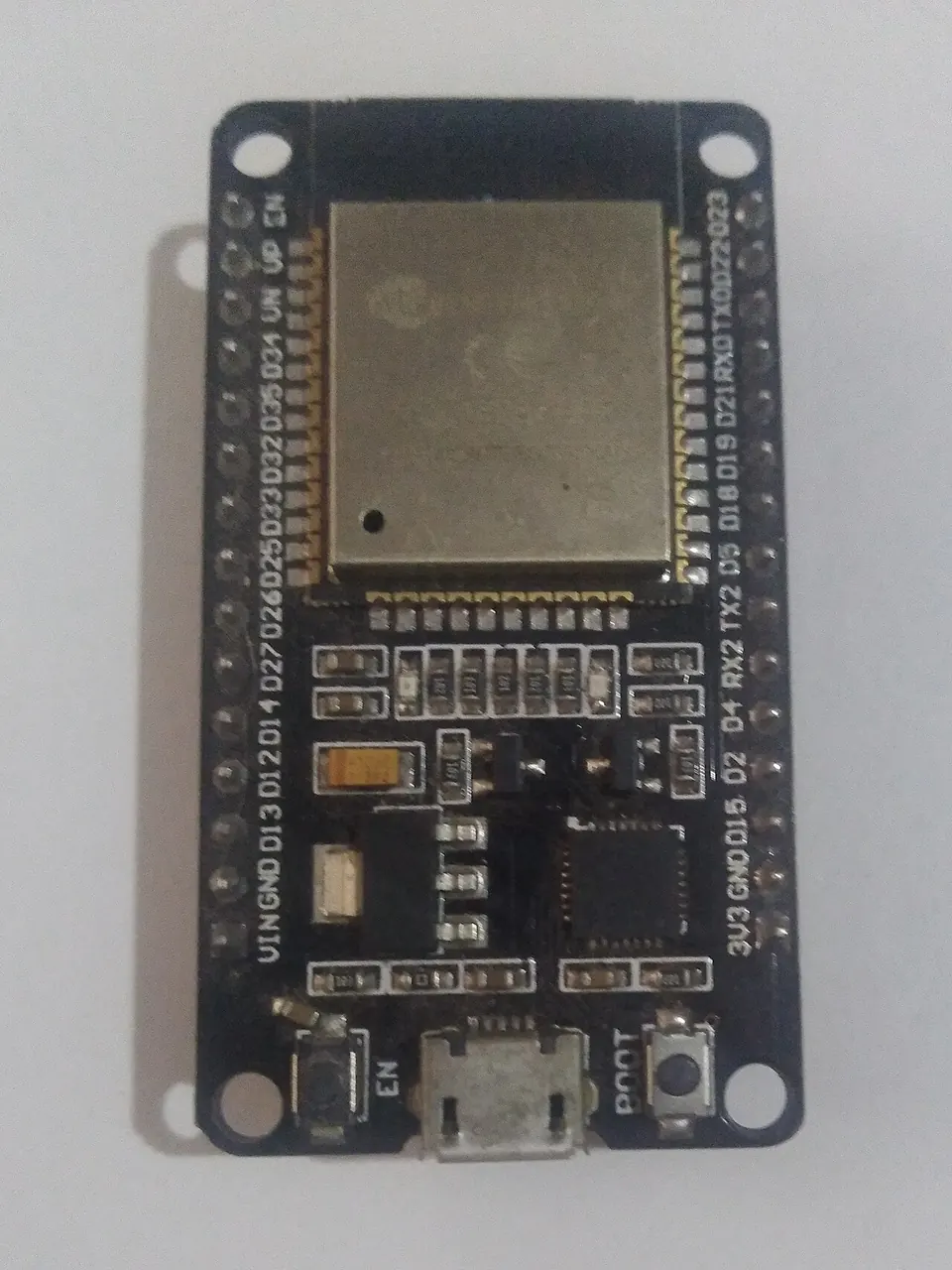
\2An ESP32 development board, the target hardware for running ESP-IDF example projects Image: Edwiyanto, CC BY-SA 4.0, via Wikimedia Commons
How do I build an ESP-IDF example step by step?
All ESP-IDF examples use the same build tool: idf.py. Internally it coordinates three separate programs — CMake (reads CMakeLists.txt and generates build files), Ninja (compiles and links), and esptool (flashes the chip). You never need to invoke those three programs directly.
Here is the full sequence for hello_world:
-
Open a terminal and activate the environment:
.\export.bat(Linux/macOS:
source export.sh) -
Change into the example directory:
cd $IDF_PATH/examples/get-started/hello_world -
(Optional) Review or change project settings through the text-based menu:
idf.py menuconfigEvery project stores its configuration in a file called
sdkconfigin the project root. This file is generated — always change it throughmenuconfig, never by editing it by hand. -
Build the project:
idf.py buildThe first build is the slowest because CMake configures everything from scratch. On later builds, Ninja only recompiles files that changed.
-
To speed up compilation on a multi-core machine, pass the
-jflag:idf.py -j 6 buildYou can also set this persistently with an environment variable so every build uses it automatically:
IDF_PY_BUILD_JOBS=6 idf.py build
A successful build produces the firmware binary and a summary of its size.
 \2
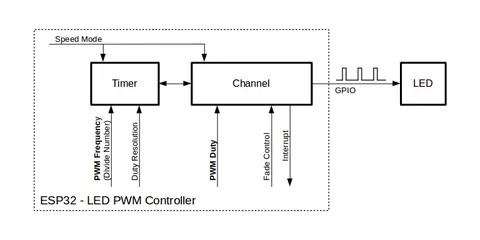
\2Espressif ESP-WROOM-32 Wi-Fi and Bluetooth module, the core chip targeted by most ESP-IDF examples Image: Brian Krent, CC BY-SA 4.0, via Wikimedia Commons
How do I flash an ESP-IDF example to my ESP32 board?
Once the build succeeds, write the firmware to the board. You can do this through Ninja or Make targets directly rather than through idf.py.
Using a Ninja flash target (Linux/macOS):
ninja flash
If you need to specify which serial port to use:
ESPPORT=/dev/ttyUSB0 ninja flash
Setting an environment variable at the start of a command like this is Bash syntax. It works on Linux and macOS but not in Windows Command Prompt. On Windows with Make:
make app-flash ESPPORT=COM4 ESPBAUD=2000000
Three flash targets let you control exactly what gets written to the chip:
| Target | What it writes |
|---|---|
flash |
Full image: bootloader + app + partition table |
app-flash |
Application binary only |
bootloader-flash |
Bootloader only |
For iterative development, app-flash is the fastest option — it skips re-writing the bootloader and partition table, which rarely change.
How do I verify an ESP-IDF example is running correctly?
After flashing, open a serial monitor and watch the output from the board. For the hello_world example, you should see the string Hello world! appear in the terminal.
If you want to automate verification, ESP-IDF uses the pytest framework. A test script placed alongside the project can check for expected serial output programmatically. For hello_world the check looks like this:
def test_hello_world(dut) -> None:
    dut.expect('Hello world!')
The dut.expect() call blocks until the string appears in the serial output or a timeout is reached. This is how Espressif's own continuous integration confirms that examples still work after code changes.
To install the dependencies needed to run these pytest-based tests locally:
install.sh --enable-ci
For additional test-specific dependencies:
install.sh --enable-test-specific
A project that includes a pytest script typically has this layout:
my_app/
  main/
  CMakeLists.txt
  pytest_foo.py
What are the most common mistakes when running ESP-IDF examples?
1. Not activating the ESP-IDF environment before building
This is the top cause of mysterious build failures. Opening a plain terminal and running idf.py build will fail because the compiler toolchain is not on your PATH. Run export.bat (Windows) or source export.sh (Linux/macOS) at the start of every new terminal session.
2. Using Windows Command Prompt instead of a Bash-compatible shell
Syntax like ESPPORT=/dev/ttyUSB0 ninja flash is Bash-only. It will not work in Command Prompt. Either switch to a Bash-compatible shell on Windows or set the variable using the set command before running the build tool.
3. Editing sdkconfig by hand
The sdkconfig file in your project root is auto-generated by the build system. Editing it manually can leave it in an inconsistent state. Always use idf.py menuconfig to modify project settings.
4. Linker errors when porting code from other platforms
If you bring in code originally written for the ESP8266 RTOS SDK or another toolchain and try to link it against ESP-IDF without using idf.py, you can encounter dangerous relocation errors or an undefined main symbol. ESP-IDF does not link against the standard C library by default, and its build expectations differ from a plain GCC workflow. Stick to the idf.py build workflow.
5. Building for the wrong target chip
An example compiled for one ESP32 variant will not run correctly on a different one. Run idf.py --list-targets before building to confirm you are targeting the right chip.
Frequently asked questions
Where exactly are ESP-IDF examples stored on my machine?
Under ${IDF_PATH}/examples. Additional test applications sit in ${IDF_PATH}/tools/test_apps and ${IDF_PATH}/components/<COMPONENT_NAME>/test_apps, but those are primarily for internal framework testing.
What Python version does ESP-IDF require?
Python 3.11 or later. The idf.py tool and other scripts depend on it.
How can I make ESP-IDF builds faster?
Pass the -j flag with the number of parallel jobs: idf.py -j 6 build. You can also set the IDF_PY_BUILD_JOBS environment variable to apply it to every build automatically.
Why does my ESP-IDF build fail immediately with command-not-found errors on Windows?
You likely opened a plain terminal rather than running .\export.bat from the ESP-IDF installation folder first. That script loads the toolchain and idf.py onto your PATH.
Can I run ESP-IDF example tests without physical hardware?
Yes, for targets that support it. In the pytest test script, set the target parameter to 'linux' and the idf embedded services are selected automatically, allowing the test to run on the host machine.
ESP-IDF's examples directory is the fastest route from an empty ESP32 board to working, production-quality firmware — every major peripheral and protocol has a reference project you can build and flash in a handful of commands. The single most important habit to build is activating the ESP-IDF environment before touching the build system; almost every confusing error traces back to skipping that step. Once that is routine, idf.py build and the Ninja flash targets handle everything else consistently across Linux, macOS, and Windows.
Sources
github.comESP-IDF Tests with Pytest Guide (esp-idf docs)github.comBuild System (esp-idf docs)stackoverflow.comESP-IDF v3.0 Bluetooth gatt server example or help using multiple services?stackoverflow.comHow to properly set linker flags on esp-idf projectselectronics.stackexchange.comESP-IDF ninja: build stopped: subcommand failed. ninja failed with exit code 1This guide summarises the public sources listed above in our own words. Check the original documentation before relying on exact figures.