ESP32 TFT Display Example: Step-by-Step Setup Guide
What do you need before starting?
Gather everything before touching a wire — mismatched parts are the leading cause of a blank screen on first boot.
Hardware checklist
- An ESP32, ESP32-S3, or ESP32-P4 development board. For projects that combine a TFT with audio decoding, SD card access, or a web interface, the ESP32-S3 with at least 8 MB of flash and 4 MB of PSRAM is the recommended starting point. Simpler display-only sketches run on a standard ESP32 board.
- A TFT display module with a supported controller. The most broadly tested are the ILI9341 (320×240 px), ILI9486 (480×320 px), ILI9488 (480×320 px), and ST7796 (480×320 px), all communicating over SPI. Larger RGB panels (800×480) and DSI panels (1024×600) exist but require an ESP32-S3 or ESP32-P4 with the matching peripheral.
- Jumper wires or a breakout PCB.
- A USB cable for programming.
Software checklist
- PlatformIO is the recommended IDE for ESP32 display projects. It handles library dependencies more reliably than the Arduino IDE for complex builds that layer display, audio, and network libraries together.
- The Adafruit TFT display driver library, which provides full SPI support for ESP32.
- ESP32 Arduino core (PlatformIO installs this automatically; in the Arduino IDE you add it through the boards manager).
One decision to make now: SPI or 8-bit parallel? SPI needs fewer wires and has library support ready to go. Parallel is faster but has no ready-made ESP32 library — you write the data bus yourself. If you are running your first ESP32 TFT display example, choose SPI.
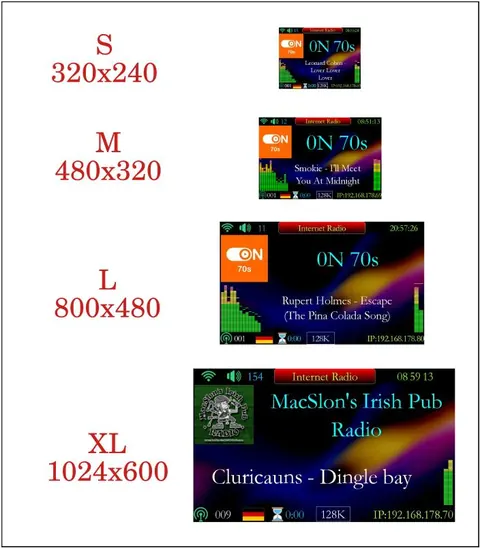 \2
\2Display size comparison from the MiniWebRadio project showing SPI TFT modules supported by ESP32-S3.
SPI or 8-bit parallel: which interface should you pick?
Both interfaces appear on common TFT modules. The right choice depends on how much display bandwidth you actually need.
| Feature | SPI | 8-bit parallel |
|---|---|---|
| Data pins needed | ~4–5 | 8 data + control lines |
| ESP32 library support | Full (Adafruit) | None — manual GPIO code required |
| Display throughput | Moderate | Higher |
| Wiring complexity | Low | Higher |
| Good for first project | Yes | No |
SPI is the right choice for nearly every starting project. The Adafruit library abstracts away all the bus signalling, so your sketch focuses on drawing text and shapes rather than toggling pins.
8-bit parallel is worth the effort when you need to push a full 480×320 framebuffer at high speed — for example, a live video overlay or a rapidly animating UI. The trade-off is that you must implement the parallel write and read functions yourself, since the Adafruit TFT driver for ESP32 does not include parallel mode. The approach for doing that is covered in the GPIO section below.
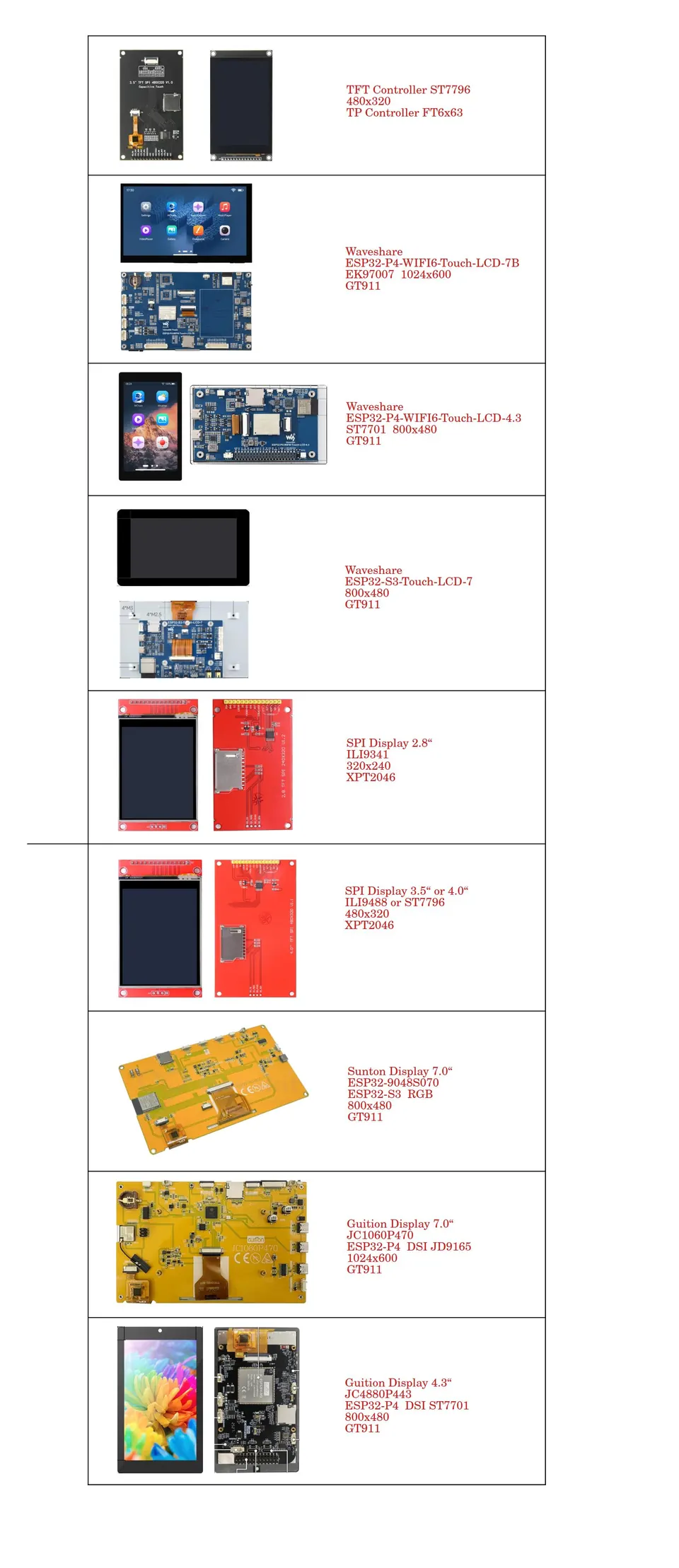 \2
\2Tested TFT display modules confirmed working with the ESP32-S3 MiniWebRadio firmware over SPI.
How do you wire a TFT display to an ESP32?
SPI TFT modules expose a consistent set of signals regardless of which controller chip is inside. Wire them to the ESP32's SPI peripheral.
A few things to confirm before powering on:
- Logic voltage: ESP32 GPIO pins operate at 3.3 V. Verify your module runs at 3.3 V logic. Some modules include an onboard level shifter; others connect directly and are not 5 V tolerant.
- Shared SPI bus: If your TFT module has an SD card slot on the back, the card and the display share the same SPI clock and data lines. Each device gets its own chip-select pin. The same applies to a touch controller on the same module.
- Power supply: Powering a display plus SD card plus touch panel from the ESP32's 3.3 V pin can cause brownouts. Use the board's main regulated supply rail when possible.
- Backlight pin: Many modules expose a backlight-enable or PWM pin. Connect it to a GPIO if you want software brightness control; tie it high through a resistor if you just need the display always on.
Separate wiring schematics exist for the ESP32-S3 with SPI displays, the ESP32-P4 with SPI displays, and both chips with RGB and DSI panels — the pin assignments differ between chip families, so use the schematic for your specific board.
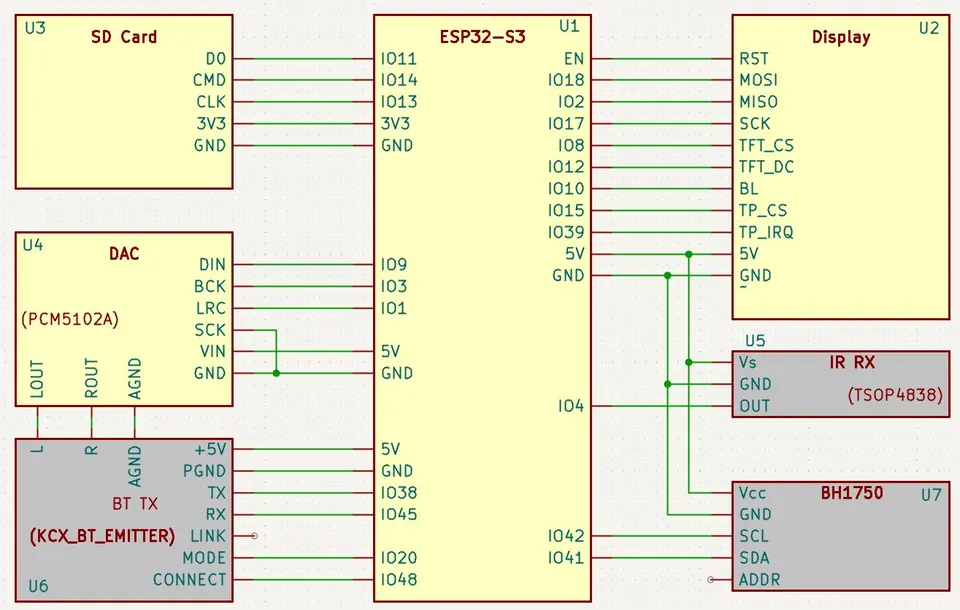 \2
\2SPI TFT wiring schematic for the ESP32-S3 — the display controller, DAC, and SD card all share the SPI bus with separate chip-select lines.
How do you configure GPIO pins for the 8-bit parallel interface in code?
The ESP32 does not have Arduino-style port registers (DDRB, PORTB, PINB). Instead, use the gpio_config struct for direction and gpio_set_level / gpio_get_level for state. Here is the complete pattern from the source.
Step 1 — Define a software register variable and map pins to readable names:
unsigned char disp_register;
#define REGISTER_BIT7_ON_PIN        9
#define REGISTER_BIT6_ON_PIN        10
#define REGISTER_BIT5_ON_PIN        5
// continue with all the pins you need
Step 2 — Configure all data pins as outputs at startup:
io_conf.intr_type = GPIO_PIN_INTR_DISABLE;
io_conf.mode = GPIO_MODE_OUTPUT;
io_conf.pull_down_en = GPIO_PULLDOWN_DISABLE;
io_conf.pull_up_en = GPIO_PULLUP_DISABLE;
io_conf.pin_bit_mask =  ((1ULL<< REGISTER_BIT7_ON_PIN) | (1ULL<< REGISTER_BIT6_ON_PIN) | (1ULL<< REGISTER_BIT5_ON_PIN)); // of course, do like this all the pins
gpio_config(&io_conf);

gpio_set_level(REGISTER_BIT7_ON_PIN, 0); // do like this all the pins you need to set the boot-up value, pin-by-pin
Step 3 — Write a byte to the display using a copy function:
void copy_register_to_GPIO_pins(unsigned char disp_register)
{
    gpio_set_level(REGISTER_BIT7_ON_PIN, (disp_register & 0x80) >> 7);
    gpio_set_level(REGISTER_BIT6_ON_PIN, (disp_register & 0x40) >> 6);
    gpio_set_level(REGISTER_BIT5_ON_PIN, (disp_register & 0x20) >> 5);
    gpio_set_level(REGISTER_BIT4_ON_PIN, (disp_register & 0x10) >> 4);
    gpio_set_level(REGISTER_BIT3_ON_PIN, (disp_register & 0x08) >> 3);
    gpio_set_level(REGISTER_BIT2_ON_PIN, (disp_register & 0x04) >> 2);
    gpio_set_level(REGISTER_BIT1_ON_PIN, (disp_register & 0x02) >> 1);
    gpio_set_level(REGISTER_BIT0_ON_PIN, (disp_register & 0x01));
}
To send a value to the display:
disp_register = 0x2A; // example value you want to send to display
copy_register_to_GPIO_pins(disp_register);

// or, output byte WITHOUT using any register:
copy_register_to_GPIO_pins(0x2A);
Step 4 — Read a byte back from the display. Switch the pins to input mode first. The source provides this read function (the source listing ends before the closing brace, so add your own return and closing brace):
unsigned char copy_GPIO_pins_to_register(void)
{
    unsigned char retval = 0;

    retval |= gpio_get_level(REGISTER_BIT7_ON_PIN);
    retval = retval << 1;
    retval |= gpio_get_level(REGISTER_BIT6_ON_PIN);
    retval = retval << 1;
    retval |= gpio_get_level(REGISTER_BIT5_ON_PIN);
    retval = retval << 1;
    retval |= gpio_get_level(REGISTER_BIT4_ON_PIN);
    retval = retval << 1;
    retval |= gpio_get_level(REGISTER_BIT3_ON_PIN);
    retval = retval << 1;
    retval |= gpio_get_level(REGISTER_BIT2_ON_PIN);
    retval = retval << 1;
    retval |= gpio_get_level(REGISTER_BIT1_ON_PIN);
    // source listing ends here
}
 \2
\2A 13.3-inch TFT LCD module with LED backlight; smaller panel variants using the same TFT technology (ILI9341, ILI9486) are the type connected to ESP32 over SPI. Image: Raimond Spekking, CC BY-SA 4.0, via Wikimedia Commons
How do you verify the display is working?
Work through these checks in order before assuming a hardware fault.
- Backlight on? If the backlight does not illuminate at all, the problem is power or ground, not the SPI signals. Fix power first.
- Blank white screen? The display has power but received no valid initialisation sequence. Recheck MOSI, SCLK, CS, and DC connections, and confirm the chip-select pin in your library settings matches the physical wiring.
- Scrambled or partial image? The controller driver in the library does not match the actual panel. The ILI9341, ILI9486, ILI9488, and ST7796 all use different initialisation sequences and are not interchangeable. Identify your panel's controller chip and select the matching driver.
- Image correct but upside-down or mirrored? Most libraries expose a rotation method accepting values 0 through 3. Adjust until the orientation matches your physical mounting.
- Image correct but slow to update? Over SPI, large framebuffers take longer to transfer. If throughput is the bottleneck, the 8-bit parallel interface (with manual GPIO code as described above) is the upgrade path.
What are the most common mistakes with ESP32 TFT display code?
These errors account for the majority of time lost during bring-up.
Using the wrong library for the interface. The Adafruit TFT library supports SPI on ESP32 but not 8-bit parallel. Attempting to use it in parallel mode will not work — you must write the GPIO data bus layer yourself.
Mixing up controller drivers. The ILI9341 (320×240) and ILI9486 (480×320) look physically similar as modules but require completely different initialisation sequences. Loading an ILI9341 sketch onto an ILI9486 panel produces a blank or incorrectly coloured screen every time.
Applying Arduino register syntax on ESP32. On ATmega boards you write DDRB, PORTB, PINB. The ESP32 does not expose GPIO that way. Use gpio_config for pin direction and gpio_set_level / gpio_get_level for state — or access the ESP32 GPIO registers directly if performance demands it.
Insufficient RAM for the framebuffer. A 480×320 display at 16-bit colour needs roughly 300 KB for a full framebuffer. Standard ESP32 internal SRAM is not enough for that. For any project using 480×320 or larger panels, use an ESP32-S3 board with at least 4 MB of PSRAM.
SD card SPI conflicts. When an SD card and a TFT panel share a SPI bus (common on combo modules), both devices must have separate chip-select lines and the SPI frequency must be tuned carefully. SD cards can operate at up to 40 MHz in tested designs, but a frequency mismatch between the card and the display driver causes intermittent read errors.
What ESP32 TFT display projects can you build after the basics?
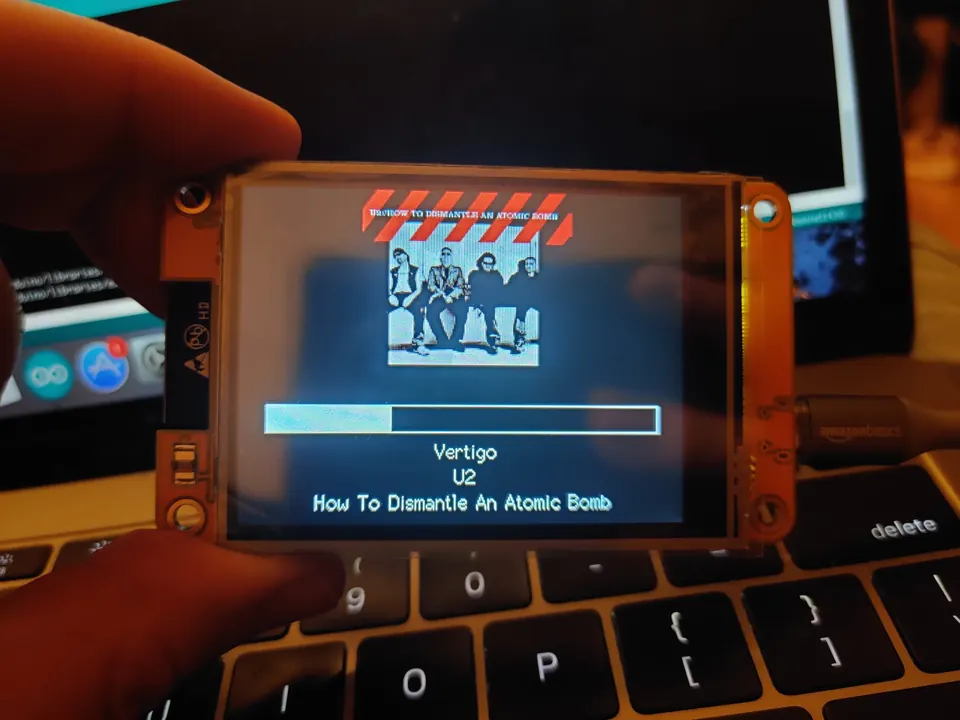
A practical reference for what is achievable is the MiniWebRadio project, which combines an ESP32-S3 with a SPI TFT touchscreen to produce a fully self-contained internet radio with no physical buttons beyond the touchscreen itself. Its feature set illustrates the realistic scope of an ESP32 with TFT display:
- Live internet radio with station name and metadata on the TFT
- MP3, AAC, FLAC, Opus, and Vorbis playback from SD card or DLNA network
- NTP-synchronised digital clock with user-configurable time zone
- Alarm and sleep timer set directly on the touchscreen
- Per-station icons displayed on screen when saved to SD card
- Adjustable backlight brightness when the display module exposes a backlight pin
- Web UI mirroring the display, accessible from any browser on the local network
- IR remote control support for hands-free operation
- Latin, Greek, and Cyrillic character set support
The project uses PlatformIO as the build environment. Compatible display controllers are ILI9341, ILI9486, ILI9488, and ST7796 over SPI, as well as RGB (800×480) and DSI (1024×600) panels on appropriate hardware. No rotary encoders, switches, or passive components beyond the core SPI wiring are required.
Frequently asked questions
Which TFT controllers are confirmed to work with ESP32?
The ILI9341 (320×240 px), ILI9486 (480×320 px), ILI9488 (480×320 px), and ST7796 (480×320 px) are confirmed working over SPI. RGB panels at 800×480 and DSI panels at 1024×600 are supported on ESP32-S3 and ESP32-P4 with the appropriate peripherals.
Does the Adafruit TFT library support 8-bit parallel mode on ESP32?
No. The Adafruit library covers SPI on ESP32 but not 8-bit parallel. For parallel mode you must implement the GPIO data bus yourself using gpio_config and gpio_set_level.
How much PSRAM does an ESP32 TFT display project need?
For demanding projects with 480×320 or larger displays — especially those combining display, audio, and networking — at least 4 MB of PSRAM is recommended. Simpler SPI display sketches can run on standard ESP32 boards without PSRAM.
Why can't I use DDRB and PORTB on ESP32 like on Arduino?
The ESP32 GPIO architecture does not expose Arduino-style port registers. Use gpio_config to set pin direction and gpio_set_level / gpio_get_level to control state, or write directly to the ESP32 GPIO hardware registers.
Which IDE is recommended for ESP32 TFT display projects?
PlatformIO is recommended, particularly for complex projects that combine a TFT display with audio decoding, SD card access, and network features.
Getting an ESP32 TFT display example running over SPI with the Adafruit library and an ILI9341, ILI9486, ILI9488, or ST7796 panel is a solid beginner project that scales into serious builds. For higher refresh rates the 8-bit parallel interface unlocks more throughput, but you must implement the GPIO data bus yourself since there is no ready-made parallel library for ESP32. For any project beyond a simple sketch — especially those mixing display, audio, and networking — the ESP32-S3 with at least 4 MB of PSRAM and PlatformIO as the IDE is the recommended foundation.
Sources
stackoverflow.comESP32 direct port manipulationgithub.comschreibfaul1/ESP32-MiniWebRadio (GitHub README)This guide summarises the public sources listed above in our own words. Check the original documentation before relying on exact figures.