ESP32 OLED Example: Display Text and Graphics Step-by-Step
What hardware and software do you need?
Gather everything before you start so you are not chasing missing parts mid-build.
Hardware
- An ESP32 development board. Any variant with I2C support will work.
- An OLED display module driven by an SSD1306 or SH1106 controller. The 128×64 pixel size is the most common; the ThingPulse library also supports 128×32, 64×48, and 64×32 panels.
- External pull-up resistors in the 2 kΩ–5 kΩ range if your OLED module does not already include them. The ESP-IDF documentation warns that the ESP32's internal pull-ups are not strong enough to reliably drive the I2C bus at higher clock speeds, so external resistors are the safer choice.
- Jumper wires and a breadboard.
Software
- Arduino IDE with the ESP32 board package installed, or PlatformIO.
- The ThingPulse library, listed in the Arduino Library Manager as "ESP8266 and ESP32 Oled Driver for SSD1306 display". It handles both SSD1306 and SH1106 controllers and supports I2C and SPI interfaces.
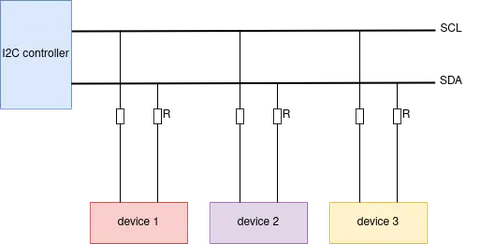 \2
\2I2C master bus-device architecture diagram for ESP32 peripheral communication
How do you connect the OLED to your ESP32?
I2C requires only two data lines. The ESP-IDF documentation describes them as bidirectional open-drain lines: SDA carries the data and SCL carries the clock.
| OLED pin | Connect to | Notes |
|---|---|---|
| VCC | 3.3 V | Verify your module's voltage rating |
| GND | GND | Common ground |
| SDA | ESP32 SDA pin | Varies by board |
| SCL | ESP32 SCL pin | Varies by board |
Pin assignments differ between boards. As a concrete example, the HTIT-WB32 ESP32 module uses GPIO 4 for SDA and GPIO 15 for SCL.
Pull-up resistors: The ESP-IDF I2C documentation recommends values between 2 kΩ and 5 kΩ. The guidance there notes that larger resistors reduce current and slow down clock transitions, which cuts the achievable frequency. A smaller value in that range is preferable when running at 400 kHz.
Reset pin: Some ESP32 OLED boards expose a dedicated display reset line. On the HTIT-WB32 that pin is GPIO 16, and it must be driven HIGH at startup. Without that step the display does not appear on the I2C bus at all, and a scan will return an empty list even when every other connection is correct.
 \2
\2I2C master write operation sequence diagram
How do you install the ESP32 OLED library?
Arduino Library Manager
- Open the Library Manager in the Arduino IDE (Sketch → Include Library → Manage Libraries).
- Search for
ESP8266 and ESP32 Oled Driver for SSD1306 display. - Click Install.
PlatformIO
Run this command inside your project directory:
platformio lib install 2978
Library ID 2978 is the ThingPulse SSD1306/SH1106 driver in the PlatformIO registry. The library also supports an alternative I2C back-end — the BRZO I2C library written in assembler — and an SPI path for display modules that expose a chip-select line instead of I2C.
 \2
\2I2C master read operation sequence diagram
How do you write the ESP32 OLED example code?
The ThingPulse library centres on a display object you create at the top of your sketch. Pass the I2C address and your SDA/SCL pin identifiers to the constructor:
#include <Wire.h>
#include "SSD1306Wire.h"

// for 128x64 displays:
SSD1306Wire display(0x3c, SDA, SCL);  // ADDRESS, SDA, SCL
// for 128x32 displays:
// SSD1306Wire display(0x3c, SDA, SCL, GEOMETRY_128_32);  // ADDRESS, SDA, SCL, GEOMETRY_128_32 (or 128_64)
// for using 2nd Hardware I2C (if available)
// SSD1306Wire(0x3c, SDA, SCL, GEOMETRY_128_64, I2C_TWO); //default value is I2C_ONE if not mentioned
// By default SD1306Wire set I2C frequency to 700000, you can use set either another frequency or skip setting the frequency by providing -1 value
// SSD1306Wire(0x3c, SDA, SCL, GEOMETRY_128_64, I2C_ONE, 400000); //set I2C frequency to 400kHz
// SSD1306Wire(0x3c, SDA, SCL, GEOMETRY_128_64, I2C_ONE, -1); //skip setting the I2C bus frequency
Once you have the object, the library gives you primitives for individual pixels, lines between two coordinates, and filled or outlined rectangles. Text rendering supports left, right, and center alignment, a selectable font face, and automatic line-wrapping when you specify a maximum width in pixels.
For projects that need to cycle through multiple screens, the library includes a frame carousel: define each screen as a callback function, configure how long each frame stays visible and how long the animated transition takes, and the library handles cycling automatically, drawing one indicator dot per frame.
Custom fonts are generated by the web tool at http://oleddisplay.squix.ch. Pick a typeface family, style, and size, preview it in the browser, then copy the resulting array into a header file and include it in your sketch.
Boards with a built-in OLED — such as the Heltec WiFi Kit series — ship their own wrapper library. On those boards the display is activated by passing true as the first argument to Heltec.begin():
#include "heltec.h"
Heltec.begin(true /*DisplayEnable Enable*/, true /*Heltec.LoRa Disable*/, true /*Serial Enable*/, true /*PABOOST Enable*/, BAND /*long BAND*/);
 \2
\2I2C master combined write-then-read operation diagram
How do you verify the display is working?
Work through these checks in order before blaming the code.
1. I2C bus scan
Before flashing any display sketch, confirm the module is visible on the bus. In MicroPython:
from machine import I2C, Pin

i2c = I2C(sda=Pin(4), scl=Pin(15))
i2c.scan()
A result of [60] — decimal for 0x3c — means the display responded. An empty list [] means nothing was found; check your wiring, pull-up resistors, and reset pin before going further.
2. Run a library example
The ThingPulse library ships example sketches in its examples/ folder. Flash one and observe whether the expected output appears. This isolates whether the problem is in the hardware connection or in your own code.
3. Check the Serial Monitor baud rate
This does not affect the OLED directly, but it is a common source of confusion on boards where the display and a radio (such as LoRa) coexist. If your Serial Monitor shows garbled characters like ⸮⸮⸮⸮, the monitor's baud rate setting does not match the sketch. Heltec examples transmit at 115200 baud; the Arduino IDE's default is 9600. Change the combo box at the bottom of the Serial Monitor window.
What are common mistakes when working with an ESP32 OLED module?
Using the wrong I2C address
The ThingPulse examples use 0x3c, but some modules ship with 0x3d. Always run an I2C scan to confirm the actual address on your hardware before hardcoding anything.
Skipping external pull-up resistors The ESP-IDF documentation states that the ESP32's built-in pull-ups are not sufficient for reliable bus operation at higher clock speeds. If the display works intermittently or not at all, add 2 kΩ–5 kΩ resistors between SDA and 3.3 V, and between SCL and 3.3 V.
Ignoring the reset pin On boards like the HTIT-WB32, the OLED reset line (GPIO 16) starts low at power-on. The display will never respond on the I2C bus unless firmware drives that pin high first. This is one of the most common causes of an empty scan result on boards that have a dedicated reset signal.
Running the I2C clock above the recommended limit
The ESP-IDF I2C documentation caps master-mode SCL at 400 kHz. The ThingPulse library's default internal frequency is 700 kHz; if you see communication errors you can pass 400000 as the last constructor argument, as shown in the library's own comments. Dropping to 100 kHz (standard mode) is an option if 400 kHz still causes problems.
Mismatched display geometry
Instantiating a 128×64 object for a 128×32 panel — or vice versa — scrambles the pixel mapping. Always pass the GEOMETRY_ constant that matches your physical module.
Wrong driver for SH1106
The SSD1306 and SH1106 are pin-compatible but have different internal rendering pipelines. The ThingPulse library covers both, but you need to include SH1106Wire.h and use the corresponding constructor rather than SSD1306Wire.h if your module uses the SH1106 chip.
Frequently asked questions
What I2C address does an SSD1306 OLED use with the ESP32?
The ThingPulse library examples use 0x3c as the default address. Some modules are configured for 0x3d. Run an I2C scan to confirm which address your specific module responds to before writing it into your code.
Can I use SPI instead of I2C for an ESP32 OLED?
Yes. The ThingPulse library supports both I2C (via Wire.h or the BRZO I2C assembler library) and SPI. Use the SPI constructor variant and include the appropriate header when your module has a chip-select line instead of I2C pins.
Why does my MicroPython I2C scan return an empty list?
The most common reason on boards like the HTIT-WB32 is that the OLED reset pin (GPIO 16) has not been pulled high. Drive that pin high in code and the display appears at address 0x3c immediately. Also verify pull-up resistors are present on SDA and SCL.
How do I use the built-in OLED on a Heltec ESP32 board?
Include heltec.h and call Heltec.begin() with true as the first argument to enable the display. The Heltec library wraps the display initialisation so you do not need to manage the SSD1306 driver directly.
How do I create custom fonts for the ESP32 OLED library?
Use the web font generator at http://oleddisplay.squix.ch. Select a font family, style, and size, preview the result, then copy the generated array into a header file in your project and reference it in your sketch.
Getting an SSD1306 OLED running on an ESP32 is a realistic first I2C project: install the ThingPulse library, wire SDA and SCL with proper pull-up resistors, and the display responds at address 0x3c in most cases. The two things that catch beginners most often are a missing external reset-pin toggle on certain boards and a mismatched display geometry constant. Confirm the I2C address with a scan before touching display code and you will save yourself considerable debugging time.
Sources
github.comInter-Integrated Circuit (I2C) (esp-idf docs)stackoverflow.comHow to access OLED on HTIT-WB32 with Micropython through I2C?stackoverflow.comHow to read LoRa Messages in Serial monitor via heltec esp32github.comThingPulse/esp8266-oled-ssd1306 (GitHub README)This guide summarises the public sources listed above in our own words. Check the original documentation before relying on exact figures.