ESPAltherma: Monitor Your Daikin Heat Pump with ESP32
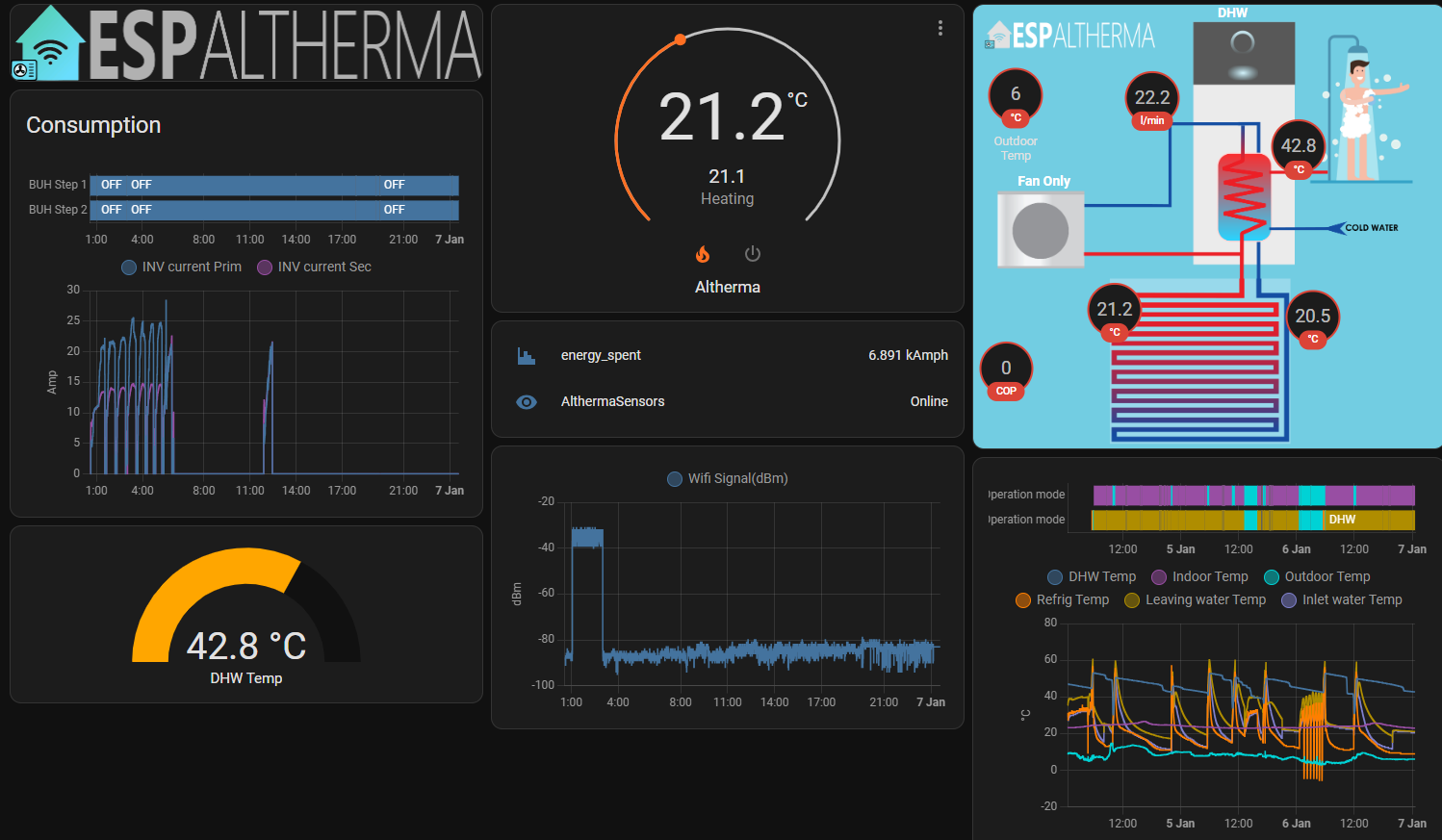
Home Assistant dashboard showing ESPAltherma sensor values and switch entities after MQTT auto-discovery
- ESP32
- ESP8266
- M5StickC
- M5StickCPlus
- Daikin Altherma heat pump
- ROTEX heat pump
- HOVAL Belaria heat pump
- 5-pin JST EH 2.5mm connector
- Dupont wires M-F
What You Will Build
ESPAltherma turns a bare ESP32 (or ESP8266) into a real-time monitor for Daikin Altherma, ROTEX, and HOVAL Belaria heat pumps. The microcontroller talks to the heat pump's built-in X10A serial port, polls the values you care about at a set interval, and forwards them as JSON messages over MQTT. Home Assistant picks these up automatically through MQTT auto-discovery, giving you live sensor entities and an optional on/off switch — all without touching any proprietary cloud service or gateway.
If you heat your home with one of these units, visibility into operating mode, temperatures, and thermostat state lets you spot inefficiencies, automate based on real pump data, and avoid expensive service calls for issues you could have caught early.
 \2
\2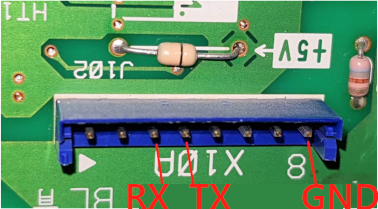 \2
\2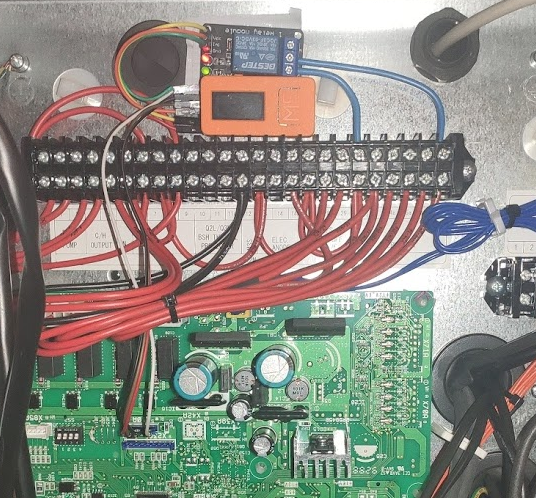 \2
\2What You Need
Hardware
- A Daikin Altherma, ROTEX, or HOVAL Belaria heat pump with an accessible X10A port
- An ESP32 (recommended) or ESP8266. The author recommends the M5StickC: it has a built-in display, a magnet, and fits neatly beside the heat pump board
- A 5-pin JST EH 2.5mm connector, or four Dupont wires (male-to-female)
- Optional: one or two relays if you want remote on/off or Smart Grid control
Software
- VSCode
- PlatformIO IDE extension for VSCode
- An MQTT broker reachable on your local network (Mosquitto on Home Assistant works fine)
- Home Assistant with the MQTT integration enabled (optional but recommended)
Typical use cases
Track heat pump operating mode, flow temperatures, and thermostat state in real time to understand your heating costs and spot inefficiencies.
Trigger Home Assistant automations from live pump data — boost hot water before guests arrive or alert when the unit enters an unexpected state.
Use the SG-Ready relay outputs to shift heat pump load to low-tariff or surplus solar periods, cutting your electricity bill.
Wire a relay to the external thermostat terminals and control heating from anywhere through Home Assistant, without touching the pump's own settings.
How It Works
The X10A connector on the heat pump PCB exposes a 5V serial port. ESPAltherma maps ESP32 GPIO pins to a second hardware serial port (Serial2, typically GPIO 16 RX and GPIO 17 TX) and uses that to query the pump using Daikin's serial protocol. Older Altherma units from around 2010 or before use an 'S' protocol; newer ones use the default 'I' protocol — both are supported.
You choose which values to expose by uncommenting lines in a model-specific header file. Each line maps to a register address on the pump, so you pull only what you need and keep the MQTT payload lean. The firmware publishes all selected values as a single JSON object to the espaltherma/ topic tree, and logs debug output both to the USB serial console and to espaltherma/log on MQTT.
For the M5StickC, debug messages also appear on the built-in screen, making in-cabinet troubleshooting straightforward.
Build and Flash Steps
Step 1 — Set up the firmware
- Download the repository and open the folder in PlatformIO.
- If you are using an M5StickC, click the environment selector in the PlatformIO status bar and choose
env:M5StickC. For M5StickCPlus chooseenv:M5StickCPlus. For ESP8266 choosenodemcuv2. Leave the default for a plain ESP32. - Open
src/setup.hand fill in your WiFi SSID, WiFi password, and MQTT broker address. - Set
RX_PINandTX_PINto the GPIO pins you will use for Serial2. The README recommends sticking to your board's RX2/TX2 (commonly GPIO 16 and GPIO 17). Do not use the RX0/TX0 pins — those are reserved for USB logging. M5StickC and M5StickCPlus environments set pins 26 and 36 automatically. - Uncomment the
#includeline that matches your heat pump model, for example:
// #include "def/ALTHERMA(HPSU6_ULTRA).h"
#include "def/ALTHERMA(HYBRID).h"  // <-- this one will be used
// #include "def/ALTHERMA(LT-D7_E_BML).h"
If you are unsure of your exact model, pick the closest option or Default.h. The worst outcome is missing or null values — the pump will not be harmed.
Locale variants (French, German, Spanish) are available by adding the language folder to the path:
#include "def/German/ALTHERMA(HYBRID).h"
- Open the model header you just uncommented and uncomment each value line you want to monitor. Avoid enabling every value at once — a very large MQTT payload slows things down.
LabelDef labelDefs[] = {
  {0x60,0,304,1,-1,"Data Enable/Disable"},
  {0x60,2,315,1,-1,"I/U operation mode"},
  {0x60,2,303,1,-1,"Thermostat ON/OFF"},
  // {0x60,2,301,1,-1,"Silent Mode"},  // leave commented to skip
- Connect your ESP32 via USB, then click Upload in PlatformIO or press
F1→PlatformIO: Upload.
Step 2 — Wire the heat pump
- Switch off the heat pump at the circuit breaker.
- Open the panel to reach the main PCB and locate the X10A connector. If a bi-zone module is fitted and occupies X10A, use the X12A port on that module instead — the pins are identical.
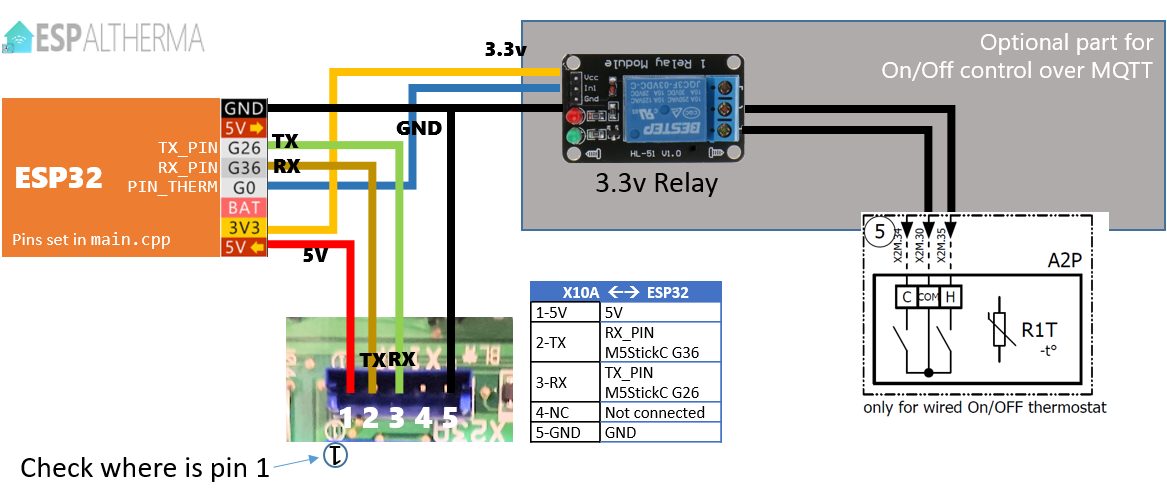
- Connect as follows for the standard 4-pin X10A:
| X10A pin | Signal | ESP32 |
|---|---|---|
| 1 | 5V | 5V / VIN |
| 2 | TX (pump sends) | RX_PIN (default GPIO 16) |
| 3 | RX (pump receives) | TX_PIN (default GPIO 17) |
| 4 | NC | — not connected — |
| 5 | GND | GND |
ROTEX units use an 8-pin X10A with a different layout — see the schematic image in the repository. Some ROTEX boards cannot supply enough 5V current for an ESP32; if yours cannot, power the ESP32 from a USB charger and connect only GND and the TX/RX lines.
Critical: Always connect the GND of the ESP32 to the GND pin of the X10A, even when powering from an external USB charger. Skipping this is the most common cause of communication failures.
- Double-check all connections, then restore power. Within moments, two new entities — AlthermaSensor and AlthermaSwitch — should appear in Home Assistant.
You can verify the MQTT stream directly:
mosquitto_sub -v -t "espaltherma/#"
Step 3 (optional) — Remote on/off control
ESPAltherma can drive a relay wired to the heat pump's external thermostat terminals, letting you turn heating on or off from Home Assistant. Consult your heat pump's schematic for the correct terminals. A second relay can enable or disable the cooling function. When the relay is active, ESPAltherma takes priority over the physical thermostat.
Step 4 (optional) — Smart Grid integration
Uncomment and configure PIN_SG1 and PIN_SG2 in src/setup.h, wire two relays to the SG1 and SG2 contacts on the pump, and publish a value of 0–3 to espaltherma/sg/set. This lets you shift heat pump load to cheap or surplus electricity periods — for example, setting mode 2 (Recommended ON) to pre-heat during low-tariff hours.
Troubleshooting Tips
- Upload fails on M5StickC: Make sure the PlatformIO environment is set to
env:M5StickCorenv:M5StickCPlus. The default environment conflicts with the M5's PSRAM. - 'Timeout on register' with value 0x15 0xEA: Your pump is using the older S protocol. In
setup.hchange#define PROTOCOL 'I'to#define PROTOCOL 'S'and select thedef/PROTOCOL_S.hordef/PROTOCOL_S_ROTEX.hdefinition file. - 'Time out! Check connection' or 'Wrong CRC': First suspect is a missing GND connection. Second is a faulty Dupont cable — they can look fine and still fail. Swap the cable before anything else.
- General debugging: Open the PlatformIO serial monitor for USB logs, or subscribe to
espaltherma/logon MQTT to see logs without a USB connection.
Ideas to Extend It
- Energy dashboards: Feed the live COP (coefficient of performance) and flow temperatures into a Grafana or Home Assistant Energy dashboard to track heating cost over time.
- Automation based on pump state: Use the
I/U operation modevalue to trigger automations — for example, alert when the pump unexpectedly switches to a fault mode. - Smart Grid tariff automation: Pair the SG-Ready feature with a dynamic electricity tariff integration in Home Assistant to automatically boost DHW heating when prices drop.
- ESPAltherma 2 beta: A web-installer version is in beta that detects your heat pump model automatically, requires no compilation, and includes its own web interface and a dedicated Home Assistant card. See the beta branch in the repository if you want to try it.
Known limitations: ESPAltherma can read values and toggle relays, but it cannot write configuration values directly to the heat pump. Settings such as target temperatures must still be changed through the heat pump's own controls or thermostat.
ESPAltherma is a well-maintained, practical project that fills a real gap: getting live data out of a Daikin Altherma heat pump without proprietary gateways or cloud accounts. The wiring requires opening the heat pump cabinet and working carefully with a live appliance once power is restored, so it suits makers who are comfortable with basic electrical safety. Once running, the Home Assistant integration is clean and the MQTT data stream is flexible enough to feed almost any dashboard or automation platform.
Sources
github.comraomin/ESPAltherma — repository & READMEFacts in this article come from the project's public README and GitHub metadata at the time of writing. Images belong to their respective owners and link back to the original source.