BambuHelper: ESP32 Real-Time Monitor for Bambu Lab Printers
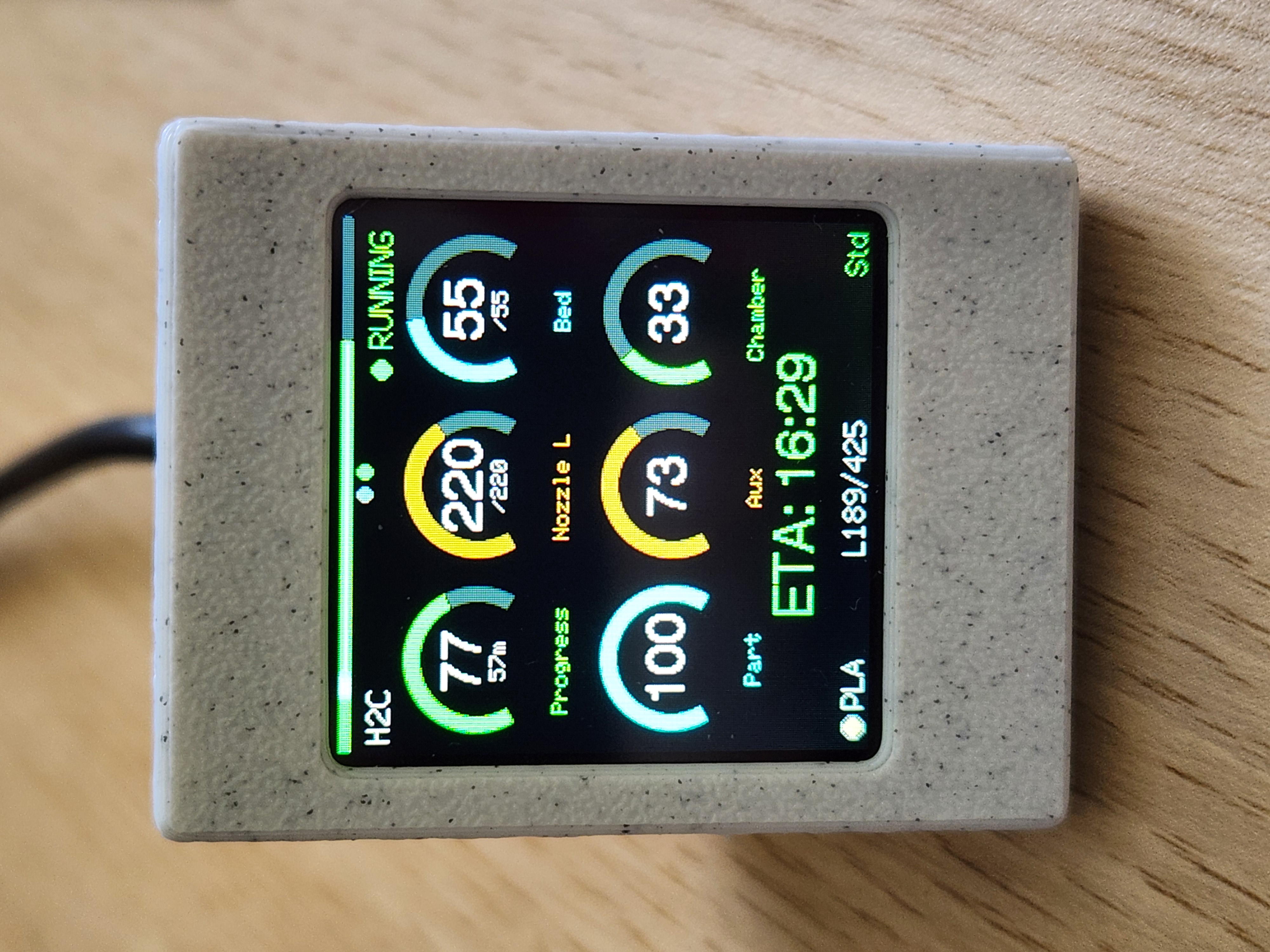
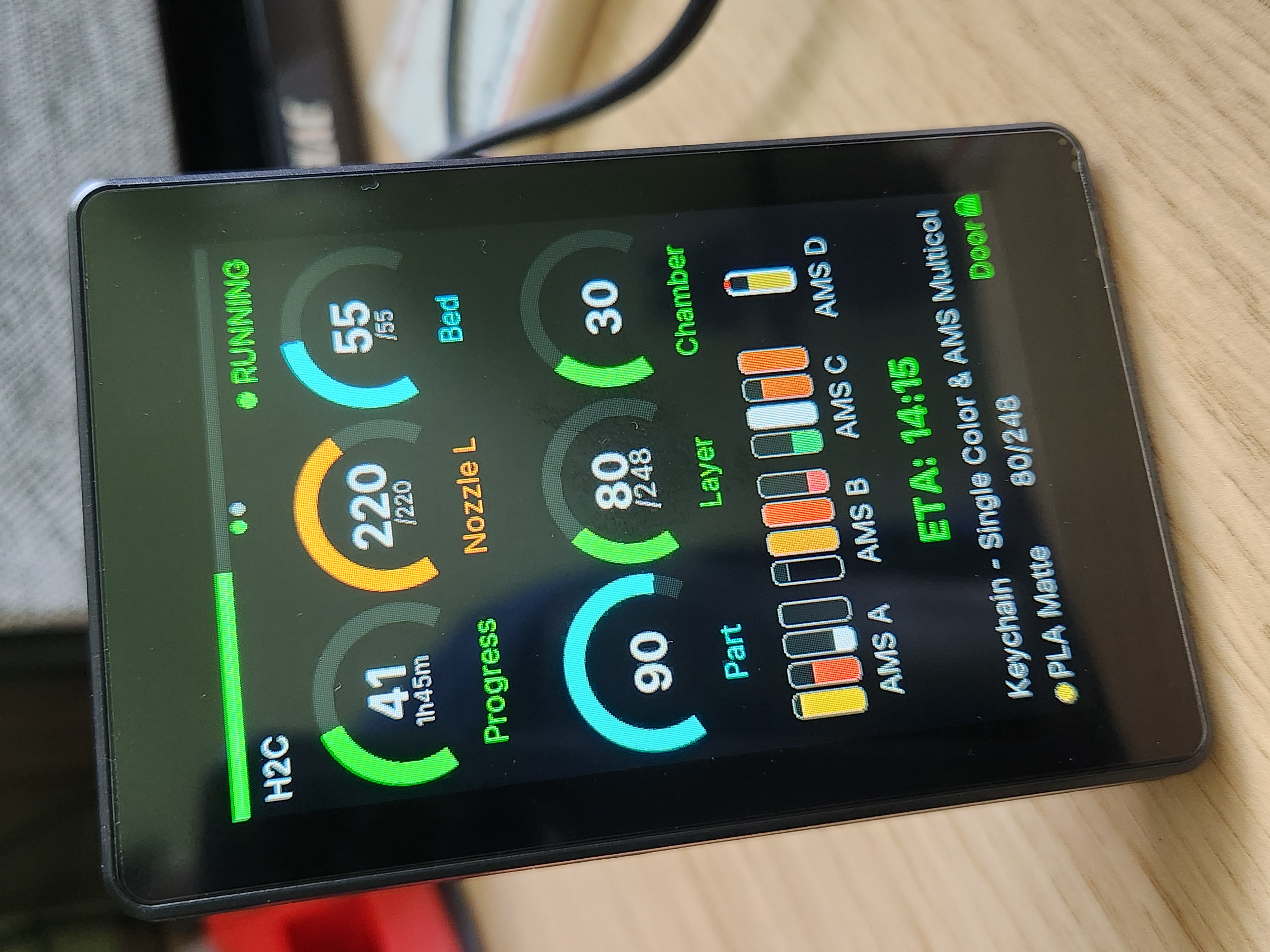
Live dashboard on the ESP32-S3 Super Mini with 1.54" ST7789 display showing print progress arc and temperature gauges
- ESP32-S3 Super Mini
- ESP32-C3 Super Mini
- Guition JC3248W535 (ESP32-S3-N16R8, 320×480)
- Waveshare ESP32-S3-Touch-LCD-1.54 (240×240 ST7789)
- Waveshare ESP32-S3-Touch-LCD-2 (240×320 ST7789)
- Waveshare ESP32-S3-Zero
- CYD / ESP32-2432S028 (ILI9341, 240×320)
- 1.54" ST7789 240×240 TFT display
- 1.28" GC9A01 round 240×240 TFT display
- 2.0" ST7789V 240×320 TFT display
What You Will Build
BambuHelper gives your Bambu Lab printer a dedicated desk display — a small ESP32 board wired to a color TFT that shows a live dashboard with arc gauges, animations, and key stats: nozzle and bed temperatures, print progress percentage, fan speeds, AMS filament slots, and HMS error codes. It connects to your printer over MQTT, either directly on your local network or through Bambu Lab's cloud service, so you can keep an eye on a print from across the room without touching the printer's touchscreen or opening an app.
The project supports monitoring up to two printers simultaneously (up to four with an experimental opt-in), and includes over-the-air (OTA) firmware updates and a browser-based configuration portal so you never need to reflash for settings changes.
 \2
\2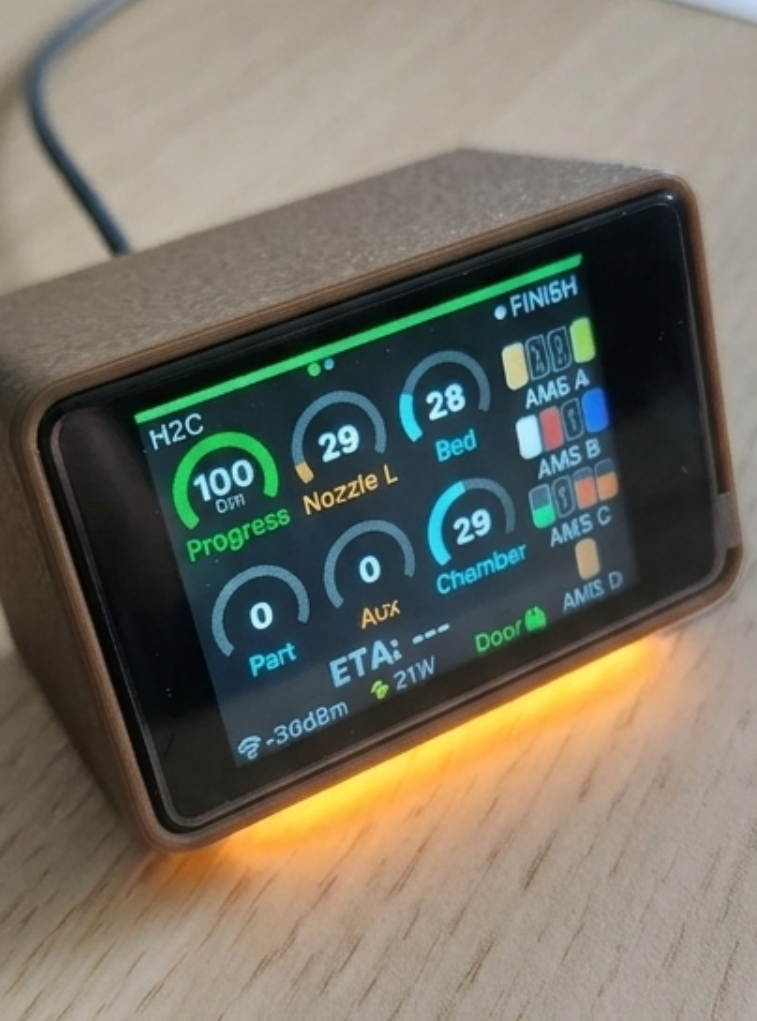 \2
\2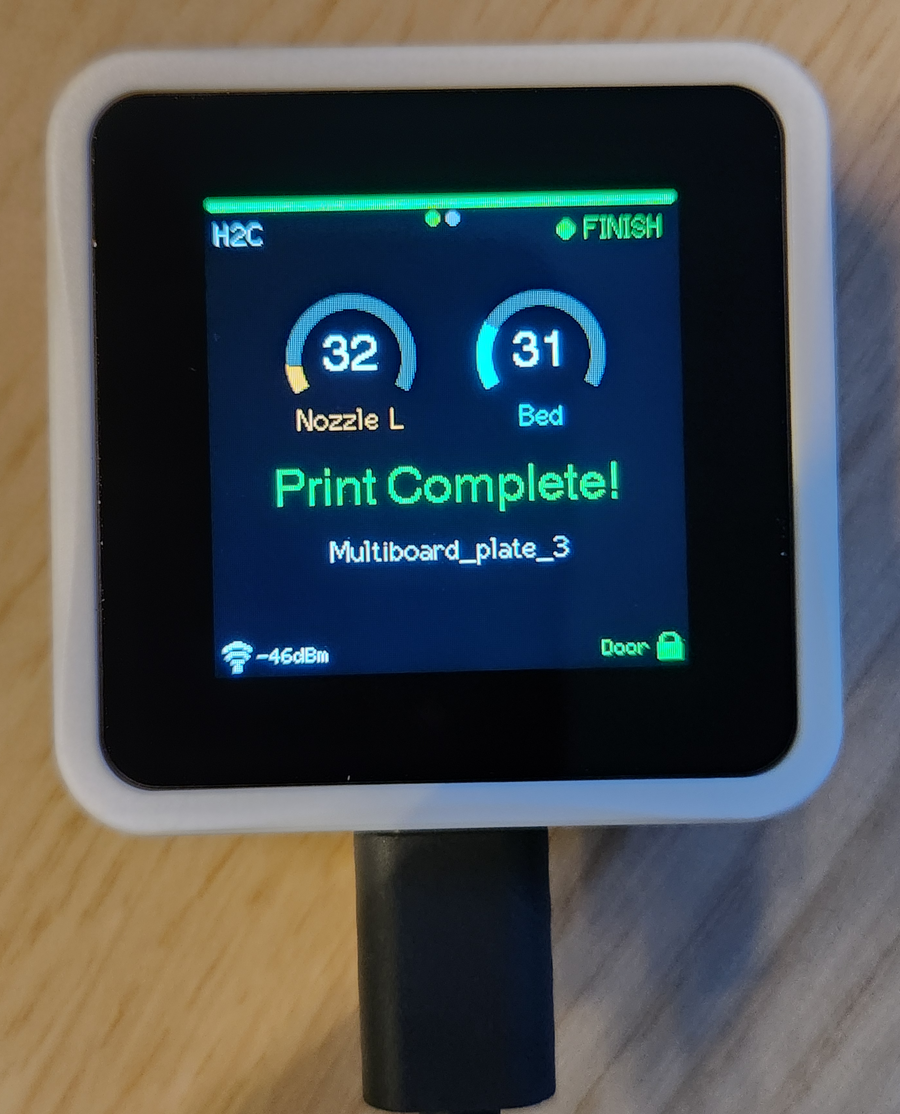 \2
\2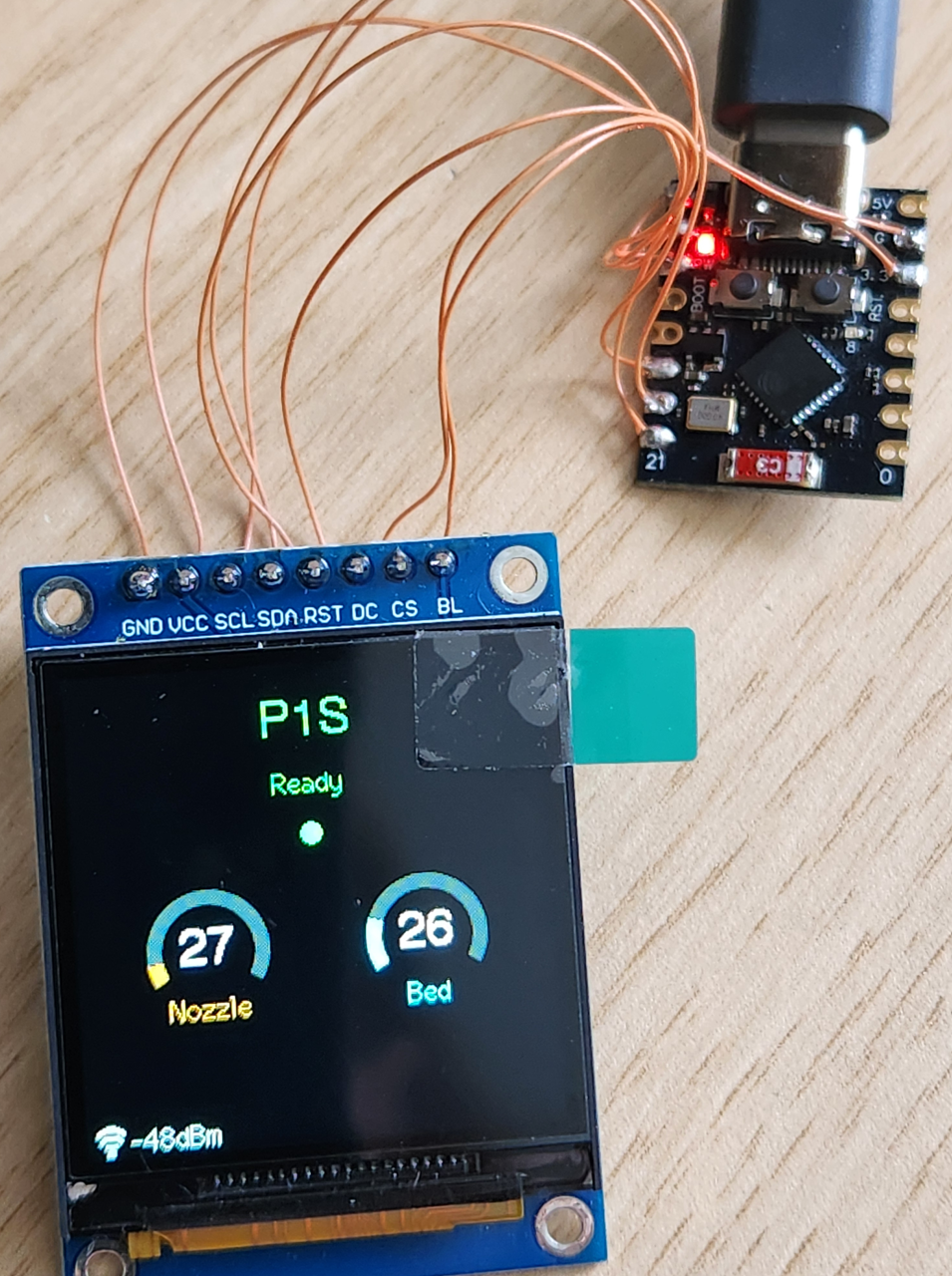 \2
\2What You Need
Supported all-in-one boards (no external display wiring needed):
- Guition JC3248W535 — 320×480 IPS, onboard speaker, capacitive touch, battery indicator
- Waveshare ESP32-S3-Touch-LCD-1.54 — 240×240 ST7789, touchscreen, 3 buttons, battery holder
- Waveshare ESP32-S3-Touch-LCD-2 — 240×320 ST7789, touchscreen
- CYD / ESP32-2432S028 — 240×320 ILI9341, single printer only
DIY builds (ESP32 module + separate display):
- ESP32-S3 Super Mini + 1.54" 240×240 ST7789 TFT (up to 2 printers)
- ESP32-C3 Super Mini + 1.54" 240×240 ST7789 TFT (1 printer only, RAM-limited)
- ESP32-S3 Super Mini or ESP32-C3 Super Mini + 1.28" GC9A01 round display
- Waveshare ESP32-S3-Zero + 1.54" ST7789 or 2.0" ST7789V panel
Software — no install needed for the recommended path:
- A modern browser (Chrome or Edge work best with Web Serial)
- Your printer's local IP address and LAN access code (for LAN Direct), or a Bambu account login / access token (for Cloud mode)
If you prefer to build from source, the project uses PlatformIO.
Typical use cases
Mount a small ESP32 display next to your desk to watch print progress, temperatures, and fan speeds without opening an app or touching the printer.
Run a dual-printer (or experimental four-printer) layout on a single device to keep an eye on a small print farm from one glance.
Get instant on-screen notification of Bambu Lab HMS error codes so you can catch failed prints early and stop wasting filament.
Use Bambu Cloud mode to monitor a printer on a different network segment, or a printer model that does not support LAN Direct, without changing any printer settings.
How It Works
BambuHelper opens an MQTT over TLS connection to your Bambu Lab printer — either directly to its local IP using the LAN access code, or through Bambu Lab's cloud MQTT broker using an account token. The printer publishes status messages continuously, and BambuHelper parses those messages to extract temperatures, progress, fan speeds, AMS slot data, and HMS error codes, then renders them on the TFT using the LovyanGFX library.
LAN Direct mode works with P1P, P1S, X1, X1C, X1E, A1, A1 Mini, H2C, H2D, and H2S. You enter the printer's IP and LAN access code from the printer's network settings. The ESP32 and printer must be on the same network.
Bambu Cloud mode works with any Bambu printer, including those that do not support LAN mode. You can authenticate three ways: an emailed six-digit code (no password stored), a password with optional remember (lets the device renew its token automatically), or by pasting an access token directly. The token is what actually authenticates; it expires after roughly three months. Signing out wipes all stored credentials from the device.
The web configuration portal runs on the ESP32 itself over HTTP. Once the device is on your Wi-Fi, you reach it by browsing to its IP address. Note that this portal has no password and runs unencrypted, so on untrusted networks prefer the email-code or token login methods rather than entering a password.
Flash and Configure
The fastest path requires no toolchain at all. Open the web flasher in Chrome or Edge, connect your ESP32 board via USB, and follow the on-screen steps.
Step 1 — Open the web flasher
Go to keralots.github.io/BambuHelper in Chrome or Edge.
Step 2 — Select your board and flash
Choose the firmware build that matches your hardware:
| Board | Firmware build |
|---|---|
| ESP32-S3 Super Mini + ST7789 | esp32s3 |
| ESP32-C3 Super Mini + ST7789 | esp32c3 |
| ESP32-S3 or C3 + GC9A01 round | esp32s3_round / esp32c3_round |
| Guition JC3248W535 | jc3248w535 |
| Waveshare 1.54" touch | ws_lcd_154 |
| Waveshare 2" touch | ws_lcd_200 |
| Waveshare ESP32-S3-Zero + 1.54" | esp32s3_zero |
| Waveshare ESP32-S3-Zero + 2.0" | esp32s3_zero_320 |
| CYD / ESP32-2432S028 | cyd |
CYD note: set Baudrate to 115200 before clicking Connect. If the first attempt fails, click Disconnect then Connect again without unplugging.
Step 3 — Configure Wi-Fi and printer
After flashing, the device broadcasts a temporary Wi-Fi access point. Connect to it, then enter your home Wi-Fi credentials. Once the device joins your network, open its IP address in a browser to reach the config portal. Enter your printer connection details (LAN mode: IP + access code; Cloud mode: email code, token, or password).
Step 4 — Done
The display will start showing live printer data within a few seconds of a successful connection. Future firmware updates can be applied over the air through the same web portal — no USB cable needed after the first flash.
Extend It and Know the Limits
Ideas to extend the build:
- Round display skin — the GC9A01 round variant offers three selectable print skins (Rim, Speedo, Rings) chosen in the web UI, making it a compact and stylish desk piece. A printable case is available on MakerWorld.
- Dual-printer wall mount — most ESP32-S3 builds support two printers simultaneously on a single display, letting you build a small print-farm monitor.
- Experimental four-printer mode — boards with PSRAM (Guition, Waveshare 2", Waveshare 1.54", ESP32-S3-Zero) support an opt-in four-printer layout for larger farms.
- Buzzer notifications — the Guition JC3248W535 includes an onboard NS4168 I2S speaker that BambuHelper uses for audio alerts.
- 3D-printed cases — MakerWorld models are linked in the README for the Waveshare 2", round GC9A01, and CYD builds.
Limitations to keep in mind:
- The ESP32-C3 and CYD boards are RAM-limited to one printer only.
- The GC9A01 round display module has no backlight pin, so brightness control and night dimming are unavailable on that variant.
- The config portal runs over plain HTTP with no password — avoid typing a Bambu password into it on networks you do not fully trust; use the email-code or token method instead.
- BambuHelper is read-only for printer status. The only actions it can trigger are chamber-light toggling and smart-plug control if you configure those features; it cannot send print commands or modify printer settings.
- Cloud token authentication expires after roughly three months. Without a stored password, you will need to re-authenticate manually.
BambuHelper is a polished, actively maintained firmware project that solves a real maker problem — getting useful at-a-glance print status off the printer's own touchscreen and onto a cheap dedicated display. The one-click browser flasher and web config portal make it genuinely accessible to beginners, while the breadth of supported boards and the dual/quad-printer options give experienced builders room to expand. The main thing to plan ahead is your authentication method for cloud mode and which board best fits your desk setup.
Sources
github.comKeralots/BambuHelper — repository & README keralots.github.ioOfficial websiteFacts in this article come from the project's public README and GitHub metadata at the time of writing. Images belong to their respective owners and link back to the original source.