CameraWifiMotion: ESP32-CAM Motion Security Camera Guide
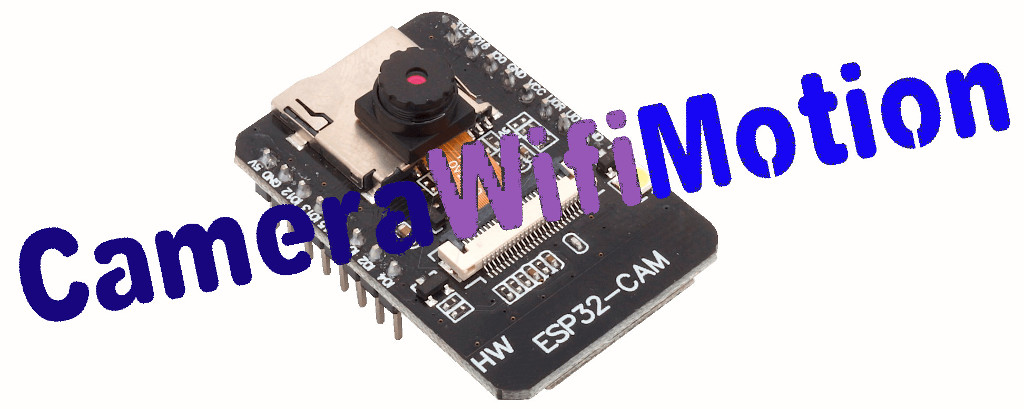
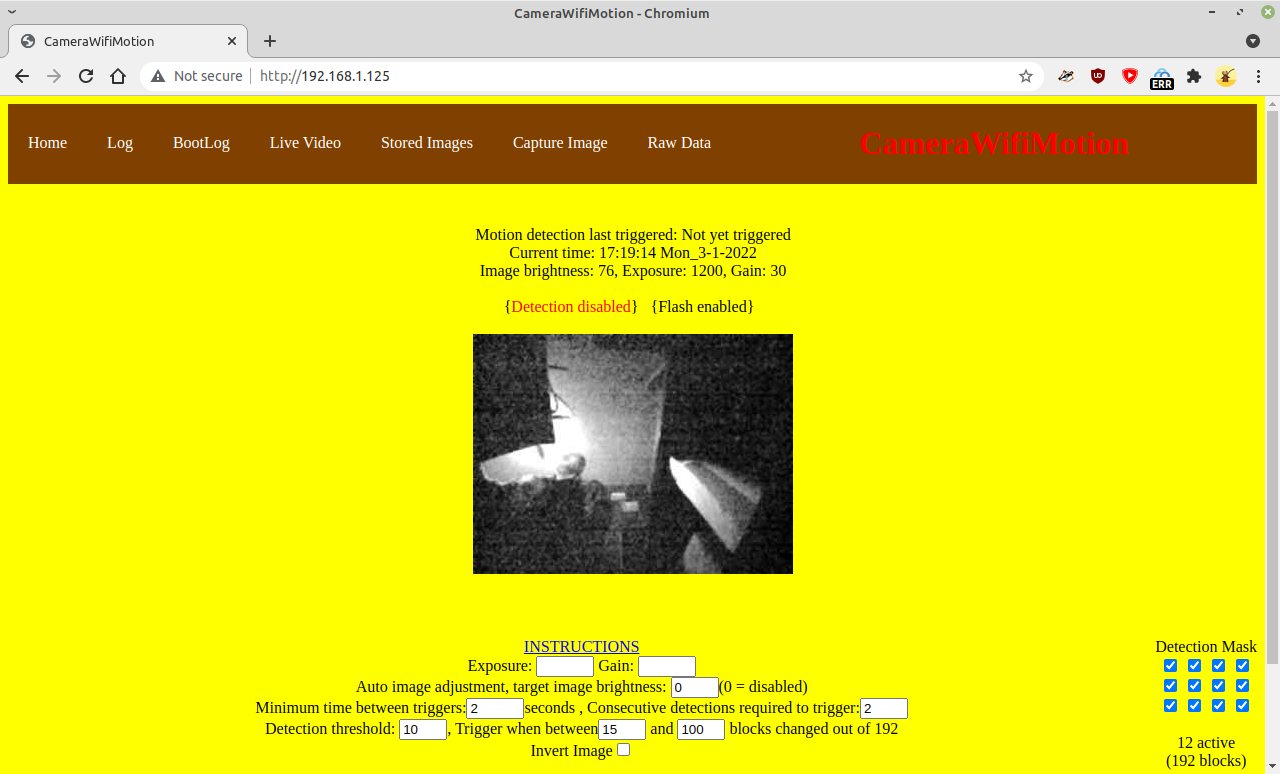
A completed CameraWifiMotion build showing the ESP32-CAM module in use as a motion-detecting security camera.
- ESP32-CAM module
- ESP32cam MB motherboard (optional)
- MicroSD card (optional)
- External 2.4 GHz WiFi antenna with IPX connector (optional)
- M12 F1.4 replacement lens (optional)
- OV5640 camera module (optional alternative)
- Smoothing capacitor (recommended)
What You Will Build
CameraWifiMotion is an Arduino sketch that transforms one of the widely available ESP32-CAM modules into a self-contained motion-detecting security camera. Once flashed and connected to your WiFi network, the camera samples a frame roughly four times per second. Each frame is compared to the previous one using a block-averaging algorithm. When enough blocks show a significant change, motion is declared, and the device captures a higher-resolution image and saves it to internal SPIFFS flash. Optionally it can also email or FTP the image, or write it to an SD card.
A lightweight web server runs on the ESP itself, giving you a live view, a stream, a log, stored images, raw motion data, and all tuning controls — no cloud service or external server required. OTA (over-the-air) firmware updates mean you can reflash the device without touching a USB cable after initial deployment.
 \2
\2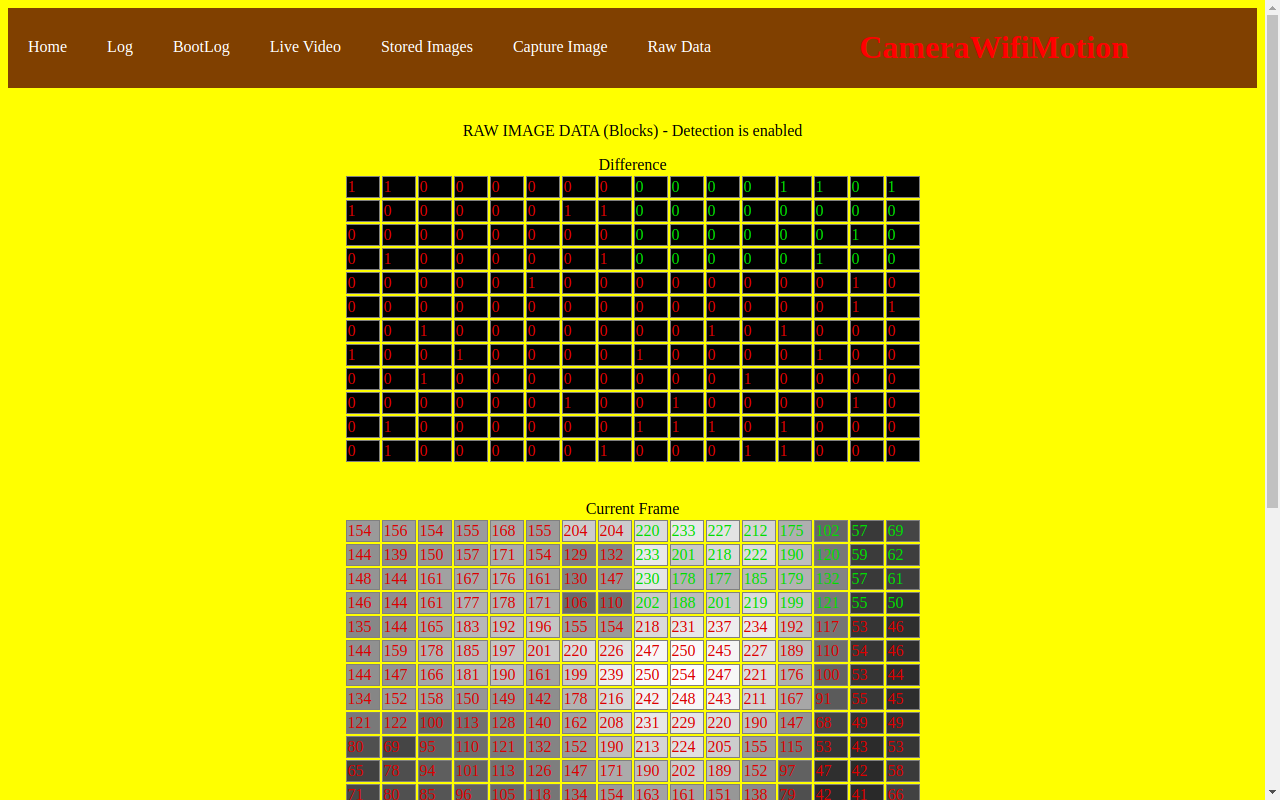 \2
\2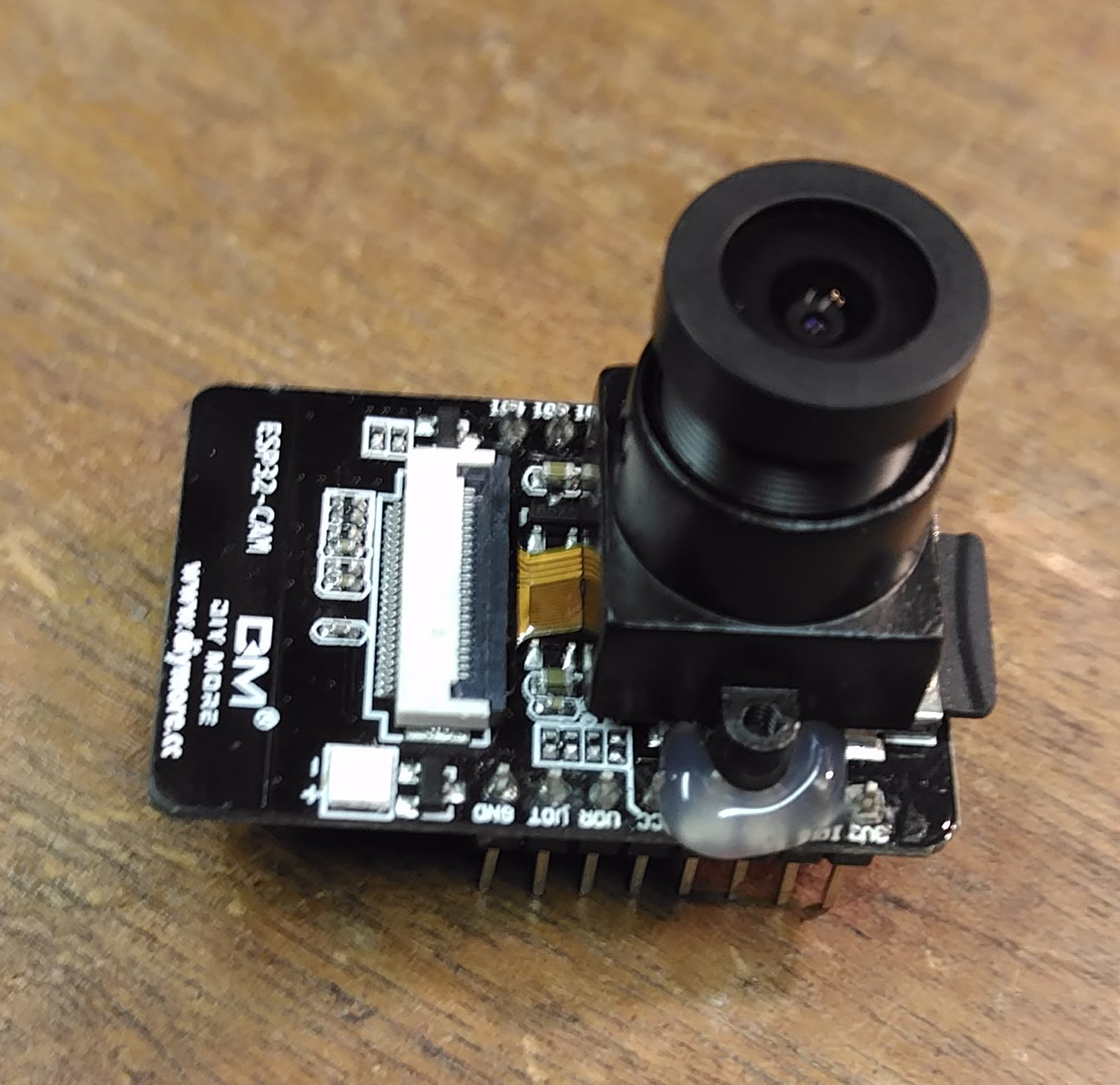 \2
\2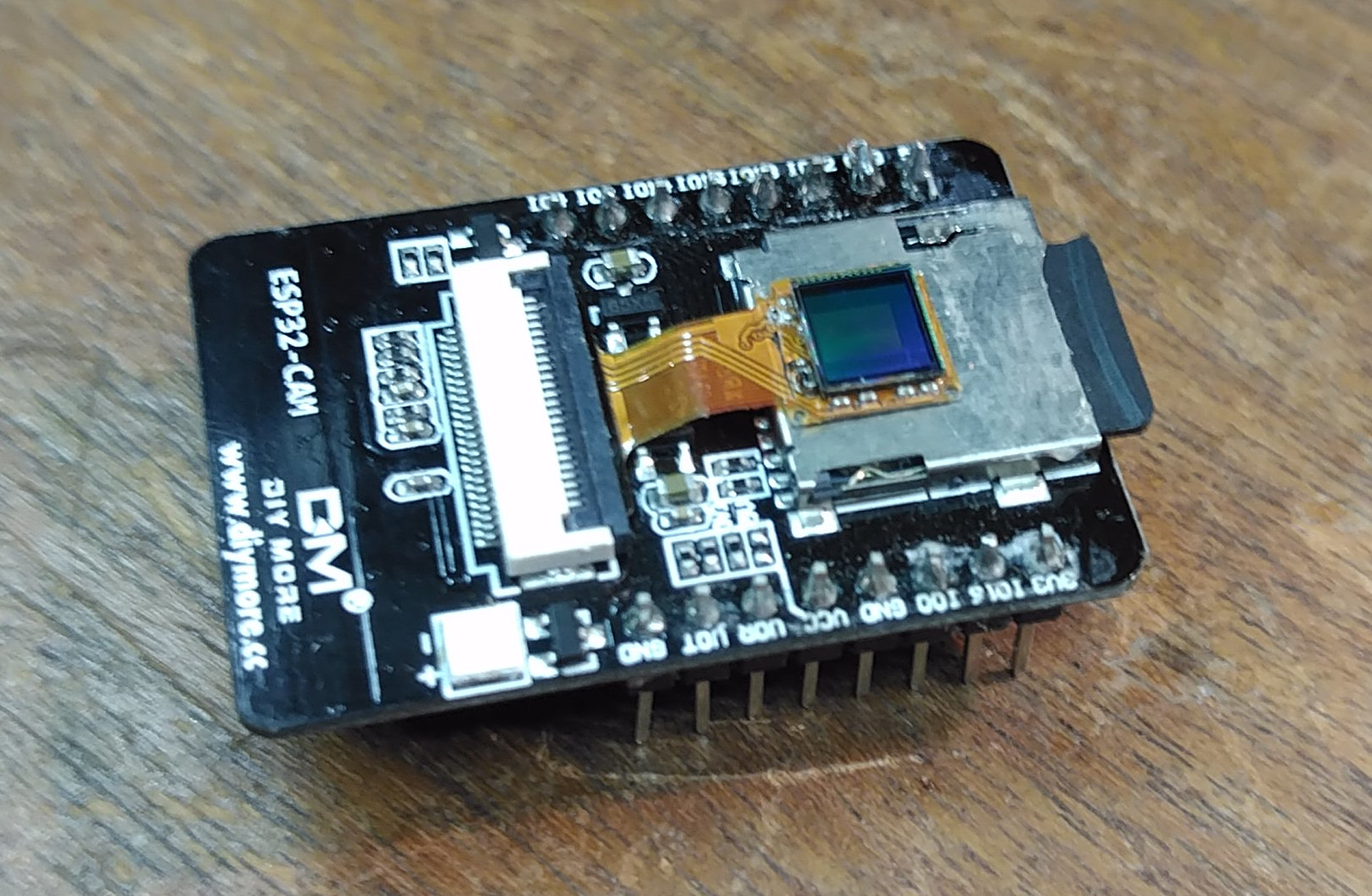 \2
\2What You Need
Hardware
- An ESP32-CAM module (the inexpensive OV2640-based boards commonly found on eBay or AliExpress)
- A USB-to-serial adapter capable of 3.3 V logic for initial flashing, unless you use the optional ESP32cam MB motherboard which exposes a USB port directly
- A stable 5 V power supply able to deliver at least 500 mA — weak or noisy power is the most common source of instability with these modules
- A smoothing capacitor on the 3.3 V rail is strongly recommended; the onboard LED and WiFi radio cause voltage spikes that can trigger false motion events and reboots
- A microSD card if you want unlimited image storage beyond the 8 images held in SPIFFS
- An external 2.4 GHz antenna (search eBay for "2.4G Antenna IPX13") if the camera will live inside a case — the onboard antenna signal degrades significantly when enclosed; you must move the jumper resistor on the board to activate the external antenna socket
Software and Libraries
Install the ESP32 board support package in the Arduino IDE (see randomnerdtutorials.com for a walkthrough). The repository includes a zip of the libraries used; the three you must install are:
- ESP32_mail_client — for email alerts (GMX is recommended over Gmail for reliability)
- ESP_wifimanager — for the captive-portal WiFi setup
- Time — for timestamping captured images
If you want email image attachments, the ESP_Mail_FS.h file inside the ESP-Mail-Client library requires a small manual edit: delete the block around lines 73–92 and replace it with the SPIFFS include shown in the README before compiling.
Typical use cases
Mount an ESP32-CAM at a door, driveway, or window. Motion triggers a saved snapshot and an optional email alert, with no cloud subscription required.
Access the live stream or latest captured images from anywhere on the local network using the built-in web server, or poll /ping from a home-automation hub.
Point the camera at a bird feeder or garden bed. The mask grid lets you focus detection on the area of interest and ignore background movement.
Use the password-protected OTA endpoint to update firmware on a deployed camera without physical access, keeping the device current as the sketch evolves.
How the Motion Detection Works
The algorithm is deliberately lightweight so it runs entirely on the ESP32 with no external processing.
- The camera captures a 320×240 grayscale image.
- That image is divided into 20×20-pixel blocks, producing a 16×12 grid of 192 blocks total.
- All pixel values inside each block are averaged down to a single number (0–255).
- The resulting 192 numbers are compared with the equivalent numbers from the previous frame.
- A block is flagged as changed if its average brightness shifted by more than the Block threshold you configure.
- If the number of changed blocks falls between the two Image trigger values you set, the sketch declares motion and fires a capture.
As ambient light drops and the camera increases its gain, image noise rises and would otherwise cause constant false triggers. The sketch automatically reduces motion sensitivity as gain increases to compensate.
A 4×3 tick-box mask on the web UI lets you exclude parts of the frame from detection — useful for ignoring a busy road at the edge of the view, for example.
Build and Flash Steps
1. Clone or download the repository
Get the sketch from github.com/alanesq/CameraWifiMotion and open it in the Arduino IDE.
2. Configure Arduino IDE board settings
In the Arduino IDE Tools menu, select board "ESP32 Dev Module" with PSRAM enabled and Partition scheme "CUSTOM". Do not select the "ESP32-cam" board entry — the README notes this will prevent OTA from working.
3. Edit your credentials
Open gmail_esp.h and fill in your email server details if you want alert emails. If you are not using email, you can leave this file alone.
4. Flash the sketch
If you are using a bare ESP32-CAM without the MB motherboard, plug in the USB-to-serial adapter whilst holding the program button. The README notes that using the lowest available upload speed improves reliability on these modules.
If you have the ESP32cam MB motherboard, simply connect it via USB and upload normally.
5. First boot — join the setup access point
On first power-up the sketch creates a WiFi access point called "ESPCamera". Connect to it from your phone or laptop using the default password of "12345678" (note: the README warns it may not work if the password is anything other than 8 characters long), then enter your home WiFi credentials. The device restarts and joins your network.
6. Open the web interface
Navigate to http://ESPcam1.local if your browser and network configuration support it. Otherwise check the serial output or your router to discover what IP address it has been assigned. From the main page you can enable motion detection, adjust thresholds, view the live stream, and browse stored images.
Tuning Motion Detection
Getting the thresholds right takes a few minutes but the web UI makes it straightforward.
- Navigate to the raw data page (
http://<ip>/imagedata) with motion detection disabled. - Refresh the page several times while the scene is still. The difference grid should show mostly 0s and 1s.
- Move something in front of the camera and refresh again — note how many blocks change and by how much.
- Set the Block threshold (brightness change per block that counts as changed) to around 15 as a starting point, then adjust.
- Set the two Image trigger numbers (minimum and maximum changed blocks) to bracket the values you saw when real motion occurred.
- Go back to the main page, enable motion detection, and watch the live readout — for example
Readings: brightness:113, 0 changed blocks out of 64. Refine until false triggers are rare and genuine motion is reliably caught.
The mask grid on the main page lets you tick only the zones you care about, which can dramatically reduce false positives from waving trees or changing light through a window.
Extending the Build and Known Limitations
Useful built-in URLs
The web server exposes a full set of endpoints you can call from scripts or home-automation platforms:
/stream— live MJPEG video stream/img— plain JPEG snapshot (add?pic=xfor a stored image)/ping— returnsenabledordisabledfor health checks/logand/bootlog— activity and reboot history/ota— password-protected OTA firmware update/rebootand/default— remote management
Low-light improvement
The stock lens and IR filter on these modules perform poorly at night. Removing the IR filter and fitting an M12 F1.4 lens (large iris) significantly improves low-light performance according to the README. A 3D-printable lens adaptor file is included in the repository. Alternatively, pre-fitted OV5640 modules with this lens type are now available on AliExpress.
Limitations to be aware of
- Compatibility: The sketch targets ESP32 board manager v3 and may not work with older versions. The author notes that upstream library changes have broken the sketch in the past, so check the repository issues before starting.
- Resolution vs. stability: Increasing capture resolution beyond the default reduces the number of images SPIFFS can hold and can cause instability due to bandwidth constraints.
- Power sensitivity: Insufficient or noisy power is the primary cause of WiFi drops, reboots, and false motion triggers. A quality supply and a smoothing capacitor on the 3.3 V rail are not optional in practice.
- Antenna: Placing the module in any enclosure without an external antenna will severely weaken the WiFi signal.
CameraWifiMotion is a practical, self-contained security camera project that squeezes a surprising amount of functionality out of a single low-cost module: web UI, live stream, email alerts, SD storage, OTA updates, and tunable motion detection all in one Arduino sketch. The setup requires a few careful steps — custom partition table, a library file edit for email attachments, and attention to power quality — making it a solid intermediate-level build rather than a plug-and-play one. If you want a no-cloud, local-network security camera you fully control, this project delivers it for the price of an ESP32-CAM.
Sources
github.comalanesq/CameraWifiMotion — repository & READMEFacts in this article come from the project's public README and GitHub metadata at the time of writing. Images belong to their respective owners and link back to the original source.