ESP32 AI Monitor: Desk Display for Claude, ChatGPT and More
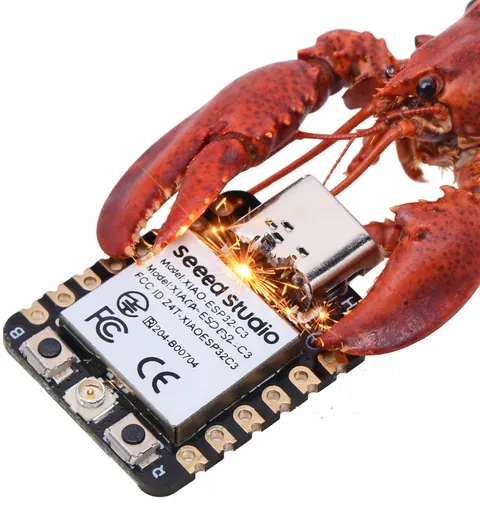
- ESP32-2432S028R (Cheap Yellow Display, ILI9341 variant)
- ESP32-2432S028 (Cheap Yellow Display, ST7789 variant)
- Guition ESP32-S3-4848S040 (4" 480×480)
- XPT2046 touch controller
- GT911 touch controller (S3 board)
What You Will Build
AI Monitor turns an inexpensive ESP32 touchscreen into a persistent desk display that shows how much of your AI quota you have used. You can track usage for Claude, ChatGPT, Antigravity, Gemini CLI, GitHub Copilot, and Cursor — up to eight windows that rotate on a timer or respond to touch.
The display shows session and weekly limits, live reset countdowns, a local clock, and optional cost rows. A standby clock appears automatically when the companion app is not running. Because the data travels only over USB serial, the ESP32 never needs Wi-Fi and never handles your cloud credentials. Wi-Fi is an optional add-on used only to keep the standby clock accurate via NTP.
This is a practical tool for anyone who hits AI usage walls mid-session. Instead of watching a browser tab or being caught off-guard by a rate limit, you get a persistent heads-up display sitting next to your monitor.
What You Need
Hardware
- An ESP32-2432S028 or ESP32-2432S028R board (the 2.8" Cheap Yellow Display, 320×240) — two variants exist, one with an ILI9341 panel and one with ST7789. Both are supported.
- Alternatively, a Guition ESP32-S3-4848S040 (4" 480×480 square display).
- A USB data cable. A charge-only cable will not work.
- Optional: a 3D-printed enclosure. MakerWorld links for CYD landscape, CYD portrait, and the S3 board case are listed in the repository.
Software and accounts
- macOS 14 or later (Apple Silicon or Intel), or Windows 10/11 x64.
- CodexBar installed with its local CLI. On Windows, use Win-CodexBar instead. CodexBar is a separate, required program — AI Monitor does not talk to any AI provider directly.
- At least one of Claude, ChatGPT, Antigravity, Gemini, Copilot, or Cursor configured inside CodexBar.
- The AI Monitor companion app, downloaded from GitHub Releases.
- Windows only: a CH340 USB-serial driver if Windows does not install it automatically. Also note that the Windows installer is not yet code-signed, so SmartScreen will warn on first launch — choose "More info", then "Run anyway".
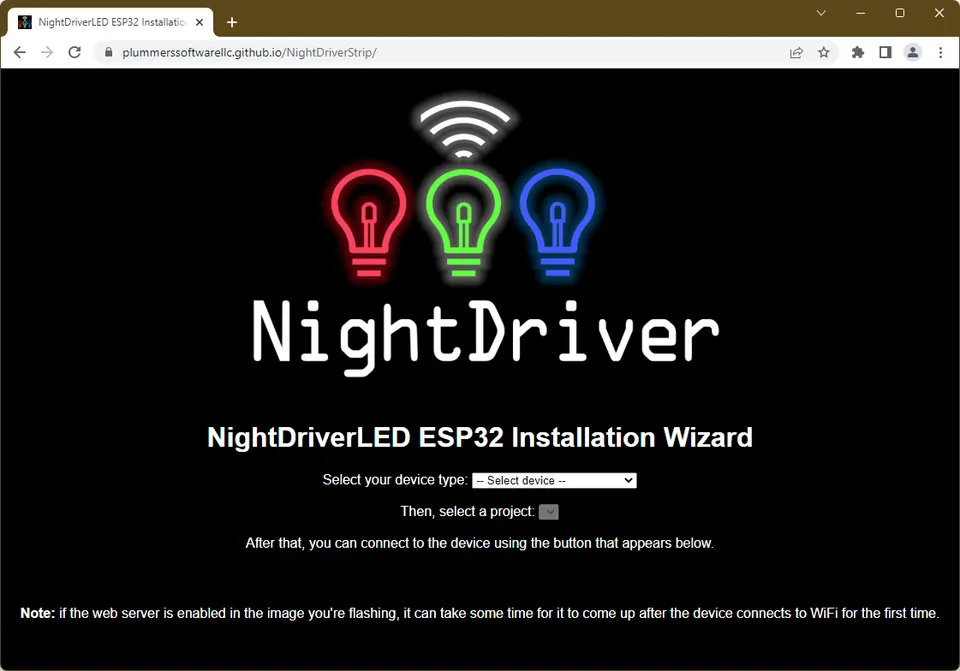
- Optional, only if you want to build firmware yourself: PlatformIO CLI and
esptool.py.
Typical use cases
Keep session and weekly AI usage limits visible at a glance so you are never caught off-guard by a rate limit mid-task.
Track Claude, ChatGPT, Gemini, Copilot, Cursor, and Antigravity on a single display, switching windows by touch or on a timer.
The ESP32 uses only USB serial — no Wi-Fi, no cloud credentials on the device — making it safe to run on a work machine with network restrictions.
Install declarative display plugins from disk or a URL without reflashing firmware, opening the display to custom data sources beyond AI usage.
How It Works
The data path is straightforward:
AI providers → CodexBar CLI → AI Monitor app (macOS / Windows) → USB serial → ESP32 display
The companion app on your Mac or PC periodically asks the locally installed CodexBar CLI for the selected provider's usage data. It applies your display settings, then sends a compact JSON frame over USB serial to the ESP32. The ESP32 renders the dashboard using LVGL v9.
The companion app also handles firmware flashing, checks GitHub Releases for app and firmware updates, and remembers per-device settings (orientation, theme, language, brightness, timezone, board variant).
Intelligent window switching is available as a third window mode. A provider window becomes eligible to come forward when usage rises by at least five percentage points, crosses 80, 90, or 100 percent, or resets. Windows stay visible for at least two minutes, each has a ten-minute cooldown, and tapping the display pauses automatic switching for ten minutes.
Display plugins (in development) let you install declarative .aimplugin files from disk or an HTTPS release URL. Once compatible firmware is flashed, installing a new plugin does not require reflashing. Plugin files contain no executable code; the app shows the data origin and unsigned status before installation.
Build and Flash Steps
Option A — No source build required (recommended)
- Install CodexBar and enable the AI providers you want to track.
- Download the AI Monitor app for your OS from GitHub Releases: grab an
app-v*asset for Mac or awin-v*asset for Windows. - Plug the ESP32 into your computer with a USB data cable.
- Open AI Monitor. Go to the settings window, select the correct board variant (ILI9341, ST7789, or ST7701 for the S3 board), and click Flash. The app handles the rest.
- If the CYD shows a white screen or noise after flashing, flash the other CYD variant — the two panel types look identical from the outside.
- Choose your provider in the AI Monitor settings. The display will update within seconds.
A full step-by-step guide with photos is available on Hackster.io (linked from the repository).
Option B — Build firmware from source
Install PlatformIO, clone the repository, then run:
pio run
pio run -e esp32dev -t upload
pio device monitor
Firmware targets:
esp32dev— ILI9341 / R-boardesp32dev-st7789— ST7789 / Hybrid-boardesp32s3-4848s040— Guition ESP32-S3-4848S040
To produce browser-flashable installer binaries:
./scripts/build_firmware.sh
This merges the bootloader, partition table, app image, and boot app into installer/bin/ and updates the installer manifests.
Option C — Build the companion apps from source
Mac app (Swift, AppKit):
cd companion
./build.sh
Windows app (Tauri 2, Rust backend, React frontend):
cd companion-windows
pnpm install
cargo tauri dev
The Rust workspace holds shared logic in crates/core, the serial link in crates/serial, and the firmware flasher in crates/flash using the espflash library.
Extending the Project and Limitations
Ideas to take it further
- Add a 3D-printed enclosure from MakerWorld to give the display a finished look on your desk. Cases exist for CYD landscape, CYD portrait, and the S3 board.
- Enable optional Wi-Fi on the ESP32 so the standby clock stays accurate via NTP even when the companion app is not running.
- Explore the display plugin system (in development) to add custom data windows without reflashing firmware.
- The Claude Code window (in development) can surface which Claude Code sessions are waiting for approval or have finished, using HTTP hooks from the companion app.
- Because the Rust shared core builds and runs on macOS, you can develop or test Windows app logic on a Mac.
Limitations to keep in mind
- CodexBar is a hard dependency. AI Monitor has no built-in way to query providers — if CodexBar does not support a provider, AI Monitor cannot display it.
- The macOS app requires macOS 14 or later. There is no Linux companion app.
- The Guition S3 board cannot store settings on-device: writing to flash while the RGB panel is running disturbs the display output, so the companion app resends settings on every connect.
- The Windows installer is not yet code-signed, which triggers a SmartScreen warning on first launch.
- The display plugin system and Claude Code window are marked as in development and may change.
ESP32 AI Monitor is a well-considered tool that solves a real daily frustration: losing track of AI quota until you hit a wall. The USB-only data path is a thoughtful privacy decision, and the companion app handling firmware flashing makes the setup accessible without any PlatformIO knowledge. The CodexBar dependency is the main commitment, but if you already use CodexBar it adds almost nothing to your setup.
Sources
github.comtobymarks/esp32-ai-monitor — repository & README tobymarks.github.ioOfficial websiteFacts in this article come from the project's public README and GitHub metadata at the time of writing. Images belong to their respective owners and link back to the original source.