ESPHomeDesigner: Visual Drag-and-Drop ESP32 Display Editor
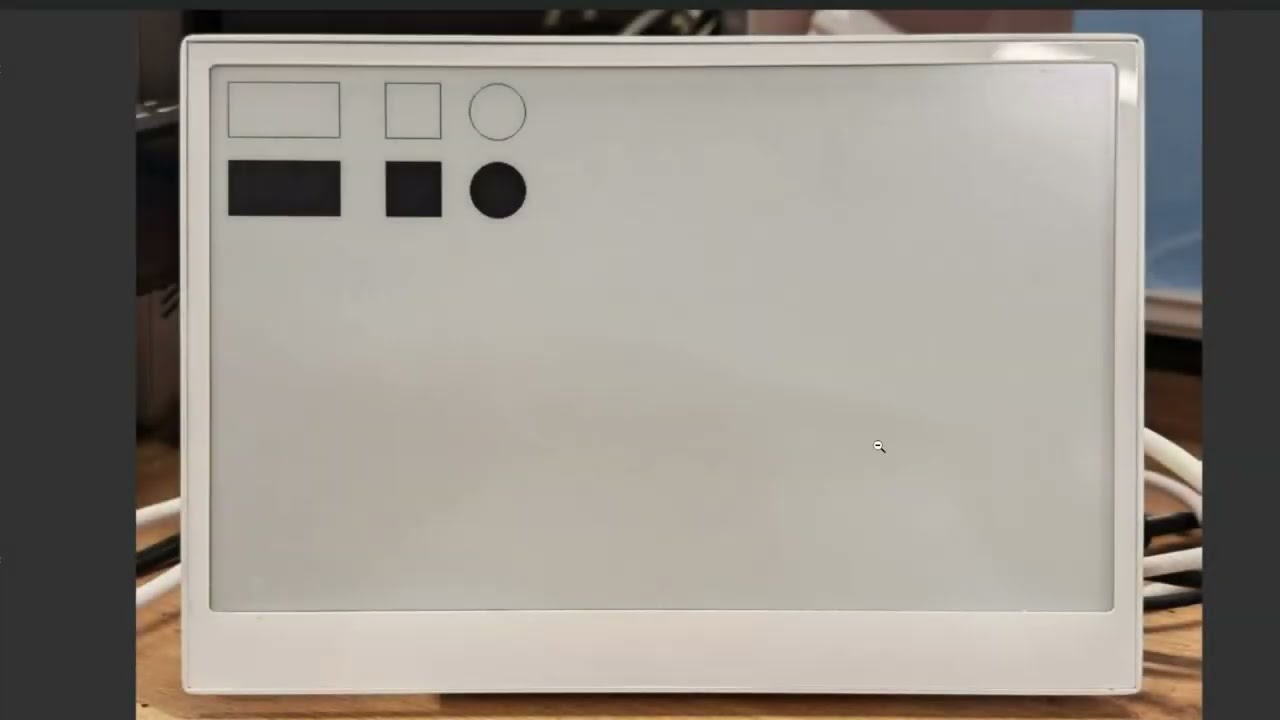
Feature walkthrough video showing ESPHomeDesigner's canvas and widget system
- ESP32
- ESP32-S3 with PSRAM
- E-Ink display
- OLED display
- LCD + Touch display
- E1001
- E1002
- TRMNL
- OpenEpaperLink wireless e-paper tags
What You Will Build
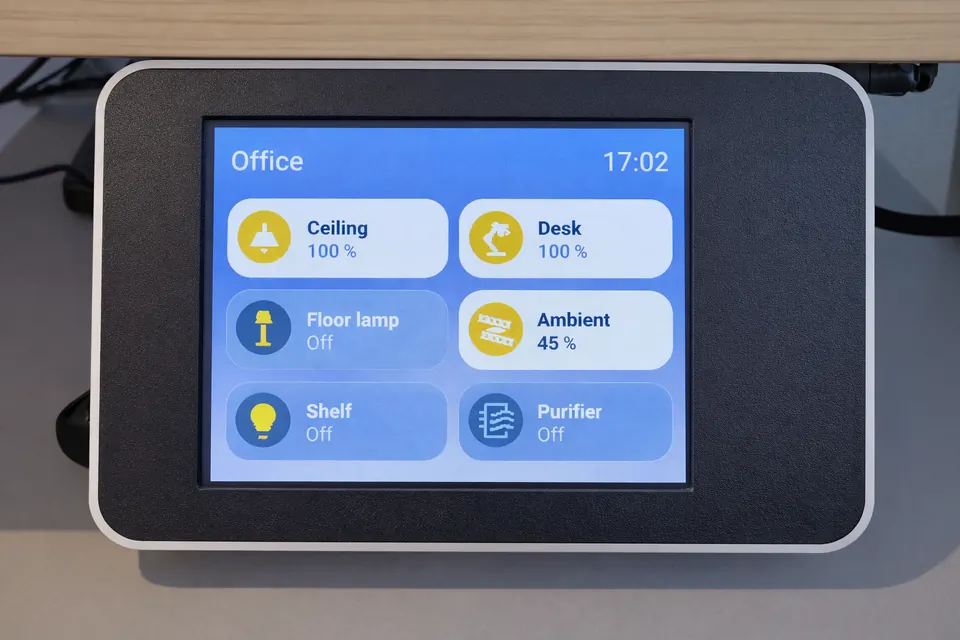
ESPHomeDesigner eliminates the biggest friction point in ESP32 display projects: writing display lambdas and LVGL YAML by hand. Instead, you design your dashboard visually in a browser canvas and the tool generates all the code automatically. The result is a live, data-driven dashboard on any ESP32-connected display — E-Ink, OLED, LCD, or touch — pulling real values from Home Assistant entities.
One design can produce multiple output formats. For ESP32 devices with direct display control, the editor generates native ESPHome C++ lambda code or LVGL YAML. For wireless e-paper price tags running OpenEpaperLink, it produces JSON service calls. For HTTP-driven panels using OpenDisplay, it outputs JSON action payloads. You design once and choose the export format that fits your hardware.
This guide walks you through installing ESPHomeDesigner, preparing your ESP32 device, designing a layout with live entity data, and flashing it — without writing a single line of display code.
 \2
\2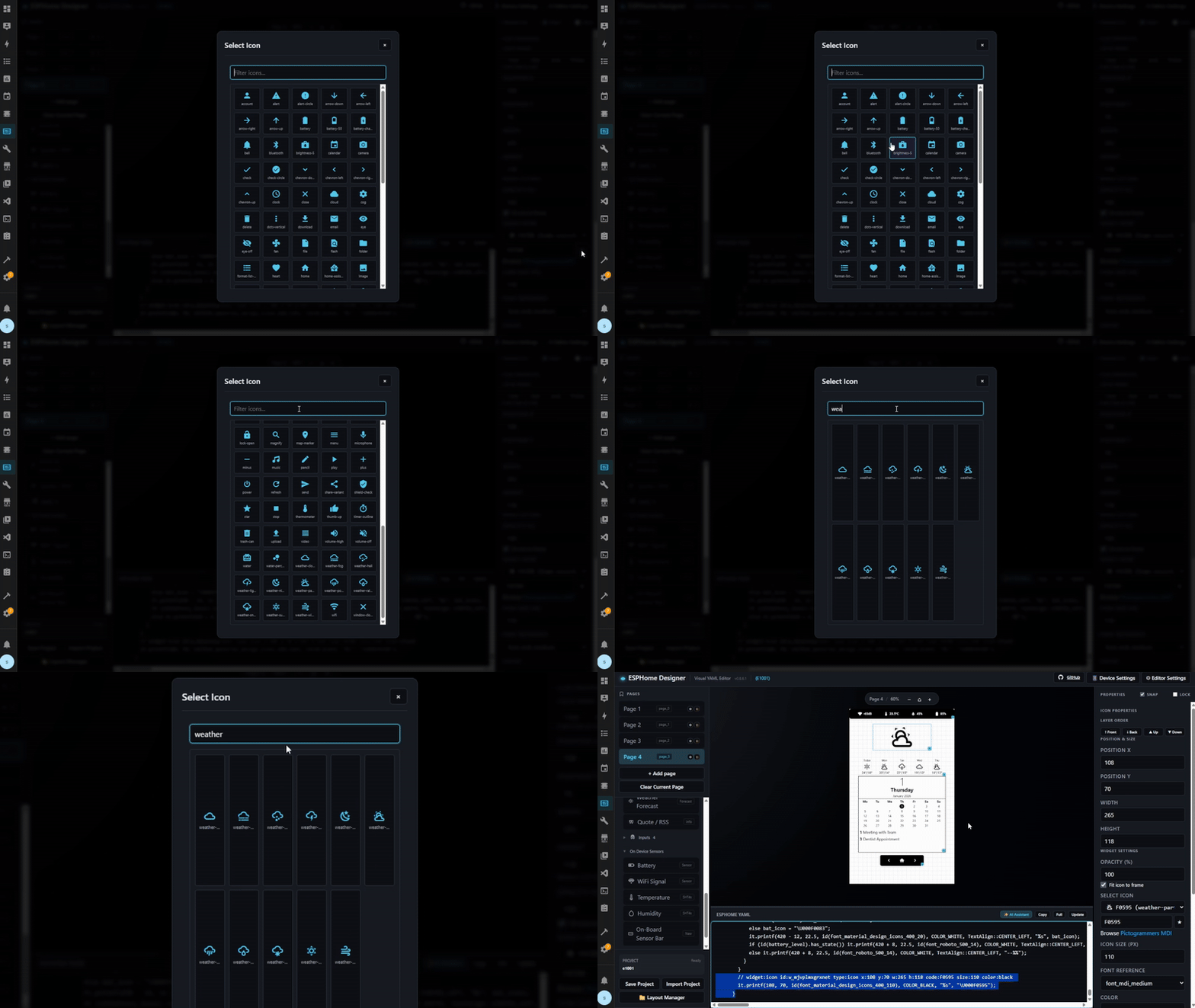 \2
\2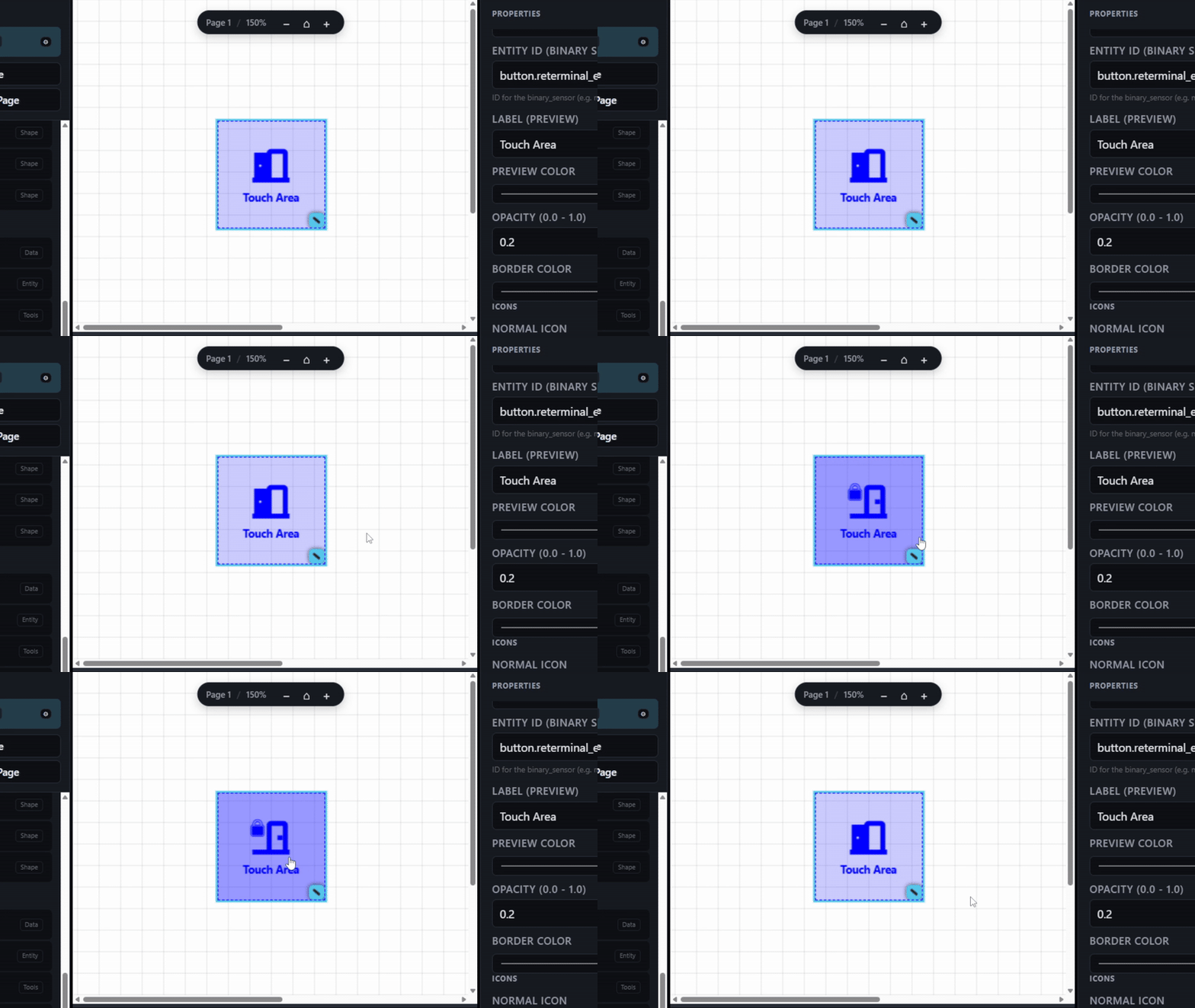 \2
\2What You Need
Hardware
- An ESP32-based device with a compatible display (E-Ink, OLED, or LCD)
- For LVGL interactive widgets: ESP32-S3 with PSRAM (LVGL support is experimental and may be unstable)
- Optionally: OpenEpaperLink wireless e-paper tags or OpenDisplay HTTP-driven panels
Software and accounts
- Home Assistant, running and accessible on your network
- ESPHome, installed and configured in Home Assistant
- HACS (recommended for the easiest installation path)
- The Material Design Icons font file from the repository:
font_ttf/font_ttf/materialdesignicons-webfont.ttf
No installation at all is required if you use the hosted live web version at koosoli.github.io/ESPHomeDesigner/. That path still requires a Home Assistant URL and a Long-Lived Access Token to pull entity data onto the canvas.
Typical use cases
Build an always-on E-Ink or OLED panel showing temperatures, energy usage, weather, and calendar events — all driven by Home Assistant entities with no display code to write.
Design layouts for OpenEpaperLink wireless e-paper price tags and push updates via Home Assistant service calls, turning cheap shelf tags into live sensor or status displays.
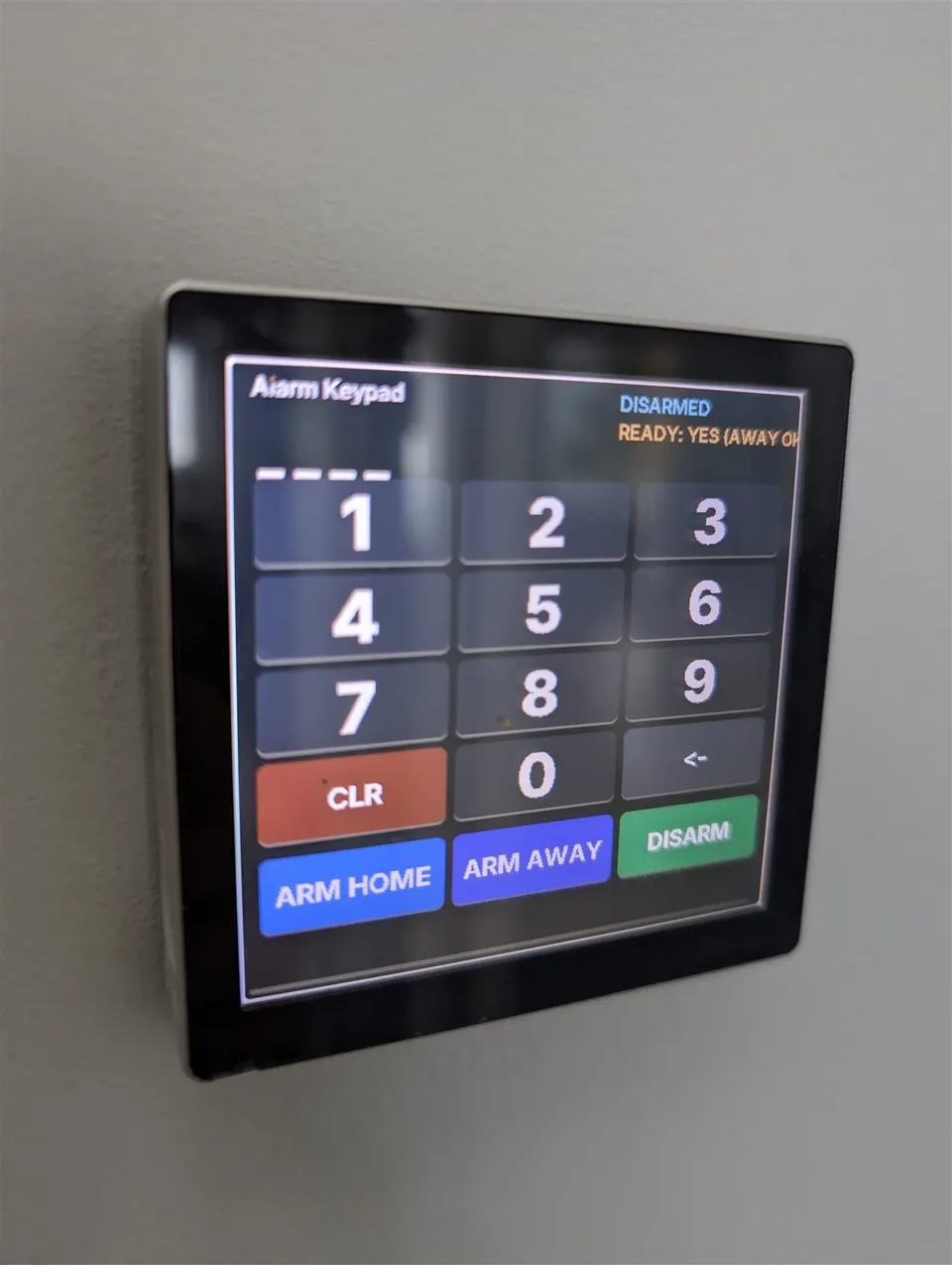
Use LVGL widgets on an LCD + touch display to build an interactive control surface for lights, climate, or alarms — with buttons and sliders that trigger Home Assistant actions directly.
Assign time-based visibility windows to pages so a single device automatically rotates between a morning weather briefing, a daytime sensor view, and an evening media status panel.
How It Works
ESPHomeDesigner runs as a Home Assistant custom integration and exposes a visual editor at /esphome-designer. You select a hardware profile — E1001, E1002, TRMNL, or a custom profile you upload — and a canvas sized to your display's exact resolution appears in the browser.
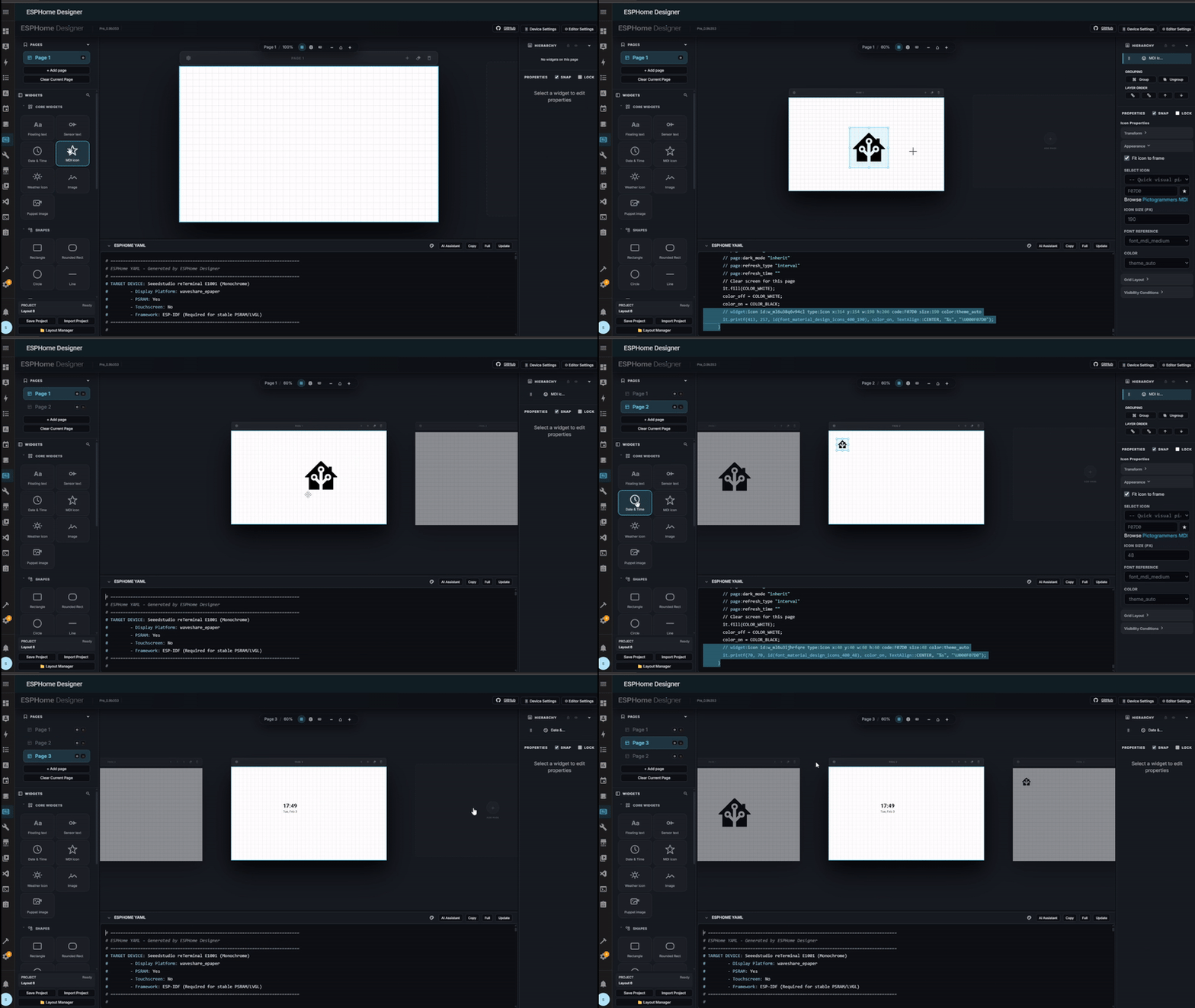
Widgets from a library of 55+ modules (text, icons, graphs, shapes, QR codes, touch areas, and more) can be dragged onto the canvas and connected to live Home Assistant entities or MQTT topics. Entity values update directly on the canvas as you design, so you are looking at real sensor readings, not placeholder text.
As you place and configure widgets, ESPHomeDesigner generates the corresponding ESPHome YAML in real time in a snippet box alongside the canvas. There is no direct flash path from the editor — when the layout looks right, you copy the snippet and paste it into your actual ESPHome device configuration, then compile and flash from the ESPHome dashboard as usual.
Layouts are saved in Home Assistant storage at /config/.storage/esphome_designer. Custom hardware profiles are stored separately at /config/esphomedesigner_custom_profiles/*.yaml. Round-trip editing is supported: you can import an existing ESPHome config, OEPL YAML array, or ODP JSON payload back into the canvas to continue editing visually.
Build and Flash Steps
Step 1 — Install ESPHomeDesigner
The fastest path is the hosted live web app — no installation needed. Open koosoli.github.io/ESPHomeDesigner/, click the gear icon to open Editor Settings, enter your Home Assistant URL and a Long-Lived Access Token (created in your HA profile), and add the designer URL to cors_allowed_origins in your HA configuration.
For a permanent integration embedded inside Home Assistant, HACS is recommended:
- Add
https://github.com/koosoli/ESPHomeDesigneras a custom HACS repository - Search for "ESPHome Designer" and install it
- Restart Home Assistant
- Go to Settings → Devices & Services → Add Integration and search for "ESPHome Designer"
For manual installation, copy the custom_components/esphome_designer folder into your Home Assistant config/custom_components/ directory, restart, and add the integration the same way.
To run the editor locally without Home Assistant using the full repository:
npm install
npm run dev
Open http://localhost:5174. If you only have the custom_components folder from a HACS install, serve the frontend directly:
cd custom_components/esphome_designer/frontend
python3 -m http.server 8000
Open http://localhost:8000 and connect via Editor Settings.
Step 2 — Copy the font file
Before any display can render icons, the Material Design Icons font must be in place. Copy font_ttf/font_ttf/materialdesignicons-webfont.ttf from the repository to /config/esphome/fonts/materialdesignicons-webfont.ttf on your Home Assistant system. Create the fonts folder if it does not exist.
Step 3 — Prepare your ESPHome device
Create a new device in the ESPHome dashboard. Let ESPHome generate the base configuration (WiFi, API, OTA). Set the correct ESP platform for your hardware — comments in the generated YAML include guidance for this. Do not flash yet.
Step 4 — Design your dashboard
Open /esphome-designer in Home Assistant (or use the web app). Select your device type, then build out your layout:
- Drag Sensor Text, Date, Time, Icon, Graph, or shape widgets onto the canvas
- Connect widgets to Home Assistant entities — values update live on the canvas
- Use the 360+ Material Design Icons library for weather states, status indicators, and labels
- Set conditional visibility rules to show or hide widgets based on entity state
- Create multiple pages with different refresh rates, or assign time-based windows so the device shows the right page automatically at the right time
- Watch the YAML snippet box update in real time as you adjust the layout
Enable Debug Grid in Editor Settings if you need a coordinate overlay for precise placement.
Step 5 — Flash
When the layout is ready:
- Copy the generated YAML from the snippet box
- Open your ESPHome device configuration
- Paste the snippet below ESPHome's auto-generated sections
- Compile and flash from the ESPHome dashboard
Hit Save Layout in the editor before you close it. This writes your canvas state to /config/.storage/esphome_designer so you can reopen and edit the layout later without starting over.
Step 6 — Connect to Home Assistant
Once the device is online, go to Settings → Devices & Services. ESPHome will discover it automatically. Configure the integration to connect to its API. If your device has buttons, a buzzer, or onboard temperature and humidity sensors, they will appear as Home Assistant entities ready for use in automations.
Ideas to Extend It — and Limitations to Know
Ways to go further
- Use time-based page scheduling to show a weather summary when you wake up, a sensor dashboard during the day, and an alert page when the doorbell rings — all automated through Home Assistant
- Add a Touch Area widget to trigger HA actions directly from the display: turn off lights, dismiss an alarm, or activate a scene
- Use the AI-Powered Dashboard Assistant to generate a complete layout from a text prompt, then refine it visually on the canvas
- Build a reusable hardware profile for your specific display module and save it so every future project starts with the correct resolution and pin layout already configured
- Display WiFi credentials or a URL on a guest info panel using the QR Code widget, which auto-formats SSID and password for instant phone scanning
- Pull data from MQTT topics instead of HA entities for devices that publish sensor readings over MQTT directly
Limitations to keep in mind
- LVGL interactive widgets (buttons, switches, sliders) are experimental, require ESP32-S3 with PSRAM, and the entire page switches to LVGL mode when any LVGL widget is added — expect instability
- Very custom
lambda:orscript:code may not reconstruct perfectly in the visual editor during round-trip import, even though the raw YAML is preserved - The editor does not flash your device directly; you must copy the YAML snippet and compile/flash through ESPHome
- Manual edits made in the YAML snippet box are saved as part of the layout state in HA storage, not as a standalone ESPHome device file — the generated YAML is intended to be merged into your device config manually
ESPHomeDesigner is a well-engineered tool that genuinely removes the hardest part of building ESP32 display projects: it replaces hand-coded lambdas with a live visual canvas and generates correct ESPHome YAML automatically. The HACS installation path and the no-install web app lower the barrier significantly for Home Assistant users, though you still need to understand ESPHome device configuration and the manual copy-paste flash workflow. LVGL support is experimental and should be treated as such, but for E-Ink and standard display builds, the tool is stable and actively maintained.
Sources
github.comkoosoli/ESPHomeDesigner — repository & READMEFacts in this article come from the project's public README and GitHub metadata at the time of writing. Images belong to their respective owners and link back to the original source.