ESP32-CAM A.I. Thinker: Camera Projects with ESP-IDF
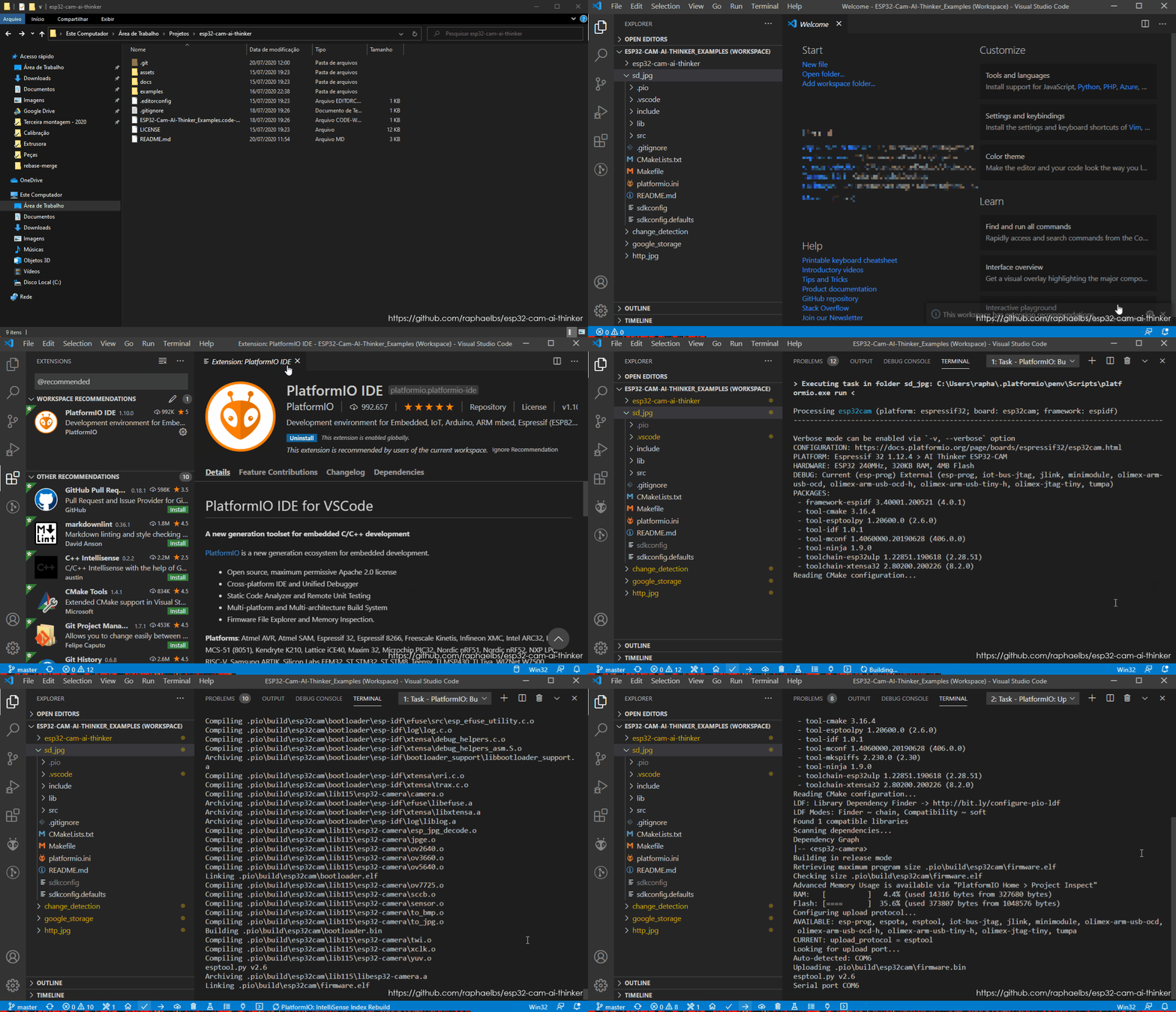
PlatformIO compiling and uploading a camera example to the ESP32-CAM board
- ESP32-CAM A.I. Thinker
- OV2640 camera sensor
- USB to TTL dongle
- External power supply
What You Will Build
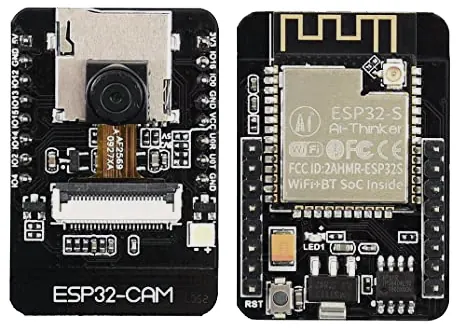
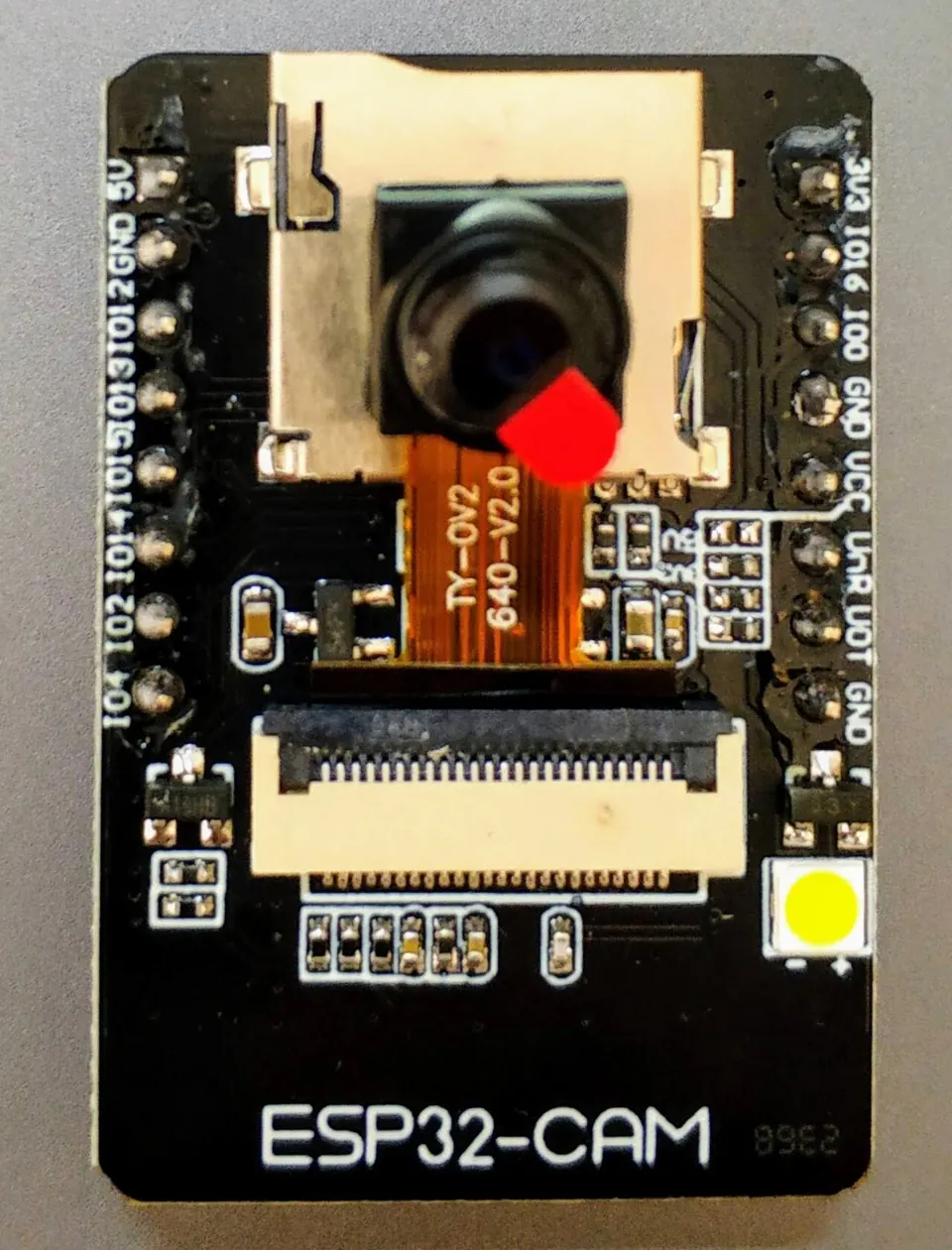
The ESP32-CAM A.I. Thinker is a compact, low-cost module that pairs an ESP32 chip with an OV2640 camera and 64 MBit of external PSRAM. This repository gives you a single place for the board's specifications, wiring schematics, and four practical examples you can run immediately.
By the end of this guide you will have the board wired, flashed, and running one of four camera applications:
- Change detection – take a photo when motion is detected
- Google Storage upload – store images to Firebase / Google Cloud Storage
- SD card capture – save JPEG frames directly to a microSD card
- HTTP JPEG server – stream a still image over Wi-Fi via a simple HTTP server
This is a great starting point for surveillance cameras, time-lapse rigs, wildlife monitors, or any robot that needs a pair of eyes.
 \2
\2What You Need
Hardware
- ESP32-CAM A.I. Thinker board (usually sold with the OV2640 sensor attached)
- USB to TTL dongle (3.3 V logic level) for flashing
- External 5 V power supply — the README explicitly warns that USB alone is insufficient and causes
brownoutreboot loops - MicroSD card (required for the SD card example)
Software
- PlatformIO installed in VS Code (or your preferred IDE)
- Git to clone the repository
Clone the project from the GitHub repository and open it in your PlatformIO IDE.
Typical use cases
Mount the ESP32-CAM outdoors, power it from a small supply, and use the change-detection example to snap photos whenever something moves in the frame.
Use the Firebase / Google Storage example to automatically upload captured images to the cloud without any intermediate server.
Record JPEG frames to a microSD card for offline review — useful for timelapse builds or field deployments with no Wi-Fi.
Run the HTTP JPEG server example to serve live snapshots over Wi-Fi, viewable in any browser on the local network.
How It Works
The OV2640 sensor supports three native resolutions — UXGA, SVGA, and CIF — and exposes controls for gain, white balance, windowing (zoom, pan, sub-sampling), frame exposure, output scaling, power-down, and strobe (the built-in flash LED). The ESP32 communicates with the sensor over its camera interface and buffers frames in the 64 MBit PSRAM (IPUS IPS6404), which is large enough to hold full-resolution JPEG frames before they are written to SD, sent over HTTP, or uploaded to the cloud.
The SD card is mounted using FatFS, so it appears to your code as a standard filesystem. The HTTP server example exposes a single endpoint that returns the latest JPEG frame, making it easy to view the image in any browser on the same network.
Wiring and Flashing
Wire the board
Connect your USB to TTL dongle to the ESP32-CAM following the diagram in the repository (assets/Wiring-with-usb-ttl.png). Pay attention to the voltage levels — use a 3.3 V TTL adapter, not 5 V.
Connect your external power supply to the board's power rails. Do not rely on the power from the USB–TTL dongle alone.
Enter flash mode
The ESP32-CAM does not have a dedicated flash button like many dev boards. You must manually put it into the bootloader:
- Turn the board off (remove power).
- Short
GPIO0toGND— hold this connection. - Turn the board on (apply power).
The chip will now boot into the serial bootloader and wait for a firmware upload.
Open an example in PlatformIO
Open any of the four example folders (change detection, Google Storage, SD card, or HTTP JPEG) in VS Code with PlatformIO installed, then click Upload. PlatformIO handles compilation and flashing automatically, as shown in the animated GIF in the repository.
Boot into your sketch
Once flashing is complete:
- Disconnect
GPIO0fromGND(leave it floating). - Press the board's built-in reset button, or cycle the power.
The ESP32 will now boot and run your uploaded firmware.
Extending the Project
The repository roadmap is to add examples that exercise all of the OV2640's capabilities. A few directions worth exploring:
- Motion-triggered cloud backup – combine the change-detection example with the Google Storage uploader to automatically back up photos when motion occurs.
- Timelapse – use the SD card example with a deep-sleep loop to capture periodic frames at low power.
- Pan/zoom experiments – the OV2640 windowing feature (zoom, panning, sub-sampling) is documented in the board specs but not yet fully covered by the examples, making it a good area for contribution.
- MJPEG streaming – extend the HTTP server example to push a multipart JPEG stream so a browser can display live video.
Limitations to keep in mind
- The board has no native USB port, so every flash session requires the TTL dongle and the GPIO0/GND short procedure.
- An external power supply is mandatory. Skipping it causes persistent brownout resets that are easy to mistake for a software bug.
- There is no onboard microphone or speaker, so audio-visual applications need additional hardware.
The esp32-cam-ai-thinker repository is the most practical starting point for anyone working with the A.I. Thinker ESP32-CAM module. It consolidates the wiring diagram, flashing procedure, and four real examples in one place, saving the hours usually spent hunting across forums. The mandatory external power supply and manual bootloader entry add a small hurdle for beginners, but the PlatformIO workflow keeps compilation and flashing straightforward once the hardware is wired correctly.
Sources
github.comraphaelbs/esp32-cam-ai-thinker — repository & READMEFacts in this article come from the project's public README and GitHub metadata at the time of writing. Images belong to their respective owners and link back to the original source.