ESP32 Camera Example: Step-by-Step Setup Guide
What do you need before you start?
Before writing a single line of code, confirm you have all of the following.
Hardware
- An ESP32, ESP32-S2, or ESP32-S3 board with a camera connector. The AI Thinker ESP32-CAM is the most common and cheapest starting point.
- A compatible image sensor. The OV2640 ships soldered to most ready-made ESP32-CAM boards. Other supported sensors include the OV5640 (up to 2592 × 1944), OV3660 (2048 × 1536), OV7670 (640 × 480), GC2145, NT99141, and more.
- PSRAM on the module. The driver requires PSRAM for any resolution above CIF when not using JPEG, and it is strongly recommended for JPEG streaming too.
- A USB-to-serial adapter if you are using the AI Thinker board — it has no built-in USB-UART chip.
Software
- Arduino IDE with the arduino-esp32 core installed, or ESP-IDF, or PlatformIO with the
espidfframework. - Python accessible on your system PATH. The ESP32 build toolchain calls
pythondirectly; on some Linux systems onlypython3exists (see Common Mistakes).
Knowledge
- Basic familiarity with flashing an ESP32 and reading serial output.
 \2
\2ESP32-CAM module with integrated camera connector Image: Nowforever, CC BY-SA 4.0, via Wikimedia Commons
How do I install the ESP32 camera library?
The approach depends on which build system you are using.
| Environment | What to do |
|---|---|
| Arduino IDE (arduino-esp32 core) | Nothing — just #include "esp_camera.h" |
| PlatformIO (ESP-IDF framework) | Add esp32-camera to lib_deps in platformio.ini |
| ESP-IDF CLI | Run idf.py add-dependency "espressif/esp32-camera" |
For ESP-IDF you can also pull a ready-configured example in one command:
idf.py create-project-from-example "espressif/esp32-camera:camera_example"
This drops the example into a camera_example directory that already has the correct menuconfig settings, making it the fastest route to a first working build.
For PlatformIO, add the following to the env section of platformio.ini:
[env]
lib_deps =
  esp32-camera
Regardless of environment, enable PSRAM in menuconfig and set both Flash and PSRAM frequencies to 80 MHz. With PlatformIO you can add this line directly to sdkconfig instead:
CONFIG_ESP32_SPIRAM_SUPPORT=y
_Part_80_to_End_with_ESP32_on_top,_camera_rotated.jpg) \2
\2ESP32 development board with camera module attached on breadboard Image: Kansattica, CC BY 4.0, via Wikimedia Commons
How do I configure and initialize the camera?
Initialization comes down to filling a camera_config_t struct and calling esp_camera_init(). Pin numbers differ by board. The table below shows the values for the AI Thinker ESP32-CAM:
| Signal | GPIO |
|---|---|
| PWDN | 32 |
| RESET | -1 (software reset) |
| XCLK | 0 |
| SIOD (SDA) | 26 |
| SIOC (SCL) | 27 |
| D7 / Y9 | 35 |
| D6 / Y8 | 34 |
| D5 / Y7 | 39 |
| D4 / Y6 | 36 |
| D3 / Y5 | 21 |
| D2 / Y4 | 19 |
| D1 / Y3 | 18 |
| D0 / Y2 | 5 |
| VSYNC | 25 |
| HREF | 23 |
| PCLK | 22 |
Define the pins at the top of your sketch, then fill the config struct using those constants:
#include "esp_camera.h"

// Pin definition for CAMERA_MODEL_AI_THINKER
#define PWDN_GPIO_NUM     32
#define RESET_GPIO_NUM    -1
#define XCLK_GPIO_NUM      0
#define SIOD_GPIO_NUM     26
#define SIOC_GPIO_NUM     27

#define Y9_GPIO_NUM       35
#define Y8_GPIO_NUM       34
#define Y7_GPIO_NUM       39
#define Y6_GPIO_NUM       36
#define Y5_GPIO_NUM       21
#define Y4_GPIO_NUM       19
#define Y3_GPIO_NUM       18
#define Y2_GPIO_NUM        5
#define VSYNC_GPIO_NUM    25
#define HREF_GPIO_NUM     23
#define PCLK_GPIO_NUM     22
Then configure and initialise:
camera_config_t config;
config.ledc_channel = LEDC_CHANNEL_0;
config.ledc_timer = LEDC_TIMER_0;
config.pin_d0 = Y2_GPIO_NUM;
config.pin_d1 = Y3_GPIO_NUM;
config.pin_d2 = Y4_GPIO_NUM;
config.pin_d3 = Y5_GPIO_NUM;
config.pin_d4 = Y6_GPIO_NUM;
config.pin_d5 = Y7_GPIO_NUM;
config.pin_d6 = Y8_GPIO_NUM;
config.pin_d7 = Y9_GPIO_NUM;
config.pin_xclk = XCLK_GPIO_NUM;
config.pin_pclk = PCLK_GPIO_NUM;
config.pin_vsync = VSYNC_GPIO_NUM;
config.pin_href = HREF_GPIO_NUM;
config.pin_sscb_sda = SIOD_GPIO_NUM;
config.pin_sscb_scl = SIOC_GPIO_NUM;
config.pin_pwdn = PWDN_GPIO_NUM;
config.pin_reset = RESET_GPIO_NUM;
config.xclk_freq_hz = 20000000;
config.pixel_format = PIXFORMAT_JPEG;
config.frame_size = FRAMESIZE_CIF; // FRAMESIZE_ + QVGA|CIF|VGA|SVGA|XGA|SXGA|UXGA
config.jpeg_quality = 10;
config.fb_count = 2;

esp_err_t err = esp_camera_init(&config);
if (err != ESP_OK) {
  Serial.printf("Camera init failed with error 0x%x", err);
  return;
}
ledc_channel and ledc_timer tell the driver to generate the XCLK signal internally using the LED PWM peripheral — leave them as shown unless you have a conflict with other LEDC users in your project.
How do I capture frames and use the image data?
After esp_camera_init() returns ESP_OK, capturing a frame uses esp_camera_fb_get():
camera_fb_t * fb = NULL;

// Take Picture with Camera
fb = esp_camera_fb_get();
if(!fb) {
  Serial.println("Camera capture failed");
  return;
}
The fb pointer gives you access to the raw byte buffer, its length, and the frame dimensions. Always return the buffer to the driver after you are done with it, or the pool will be exhausted and subsequent captures will fail.
One frame buffer vs. two or more
- With
fb_count = 1the driver waits for the VSYNC signal, starts I2S DMA, grabs the frame, and then stops. You get precise control but lower throughput. - With
fb_count = 2or more, I2S DMA runs continuously and each frame is pushed into a queue for your code to consume. This roughly doubles achievable frame rate but puts more load on the CPU and memory. Use multiple buffers with JPEG only.
Pixel format advice
Capturing directly in YUV or RGB puts heavy strain on the chip because writes to PSRAM are slow, and frame data is often incomplete when Wi-Fi is active at the same time. The recommended pattern is to capture in JPEG and then convert using fmt2rgb888() or fmt2bmp() / frame2bmp() from the driver's utility functions.
How do I verify the camera is working?
Run these checks in order before building anything more complex.
- Open Serial Monitor at 115200 baud right after flashing. Confirm there is no
Camera init failedline — a clean start means the sensor is responding over I2C. - Add a one-shot capture call immediately after init and confirm
fbis not null before accessing the buffer. A null pointer means the sensor is not producing image data. - Return the buffer after inspection and capture a second frame to confirm the buffer pool recycles correctly.
- If you used
idf.py create-project-from-example, the bundled example already prints basic frame statistics to the console — no extra code needed to confirm capture is healthy. - For streaming projects, print
WiFi.localIP()to Serial after connecting, then open that address in a browser to confirm your MJPEG or snapshot endpoint responds.
What are the most common mistakes?
Wrong pin numbers for your board
Pin assignments differ between the AI Thinker ESP32-CAM, WROVER-KIT, and other camera boards. Always verify your board's schematic before filling camera_config_t. Pasting pins from the wrong board is the leading cause of init failed errors.
PSRAM not enabled in menuconfig
Forgetting this step causes a crash immediately after esp_camera_init(). Enable PSRAM and set Flash and PSRAM frequencies to 80 MHz. Without PSRAM, only CIF or lower with JPEG is possible.
Capturing YUV or RGB with Wi-Fi active PSRAM write bandwidth cannot keep up with raw pixel data while the Wi-Fi radio is running. Frames will be incomplete or corrupt. Capture JPEG and convert to the color format you need afterward.
python: executable file not found in $PATH on Linux
The ESP32 build toolchain calls python, not python3. On Ubuntu 20.04 and later, python is not symlinked by default even though python3 is installed. The fix is to install a package that creates the python → python3 link:
sudo dpkg -i python-is-python3_3.8.2-4_all.deb
You can confirm Python is found by typing python in a terminal and seeing a version prompt.
Not returning the frame buffer
Every esp_camera_fb_get() call must be paired with a corresponding return call. Skipping the return exhausts the pool and causes the next capture attempt to block or return null.
Resolution above CIF with PSRAM disabled This combination will fail at init or produce garbage. Either enable PSRAM or drop resolution to CIF or lower when working with JPEG on a board that truly has no PSRAM.
Frequently asked questions
Which ESP32 chips work with the esp32-camera library?
The library officially supports ESP32, ESP32-S2, and ESP32-S3.
Is PSRAM required for the ESP32-CAM?
Yes in most cases. It is required for resolutions above CIF when not using JPEG, and strongly recommended for all JPEG streaming use cases.
What image sensors are compatible with esp32-camera?
Supported sensors include OV2640 (1600×1200), OV5640 (2592×1944), OV3660 (2048×1536), OV7670 (640×480), OV7725, GC2145, GC032A, NT99141, SC101IOT, HM1055, and several others listed in the repository.
Can I stream video from the ESP32-CAM to a browser or server?
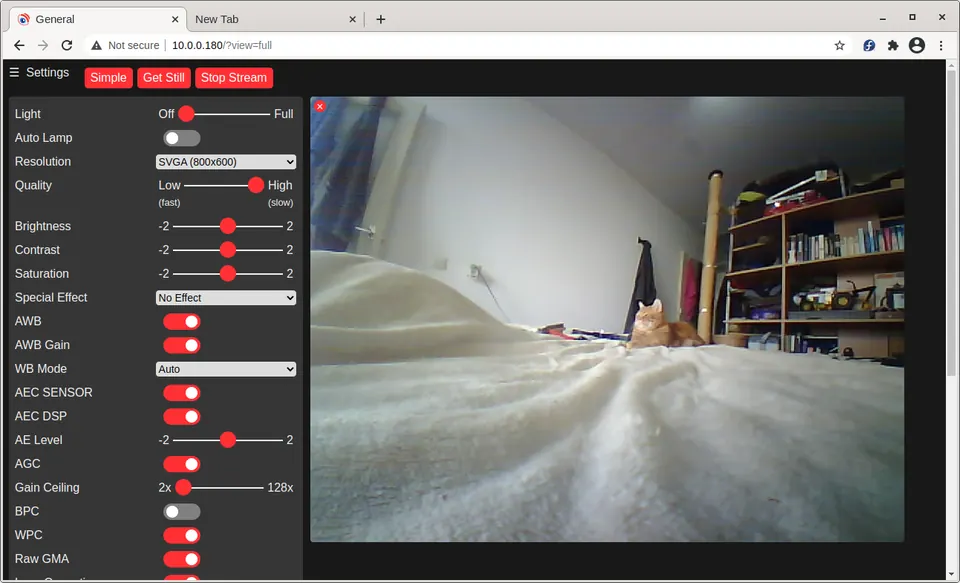
Yes. One approach is to capture JPEG frames in a loop and send them as base64-encoded data over a WebSocket or Socket.IO connection to a Node.js relay, which then forwards them to browser clients. The ESP32 connects to Wi-Fi, acquires frames with esp_camera_fb_get(), encodes them, and emits them as Socket.IO events.
Why does my build fail with 'python: executable file not found in $PATH'?
The ESP32 toolchain looks for 'python', but Ubuntu 20.04 and later only install 'python3'. Install a package that creates the python→python3 symlink, such as python-is-python3, to fix it.
Getting an ESP32 camera example running reliably comes down to three things: matching your pin map exactly to your physical board, enabling PSRAM in menuconfig, and sticking to JPEG capture whenever Wi-Fi is active. Start with the bundled example from the component registry to rule out wiring issues, then build streaming or image-processing features on top of that confirmed baseline.
Sources
stackoverflow.com"exec: "python": executable file not found in $PATHstackoverflow.comESP32-CAM fastest way to stream video output to nodejs server with socketIOgithub.comespressif/esp32-camera (GitHub README)This guide summarises the public sources listed above in our own words. Check the original documentation before relying on exact figures.