esp32cam-ready: Plug-and-Play RTSP Camera with ESP32-CAM
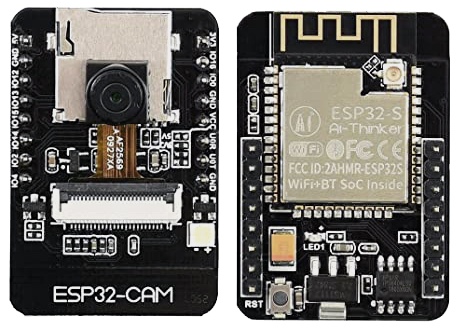
The AI-Thinker ESP32-CAM module with OV2640 camera that esp32cam-ready targets.
- ESP32-CAM (OV2640)
- USB to Serial (TTL) adapter
- ESP32-CAM-MB piggyback board
What You Will Build
esp32cam-ready turns an ESP32-CAM module into a fully self-contained Wi-Fi camera server in three steps: flash, provision, connect. Once running, the module hosts two parallel services:
- An HTTP server at
http://esp32cam.localwhere you can take snapshots, watch a live stream in the browser, toggle the onboard LED flash, and reset Wi-Fi credentials. - An RTSP server at
rtsp://esp32cam.local:554/mjpeg/1that any standard video player or recorder understands, including VLC and ffmpeg.
The RTSP output means you can pipe the stream directly to a disk with ffmpeg, feed it into a security DVR, or embed it in a robot or drone project that needs a live camera feed over the local network — no cloud account required.
Note: The author has published a newer sibling project, ESP32CAM-RTSP, with a richer web configuration interface. esp32cam-ready remains the leaner, well-tested baseline described here.
 \2
\2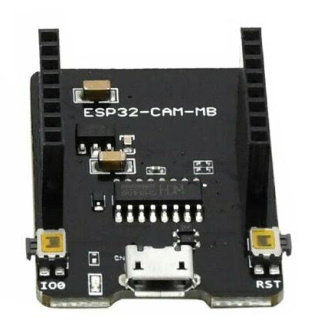 \2
\2What You Need
Hardware
- ESP32-CAM module (the common AI-Thinker board with OV2640 camera)
- One of the following for flashing:
- A USB-to-Serial (TTL level) adapter wired to the board's UART pins, or
- The ESP32-CAM-MB piggyback board, which adds a USB port and a dedicated IO0 button — the easiest option for beginners
Software
- PlatformIO — either the CLI or the Visual Studio Code extension
- Python and pip (required by PlatformIO CLI on Linux)
- A video player that supports RTSP, such as VLC, if you want to test streaming
Typical use cases
Mount on a rover or robot arm and stream live RTSP video to a control dashboard over Wi-Fi.
Place around a workshop or garage and record continuously to disk using ffmpeg piped from the RTSP feed.
Run several ESP32-CAM modules on one network; each gets a unique mDNS name, so you can open all streams in parallel.
Attach to a lightweight drone frame and receive the RTSP stream in any compatible ground station application.
Wiring for Flashing
The ESP32-CAM has no built-in USB port, so you need a serial adapter only during the upload step.
Option A — USB-to-Serial adapter
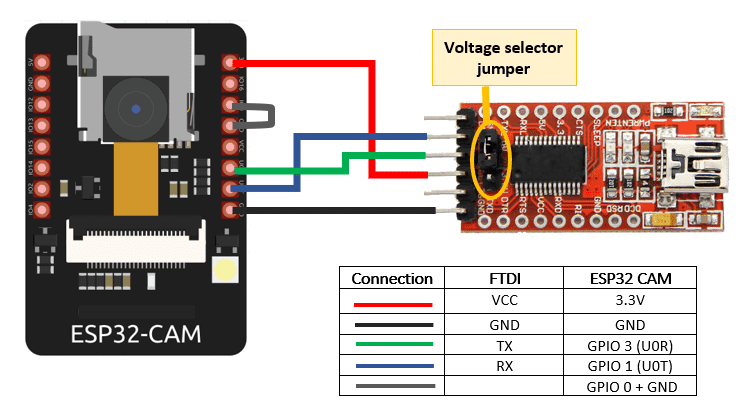
Connect the adapter to the ESP32-CAM as shown in the repository's wiring diagram (assets/ESP32CAM-to-FTDI.png). Critically, bridge GPIO0 to GND before powering up: this puts the chip into download mode. After flashing succeeds, remove that bridge and press reset so the firmware boots normally.
Option B — ESP32-CAM-MB piggyback board (recommended for beginners)
Snap the ESP32-CAM onto the MB board and plug it in via USB. Hold the IO0 button, press and release reset, then release IO0. The chip is now in download mode and ready to receive the firmware. After flashing, press reset once to boot.
Build and Flash
Install PlatformIO on Debian/Ubuntu
sudo apt-get install python-pip
sudo pip install platformio
pio upgrade
On Windows or macOS, install Visual Studio Code and add the PlatformIO extension instead.
Clone and build
git clone https://github.com/rzeldent/esp32cam-ready.git
cd esp32cam-ready
pio run
Put the board in download mode (GPIO0 to GND or IO0 button as described above), then upload:
pio run -t upload
Remove the GPIO0 jumper (or release IO0) and press reset. Watch the boot log with:
pio device monitor
Provision Wi-Fi
- On your phone or laptop, scan for a Wi-Fi network named
esp32cam-xxxxxxxxxxxx(thexcharacters are the module's MAC address). - Connect using the password
esp32cam#. - Open a browser and go to
http://192.168.4.1. - Enter your home or workshop Wi-Fi SSID and password and save.
- The module reboots and joins your network. It is now reachable at
http://esp32cam.local.
Open the RTSP stream in VLC
Go to Media → Open Network Stream in VLC and enter:
rtsp://esp32cam.local:554/mjpeg/1
The live camera feed should appear within a few seconds.
What You Can Do From the Browser
Visiting http://esp32cam.local gives you a simple control panel built into the firmware:
- Snapshot — download a still JPEG from the OV2640 camera
- Stream — watch the MJPEG feed directly in the browser without any extra software
- Light on/off — toggle the onboard LED flash, useful for low-light monitoring
- Remove Wi-Fi configuration — resets credentials so the module returns to access-point mode, handy when you move it to a different network
All four controls work without installing anything on the client side.
Ideas to Extend It and Known Limitations
Ways to take it further
- Record to disk with ffmpeg — because the RTSP output is a standard stream, you can pipe it directly to ffmpeg on any PC or Raspberry Pi to record timestamped video files, build a timelapse, or feed a motion-detection pipeline.
- Robot or rover camera — mount the ESP32-CAM on a wheeled robot and pull the live RTSP feed into a control dashboard; the low cost makes it practical to run multiple cameras on one vehicle.
- Drone FPV feed — the RTSP stream can be received by any ground station software that accepts RTSP, giving you a lightweight FPV option.
- Multi-camera wall — because each module gets its own mDNS hostname based on its MAC address, you can run several modules on one network and open each stream in a separate VLC window.
- Upgrade path — the author's newer ESP32CAM-RTSP project adds a proper web configuration UI and is worth checking out once you outgrow this version.
Limitations to keep in mind
- The ESP32-CAM has no on-board USB, so flashing always requires an external serial adapter or the MB board.
- Image quality and frame rate depend on the OV2640 sensor and the ESP32's processing headroom; do not expect high-resolution, high-frame-rate video.
- There is no authentication on the HTTP or RTSP endpoints, so keep the device on a trusted local network.
esp32cam-ready delivers on its name: a few PlatformIO commands and a browser-based provisioning step are all it takes to have a live RTSP camera stream running on a sub-ten-euro module. It is a solid starting point for any robot, rover or monitoring project that needs a network camera without cloud dependencies or subscription fees.
Sources
github.comrzeldent/esp32cam-ready — repository & READMEFacts in this article come from the project's public README and GitHub metadata at the time of writing. Images belong to their respective owners and link back to the original source.