ESP32-CAM-Video-Recorder: Build a Self-Contained AVI Camera
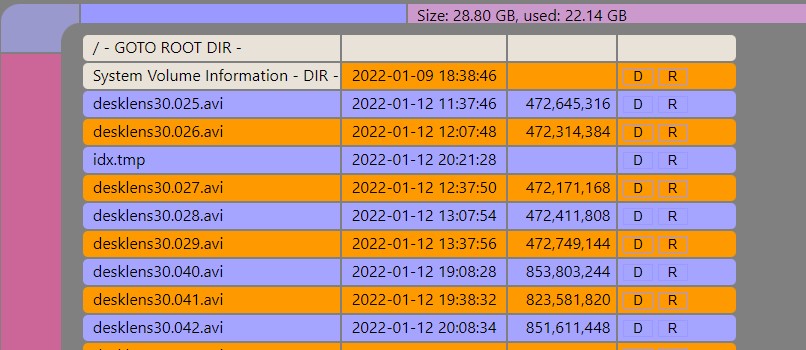
HTTP file manager lets you browse, download, and delete AVI recordings directly from the browser — no FTP client needed.
- ESP32-CAM
- OV2640 camera module
- microSD card
- PIR sensor (optional)
What You Will Build
This project turns an ESP32-CAM into a fully self-contained video recorder. It captures MJPEG frames from the OV2640 camera and writes them into a standard AVI container on a microSD card — no PC, no cloud service, and no extra microcontroller needed.
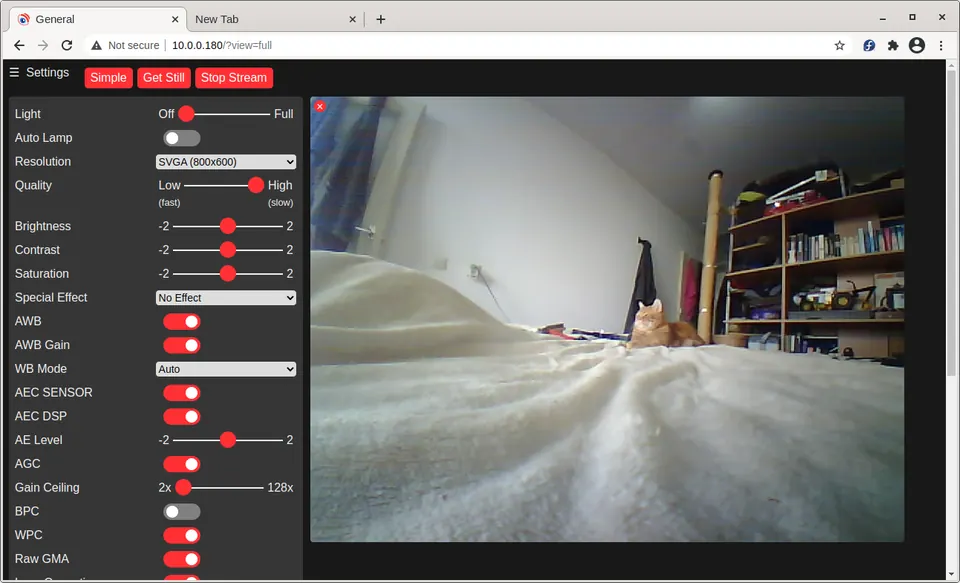
Once running, you reach the device at its local IP address (or via mDNS at a name like desklens.local) to see a live status page with a viewfinder snapshot, start or stop recordings, and browse the files already saved to the card. Recordings can be downloaded directly to a phone or laptop with a single browser click — no FTP client required in the current version.
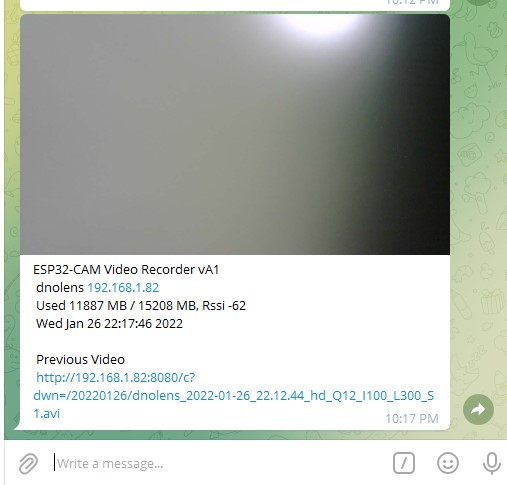
Beyond basic recording, the firmware supports timelapse (adjustable interval between frames and a playback speed multiplier), grayscale mode, automatic deletion of the oldest day of videos when the card reaches 90% full, a live MJPEG stream you can open in a second browser tab or pull into VLC, and an optional Telegram bot that sends you the first frame of every new clip together with a one-click download link for the previous recording. A PIR sensor input can trigger recording automatically whenever motion is detected.
Good use cases include wildlife cameras, workshop security, slow-motion timelapse of plants or construction, and any remote monitoring situation where you want footage saved locally rather than streamed to a server.
 \2
\2 \2
\2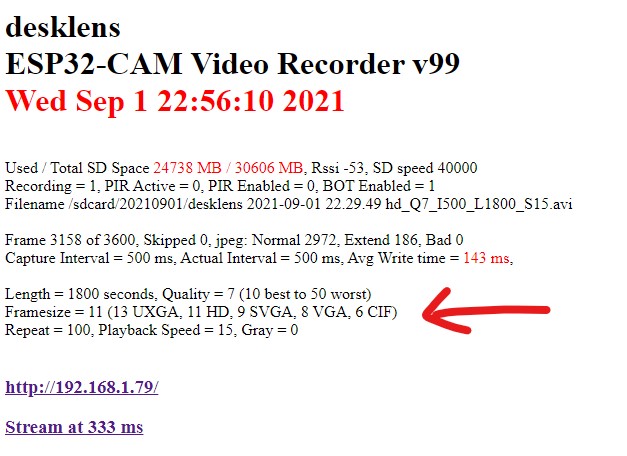 \2
\2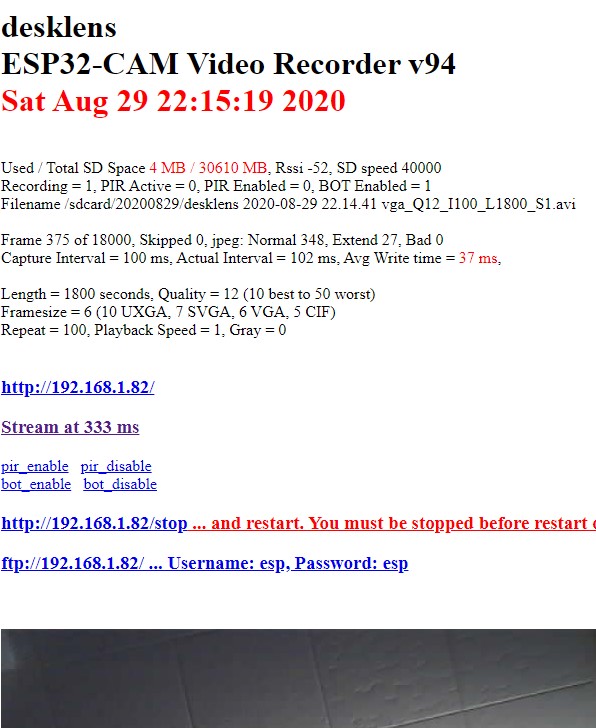 \2
\2What You Need
Hardware
- ESP32-CAM board (AI-Thinker or compatible) with OV2640 camera attached
- A microSD card — the firmware auto-manages space by deleting old footage at 90% capacity
- A PIR sensor (optional) wired to the board if you want motion-triggered recording
- A USB-to-serial adapter for initial flashing (the ESP32-CAM has no built-in USB)
Software and libraries
- Arduino IDE with the ESP32 board package set to arduino-esp32 version 2.0.2 (version A1 of the sketch requires this exact release; earlier sketch versions target 1.0.4 and 1.0.6 respectively)
- WiFiManager 2.0.3-alpha or later, installable from Arduino IDE → Manage Libraries; this version is required because it supports ESP32
- The sketch files from the
vA1folder of the repository
Optional for Telegram alerts
- A Telegram bot token and chat ID, which must be hardcoded into
settings.h— WiFiManager cannot set these at runtime
Typical use cases
Mount the ESP32-CAM outdoors, enable the PIR input, and let the board record short AVI clips only when an animal or person enters the frame. Download footage with one browser click.
Set a long interval between frames and a speed multiplier to compress hours of plant growth, construction, or weather into a short AVI saved directly to the SD card.
Enable the Telegram bot to receive a snapshot at the start of every new recording and a one-click download link for the previous clip, keeping you informed from anywhere on your phone.
Run continuous looped recordings with auto-deletion of the oldest files at 90% SD capacity, giving you a rolling local security archive without any cloud subscription.
How It Works
The firmware runs several concurrent FreeRTOS tasks at different priorities. The highest-priority tasks handle frame capture and AVI writing to the SD card, so recording is never starved by network activity. The HTTP server task sits at a lower priority, which means the live stream may slow down before recording quality suffers.
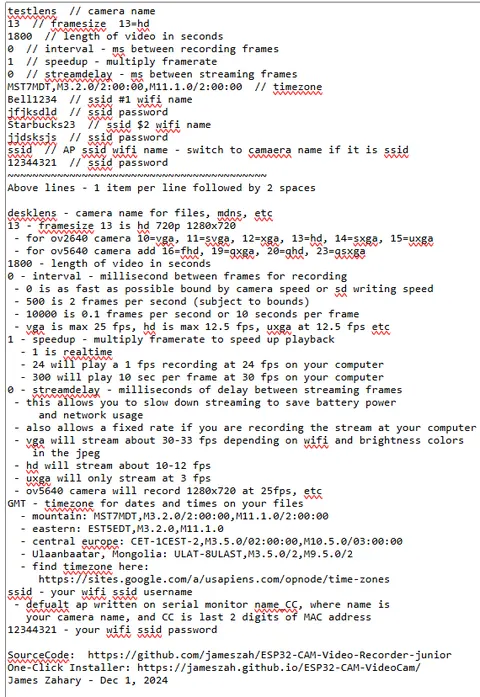
At startup the firmware reads configuration from EEPROM. If valid settings are found it uses them, so the device always reboots into the same recording mode it was in before a power cut. If the stored 'magic number' does not match what is compiled in settings.h, the firmware falls back to the hardcoded defaults and writes those to EEPROM — a convenient way to wipe stale settings after a firmware change.
WiFi credentials are handled by WiFiManager. Setting the SSID in settings.h to a single character triggers the captive-portal flow; the ESP32-CAM broadcasts its own access point, you connect and visit 192.168.4.1 to enter your home credentials, then reboot the board. After that it connects automatically.
Each recording session begins by snapping and saving a JPEG thumbnail. If the Telegram bot is enabled, that image is sent to your phone before recording starts — the SSL handshake for Telegram needs significant heap, so the design deliberately completes it before opening the AVI file to avoid memory conflicts with the SD card driver.
Build and Flash
- Clone or download the repository and open the files from the
vA1folder in Arduino IDE. - Edit
settings.hto set your startup parameters. For WiFiManager, set the SSID field to a single character. For Telegram, hardcode your bot token and chat ID here. - Install the ESP32 board package at version 2.0.2 via Arduino IDE → Boards Manager → search "esp32".
- Install WiFiManager at version 2.0.3-alpha or later via Arduino IDE → Manage Libraries.
- Select the board: Tools → Board → AI Thinker ESP32-CAM (or your equivalent).
- Connect your USB-to-serial adapter, hold the GPIO0 boot button while powering on to enter flash mode, then upload the sketch.
- Open the Serial Monitor at the correct baud rate to read the assigned IP address after the board connects to WiFi.
- Browse to the IP address shown in the serial monitor. The status page displays a viewfinder snapshot and recording controls.
If you trigger WiFiManager on first boot, remember to reboot the board once after saving credentials — the README notes this is required for the credentials to take effect correctly.
Controlling the Recorder
All runtime control goes through HTTP URLs. The README uses the mDNS hostname desklens.local in its examples — substitute your board's IP address if mDNS does not resolve on your network.
http://desklens.local/
http://desklens.local/stop
http://desklens.local/start
http://desklens.local/start?framesize=VGA&length=1800&interval=250&quality=10&repeat=100&speed=1&gray=0&pir=0&bot=1
http://desklens.local/bot_enable
http://desklens.local/bot_disable
http://desklens.local/pir_enable
http://desklens.local/pir_disable
Key parameters explained
framesize—UXGA,SVGA,VGA, orCIFlength— clip length in secondsinterval— milliseconds between frames; increase this for timelapsequality— JPEG quality, 10–50; lower number means higher quality and larger filesrepeat— how many consecutive clips to recordspeed— playback speed multiplier for timelapse (1 = real time)gray— set to 1 for grayscalepir— set to 1 to enable motion-triggered recording (15 s clip, extends 10 s after PIR goes low)bot— set to 1 to send the opening frame to Telegram
For the live stream, the README shows pulling it into VLC via Media → Open Network Stream using the URL http://192.168.1.90/stream (replace the IP with your board's address). Download any saved AVI by clicking its filename in the browser file manager.
Ideas to Extend and Limitations
Ideas to try
- Wire a PIR module to the PIR input and enable it with
http://desklens.local/pir_enablefor a zero-maintenance motion-triggered camera that records only when something moves. - Use the
intervalandspeedparameters together to build a timelapse: a 5-minute real-world event recorded at one frame every 500 ms and played back at 10× speed becomes a 3-second clip. - Pull the live stream into VLC (Media → Open Network Stream) and use VLC's Convert feature with 'Dump Raw Input' to save an MJPEG file directly, bypassing the SD card altogether.
- Combine with the sister project ESP32-CAM-Video-Telegram if you want short clips pushed to Telegram on PIR events without needing a card.
Limitations to keep in mind
- The ESP32 HTTP server handles one client at a time, so you cannot stream to one browser tab and check the status page in another simultaneously.
- Telegram bot credentials must be hardcoded at compile time; WiFiManager cannot set them.
- Very high JPEG quality settings in bright scenes can produce frames that exceed allocated memory, causing partial JPEGs. The firmware filters these out, but keeping quality at 10 or higher in bright conditions is advisable.
- The firmware is described by the author as lightly tested in its current form; for a leaner, faster alternative with fewer features the author recommends the junior variant.
ESP32-CAM-Video-Recorder is one of the most complete firmware projects available for the ESP32-CAM, packing real AVI recording, browser-based controls, HTTP file transfer, live streaming, PIR triggering, Telegram alerts, and timelapse into a single sketch. The flip side is that there is meaningful setup involved — matching the arduino-esp32 version, configuring settings.h, and understanding the HTTP control API — so it sits firmly in intermediate territory. If you need something running in an afternoon with fewer knobs to turn, the author's own junior variant is worth a look; if you want the full feature set, this project delivers it.
Sources
github.comjameszah/ESP32-CAM-Video-Recorder — repository & READMEFacts in this article come from the project's public README and GitHub metadata at the time of writing. Images belong to their respective owners and link back to the original source.