esp32-homekit-camera: Native Apple HomeKit IP Camera Build
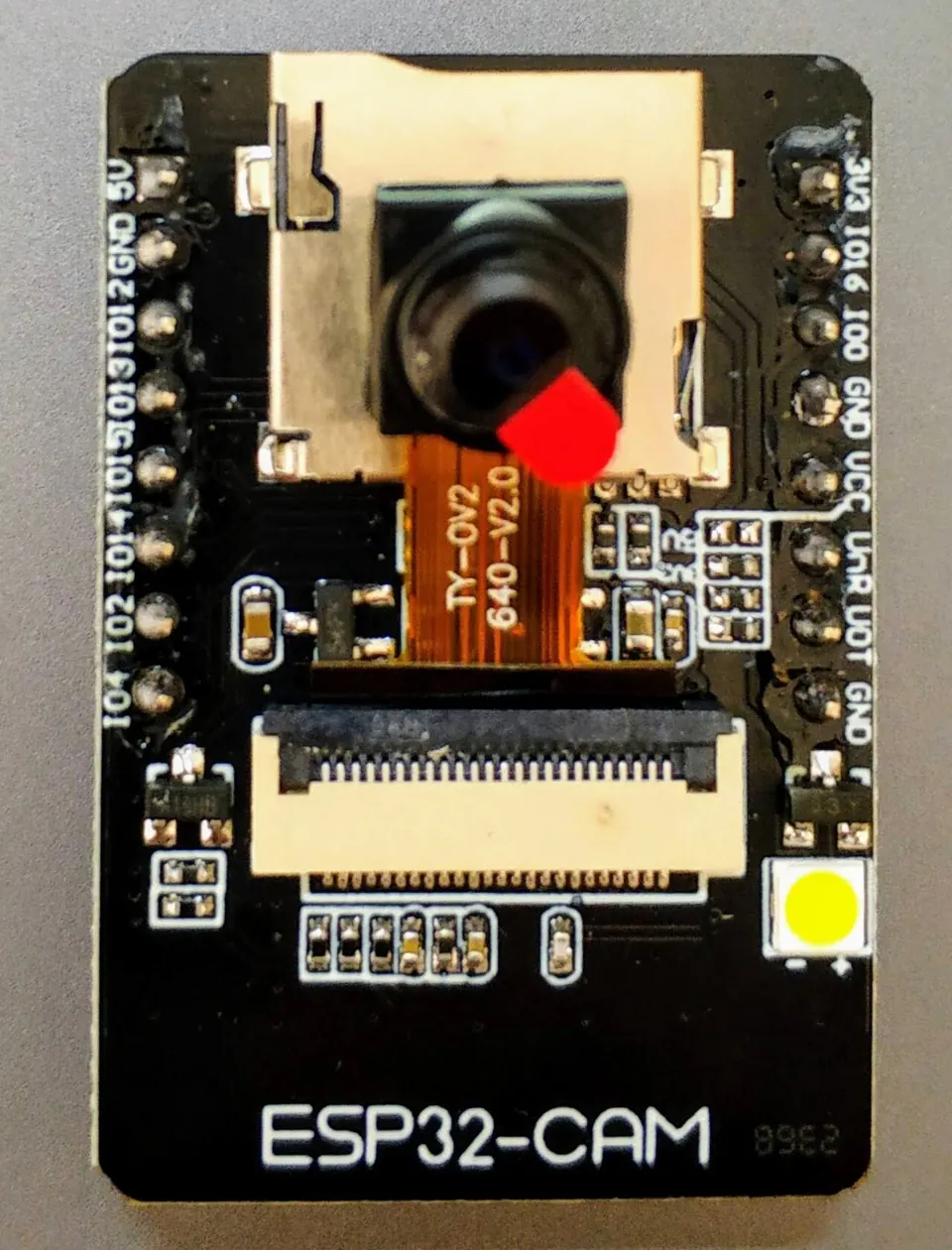
- ESP32-CAM (AI-Thinker)
- OV2640 camera module
What You Will Build
You will flash an ESP32-CAM module with firmware that makes it appear as a native Apple HomeKit IP camera. Once paired, the camera shows up directly in the iOS Home app — no third-party bridge, no cloud service, no subscription. The device also runs a local web server on HTTP port 5556, giving you a second way to access the feed on your network.
This is useful for anyone already invested in the Apple Home ecosystem who wants a low-cost, self-hosted camera that respects local privacy. Because the firmware is open source and written in plain C on top of Espressif's official esp-idf SDK, you have full visibility into what the device is doing on your network.
What You Need
Hardware
- ESP32-CAM module (the AI-Thinker variant is explicitly supported; other pinouts can be selected in menuconfig)
- OV2640 camera module (built into most ESP32-CAM boards)
- USB-to-serial adapter capable of 3.3 V logic, to flash the board
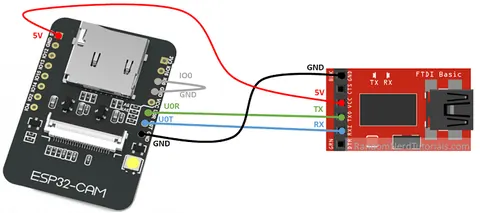
- Jumper wire to connect GPIO0 to GND during flashing
Software and toolchain
- esp-idf — Espressif's official IoT Development Framework
xtensa-esp32-elfcross-compiler toolchain (installed as part of esp-idf setup)IDF_PATHenvironment variable pointing to your esp-idf directory- Git (for cloning and syncing submodules)
- An iOS or iPadOS device with the Apple Home app
Installing esp-idf is the most involved step. Follow the official esp-idf setup guide for your operating system before continuing.
Typical use cases
Mount an ESP32-CAM at your front door and monitor visitors directly from the Apple Home app without a cloud subscription.
Deploy in areas where cloud cameras are not appropriate — all video stays on your local network and HomeKit infrastructure.
Use the project as a starting point for your own HAP-compliant camera firmware, with full access to the C source.
Quickly prototype HomeKit-connected camera accessories for maker projects or product development at minimal hardware cost.
How It Works
The firmware is built on esp-homekit, a pure C implementation of the HomeKit Accessory Protocol (HAP). This means the ESP32 speaks HAP directly over your local Wi-Fi network — no Apple TV or HomePod hub is required for local access, though one is needed for remote access as with any HomeKit device.
The OV2640 sensor is driven by the esp32-camera component. A patch (esp32-camera.patch) is applied to that component before compilation to make it work correctly with this firmware. The device stores HomeKit pairing data in a dedicated SPI flash region at address 0x3A0000, defined by a custom partition table (partitions.csv). SPI-connected PSRAM is enabled so the module can buffer camera frames in the external RAM rather than relying solely on the ESP32's internal SRAM.
Build and Flash Steps
1. Clone the repository and pull all submodules
git clone https://github.com/maximkulkin/esp32-homekit-camera.git
cd esp32-homekit-camera
git submodule update --init --recursive
2. Configure the firmware with menuconfig
make menuconfig
Work through the menu and apply every change listed below. Save before exiting.
- Serial flasher config → Default serial port (set to your USB-serial device, e.g.
/dev/ttyUSB0) - Serial flasher config → Flash size =
4 MB - Partition Table → Partition Table =
Custom partition table CSV - Partition Table → Custom partition CSV file =
partitions.csv - Component config → Driver configuration → RTCIO configuration → Support array
rtc_gpio_descfor ESP32 = enabled - Component config → ESP32-specific → Support for external, SPI-connected RAM = enabled
- Component config → ESP32-specific → SPI RAM config → Initialize SPI RAM during startup = enabled
- Component config → ESP32-specific → SPI RAM config → SPI RAM access method =
Make RAM allocatable using malloc() as well - Component config → Camera configuration → OV2640 Support = enabled
- Component config → HomeKit → SPI flash address for storing HomeKit data =
0x3A0000 - ESP32 HomeKit Camera → WiFi SSID and WiFi Password (your network credentials)
- ESP32 HomeKit Camera → Select Camera Pinout → choose your board variant
- ESP32 HomeKit Camera → LED Pin → for AI-Thinker ESP32-CAM, set pin =
33 - Optionally toggle vertical flip or horizontal mirror if the image appears inverted in the Home app
- Optionally set a custom HomeKit setup code, manufacturer, model name, serial number, and firmware version
3. Apply the esp32-camera patch
This step is required once before the first build:
git apply --directory="components/esp32-camera" esp32-camera.patch
4. Compile the firmware
make all
5. Erase flash and upload
Before flashing, connect GPIO0 to GND on the ESP32-CAM to put it into bootloader mode. Then erase any previous firmware to avoid conflicts:
make erase_flash
Flash the new firmware and open the serial monitor:
make flash monitor
To exit the monitor on macOS, press Control+].
Once the monitor shows the device has connected to Wi-Fi, you are ready to pair.
Adding the Camera to Apple Home
- Open the Home app on your iPhone or iPad.
- Tap the + button and choose Add Accessory.
- On the Add Accessory screen, tap I Don't Have a Code or Cannot Scan.
- The ESP camera accessory should appear in the list — tap its icon.
- When warned about an uncertified accessory, tap Add Anyway.
- Enter the HomeKit setup code. The default is
111-11-111(you can change this in menuconfig under the HomeKit section). - Tap Continue, choose a room, enter a name for the camera, and tap Done.
The camera is now live in your Home app. You can also access it from any browser on your local network at http://<device-ip>:5556.
Ideas to Extend It and Limitations
Ways to extend the build
- Set a unique HomeKit setup code in menuconfig before flashing to improve security over the default
111-11-111. - Use the image sensor enhancement settings in menuconfig (marked experimental) to tune contrast and saturation for your environment.
- Toggle vertical flip and horizontal mirror to correct orientation if you mount the camera upside down.
- Use the HTTP server on port 5556 as a quick sanity check or a secondary feed for non-Apple clients on your local network.
Limitations to be aware of
- The project was last updated in May 2022 and has 39 open issues, so some edge cases may not be actively maintained. Test against your version of esp-idf carefully.
- Apple HomeKit cameras require a hub (Apple TV, HomePod, or iPad set as a home hub) for remote access outside your home network — this is an Apple platform requirement, not a firmware limitation.
- The esp-idf toolchain setup can be time-consuming if you have not used it before; budget extra time on a first build.
- Camera resolution and streaming performance are constrained by the ESP32's processing power and the OV2640 sensor's capabilities.
esp32-homekit-camera is one of the most practical ways to add a native, no-cloud HomeKit camera to your home using commodity ESP32-CAM hardware. The build process is involved — esp-idf setup and menuconfig require patience — but the payoff is a privacy-respecting camera that integrates cleanly with Apple Home. The project has not seen active commits recently, so treat it as a stable but mature codebase rather than one under active development.
Sources
github.commaximkulkin/esp32-homekit-camera — repository & READMEFacts in this article come from the project's public README and GitHub metadata at the time of writing. Images belong to their respective owners and link back to the original source.