ESP32-S3 AI Example: Build a Real-Time Voice Assistant
What does this ESP32-S3 AI example actually do?
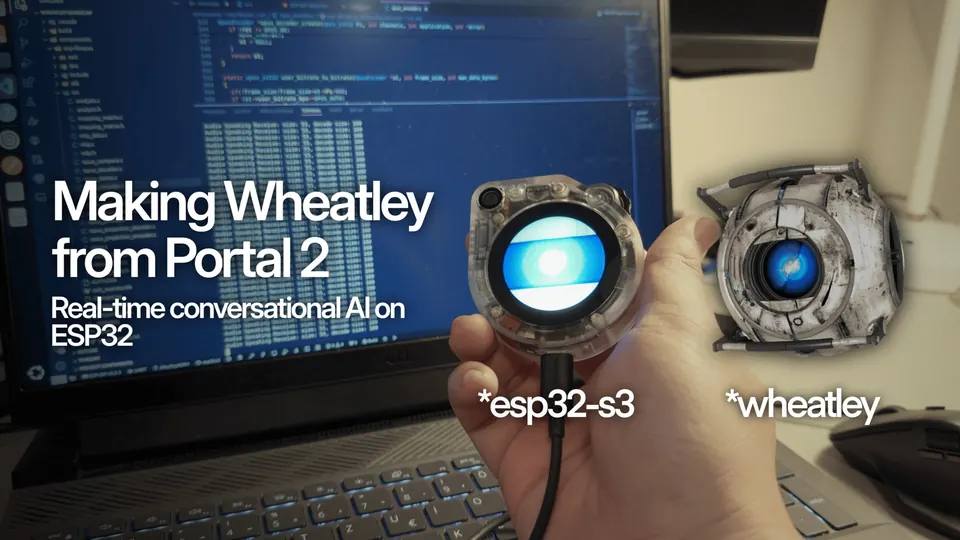
The Wheatley project converts a SenseCap Watcher — a compact device built around the ESP32-S3 — into a miniature real-time conversational AI, modeled after the character Wheatley from the game Portal 2. The device streams captured audio to a cloud pipeline over WebRTC using LiveKit. OpenAI Whisper transcribes the speech, GPT-4o formulates a reply, and ElevenLabs converts that reply into a matching AI voice that plays back through the hardware.
For ESP32-S3 AI projects in general, this pattern shows what the chip is well suited for: managing audio I/O and WebRTC signaling locally while offloading the heavy inference to cloud APIs. It is a practical template for anyone exploring esp32 ai s3 or esp32 s3 for ai applications who wants a working, end-to-end reference before rolling their own pipeline.
 \2
\2Wheatley AI running on the SenseCap Watcher (ESP32-S3): a real-time conversational AI using LiveKit WebRTC, OpenAI Whisper and GPT-4o, and ElevenLabs voice synthesis.
What do you need before you start? (Prerequisites)
Hardware
- SenseCap Watcher (ESP32-S3-based), approximately $99 from SeeedStudio
API accounts — create accounts at each service before touching any code:
| Service | Role in the project |
|---|---|
| LiveKit | Real-time WebRTC pipeline and room management |
| OpenAI | Whisper speech-to-text + GPT-4o language model |
| ElevenLabs | Text-to-speech voice synthesis |
Software on your development machine
- ESP-IDF toolchain installed and on your PATH (provides
idf.py) - Python 3 with
venvsupport protobuf-compilerandprotobuf-c-compiler— required because LiveKit signaling uses Protocol Bufferspnpm— only needed if you want to use the optional web frontend- A Linux environment is recommended; the dependency install commands below use
apt
Back up factory firmware first. The SenseCap Watcher ships with its own firmware. Run this before flashing anything:
esptool.py --port /dev/tty.wchusbserial56F3067xxxx --baud 2000000 --chip esp32s3 --before default_reset --after hard_reset --no-stub read_flash 0x9000 204800 nvsfactory.bin
Swap in your actual device port. This backup lets you restore the original state if something goes wrong.
How do you build and flash the ESP32-S3 AI firmware?
Step 1 — Clone the repository and initialize submodules
git clone https://github.com/pham-tuan-binh/wheatley-ai.git
cd wheatly-ai
git submodule update --init --recursive
The --recursive flag is essential. The LiveKit signaling layer lives inside submodules; skipping this step leaves the firmware incomplete.
Step 2 — Install protobuf build dependencies
sudo apt update
sudo apt install -y protobuf-compiler protobuf-c-compiler
Without these two packages the firmware build will fail with protobuf-related errors.
Step 3 — Navigate to the firmware directory
cd wheatly-sensecap
Step 4 — Set the chip target, build, and flash
idf.py set-target esp32s3
idf.py build
idf.py flash
set-target esp32s3 tells ESP-IDF which chip to compile for. The first build takes several minutes while the ESP-IDF component cache is populated.
Step 5 — Open the serial monitor
idf.py --port /dev/ttyACM0 monitor
Adjust /dev/ttyACM0 to match the port your SenseCap appears on. Everything you type inside this monitor goes directly to the device's serial interface — not to your regular shell.
How do you configure Wi-Fi and LiveKit on the device?
With the serial monitor open from Step 5, enter these two commands to provision the device. These are typed into the monitor window, not a regular terminal.
Wi-Fi credentials
wifi_cta -s "YourWifiSSID" -p "YourWifiPassword"
LiveKit credentials
livekit_cfg -u "YourLiveKitProjectURL" -t "YourLiveKitToken"
The LiveKit URL has the form wss://<project-subdomain>.livekit.cloud. You generate the token using the Python helper script described in the next section. These credentials are stored on the device, so you only need to repeat this step if you change networks or rotate your API token.
How do you run the Python AI pipeline?
The backend that bridges LiveKit to OpenAI and ElevenLabs is a Python application inside wheatly-rtc-pipeline.
Step 6 — Set up the Python environment
cd wheatly-rtc-pipeline
python -m venv venv
source venv/bin/activate
pip install -r requirements.txt
Step 7 — Create your credentials file
touch .env.local
Open .env.local and fill in all five values (an .env.example in the repo shows the exact format):
LIVEKIT_API_KEY=<your_api_key>
LIVEKIT_API_SECRET=<your_api_secret>
LIVEKIT_URL=wss://<project-subdomain>.livekit.cloud
OPENAI_API_KEY=<your_api_key>
ELEVEN_API_KEY=<your_api_key>
Step 8 — Generate the LiveKit device token
python generate_token.py
Copy the output and paste it into the livekit_cfg serial command on the device (Step 5).
Step 9 — Start the AI agent
python agent.py dev
This process must be running on your computer whenever you want to talk to the ESP32-S3. It handles the WebRTC room, sends audio to Whisper, feeds the transcript to GPT-4o, and routes the reply through ElevenLabs.
How do you verify the ESP32-S3 AI setup is working?
Watch the serial monitor — After powering the device with python agent.py dev running, the monitor should show the SenseCap connecting to Wi-Fi and then joining a LiveKit room. Connection errors at this stage usually mean a wrong Wi-Fi password or a mismatched LiveKit URL.
Speak to the device — Talk to the SenseCap Watcher. Within a few seconds you should hear a response in the synthesized Wheatley voice. End-to-end latency depends on your network and the cloud API response times.
Test with the web frontend first (optional) — If you want to confirm the LiveKit → OpenAI → ElevenLabs chain works before flashing any firmware, the repo includes a browser interface:
cd wheatley-frontend
pnpm install
pnpm dev
This is the fastest way to debug API credential problems without touching hardware.
Token expiry — LiveKit tokens are time-limited. If the device connected previously but now fails to join a room, regenerate the token with python generate_token.py and re-run the livekit_cfg serial command.
What are the most common mistakes in this ESP32-S3 AI tutorial?
Skipping --recursive on clone — Running git clone without git submodule update --init --recursive leaves the LiveKit signaling library absent. The build fails or produces firmware that cannot connect to a room.
Missing protobuf packages — protobuf-compiler and protobuf-c-compiler are not standard embedded-development dependencies. Forgetting them is one of the most common reasons the idf.py build step fails on a fresh machine.
Typing serial commands in the wrong window — wifi_cta and livekit_cfg belong inside the idf.py monitor window, not a normal terminal. Running them in your shell does nothing and produces no error, which makes this mistake hard to spot.
Wrong device port — /dev/ttyACM0 is common on Linux but not universal. On macOS the port typically looks like /dev/tty.wchusbserial.... List available ports with ls /dev/tty.* before running the monitor command.
No factory backup — Flashing the ESP32-S3 without first saving the original firmware with esptool.py read_flash means there is no straightforward path back to the SenseCap's factory state.
Forgetting to activate the virtualenv — Opening a new terminal and running python agent.py dev without source venv/bin/activate causes an immediate import error because the installed packages are only visible inside the activated environment.
Mismatched LiveKit URLs — The LIVEKIT_URL in .env.local and the URL entered via livekit_cfg on the device must point to the same LiveKit project. If they differ, the device and the agent join separate rooms and never exchange audio.
Frequently asked questions
Can I try this ESP32-S3 AI project without buying hardware?
Yes. The repository includes a web frontend. Run pnpm install and pnpm dev inside wheatley-frontend while the Python agent is running to interact with the AI pipeline from a browser.
Does the AI inference run on the ESP32-S3 chip itself?
No. The ESP32-S3 handles audio capture and WebRTC streaming. All inference — Whisper STT, GPT-4o, and ElevenLabs TTS — runs in the cloud.
Which AI models does this project use?
OpenAI Whisper for speech-to-text, GPT-4o for the language model, and ElevenLabs for text-to-speech voice synthesis.
What firmware framework does this ESP32-S3 AI example require?
ESP-IDF. You set the target with idf.py set-target esp32s3, then build and flash with idf.py build and idf.py flash.
What is the license for the Wheatley project?
GNU Lesser General Public License v2.1. The author asks to be contacted directly for any commercial use.
Wheatley is one of the most complete ESP32-S3 AI examples available: it wires together real-time audio capture, WebRTC transport, and three cloud AI services into a device you can hold and talk to. The architecture — ESP-IDF firmware for low-level I/O, Python agent for AI orchestration — is modular enough to serve as a starting point for other esp32 s3 ai projects beyond the Portal 2 persona. The main friction points are managing three API accounts and the protobuf build dependency, but every required command is documented and the web frontend lets you validate the pipeline before touching any hardware.
Sources
github.compham-tuan-binh/wheatley-ai (GitHub README)This guide summarises the public sources listed above in our own words. Check the original documentation before relying on exact figures.