ESP32-WROOM: How to Program It Step by Step
What is the ESP32-WROOM module?
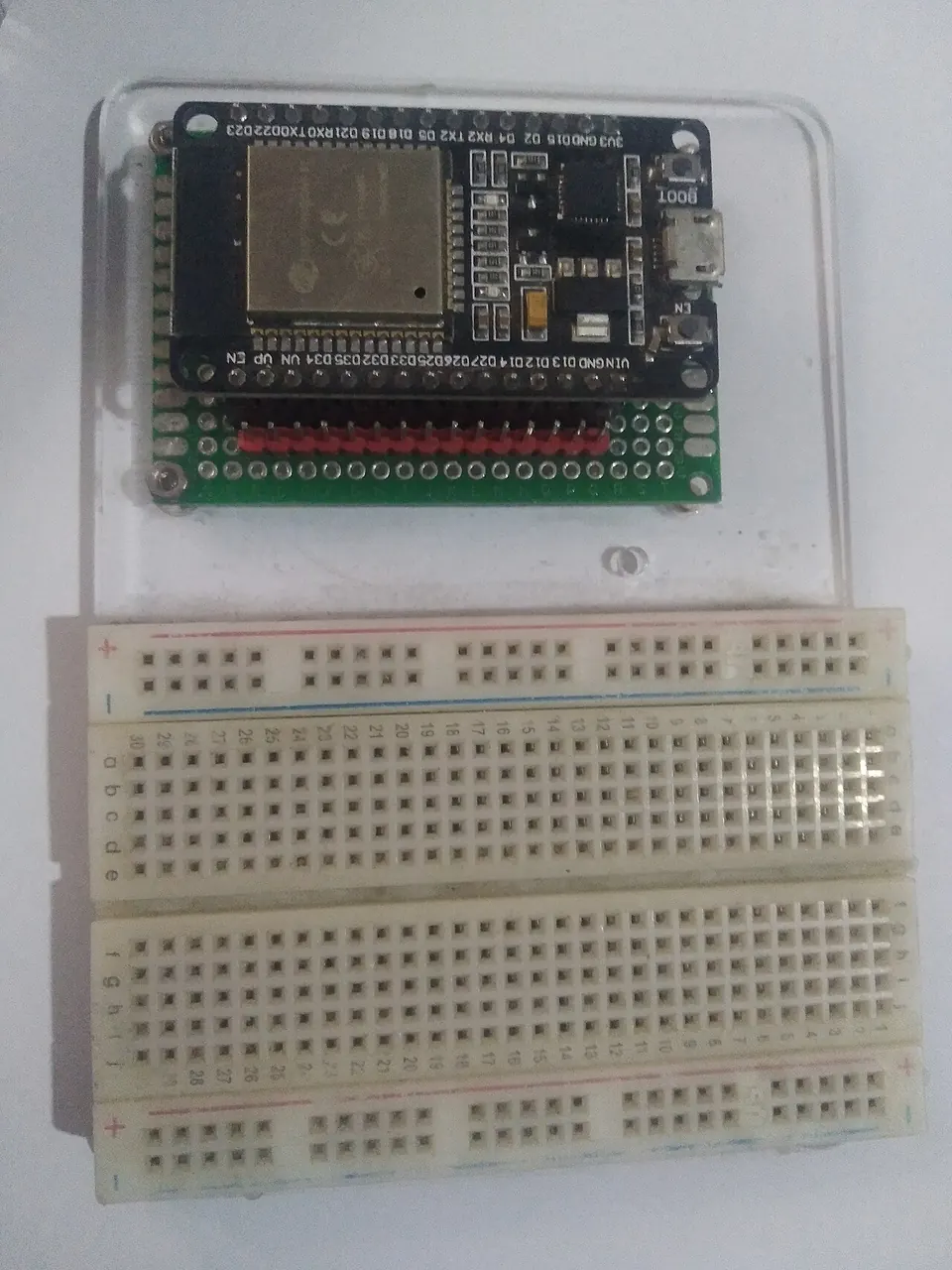
The ESP32-WROOM-32 is a self-contained Wi-Fi and Bluetooth module from Espressif Systems built around the ESP32 chip. You will encounter it in two forms: as a bare stamp-sized module — the silver metal-shielded rectangle — that you solder onto your own PCB, and as part of a development board (often called an ESP32 DevKit) that adds a USB port, voltage regulator, and pin headers so you can plug it straight into a breadboard.
When people search for an "ESP32-WROOM tutorial" or ask "what is ESP32-WROOM," they usually mean the DevKit form factor. That is the target of this guide: a standard ESP32-WROOM-32 development board connected to a computer over USB and programmed with either Arduino IDE or MicroPython.
 \2
\2A typical ESP32 development board featuring an ESP32-WROOM-32 module, USB connector, and pin headers for breadboard use. Image: Edwiyanto, CC BY-SA 4.0, via Wikimedia Commons
What do you need before you start?
Collect these prerequisites before writing a single line of code:
| Item | Notes |
|---|---|
| ESP32-WROOM-32 development board | Any standard DevKit variant works |
| USB cable | Must carry data, not just power — this is the single most common cause of upload failure |
| USB-to-UART driver | Required for the onboard serial chip; install from the chip manufacturer's site before connecting the board |
| Computer | Windows, macOS, or Linux |
| Arduino IDE or Python + esptool | Choose your programming environment |
Choosing your environment: Arduino IDE is the friendliest starting point and lets you write in C++. MicroPython is a Python-based alternative that requires erasing the board's flash with esptool and loading MicroPython firmware before you can run Python scripts. Both paths are covered below.
 \2
\2The bare Espressif ESP-WROOM-32 module — the metal-shielded component that sits at the heart of most ESP32 development boards. Image: Brian Krent, CC BY-SA 4.0, via Wikimedia Commons
How do I install the driver and set up Arduino IDE?
Step 1 — Install the USB-to-UART driver.
Connect the board, then open Device Manager on Windows or run ls /dev/tty* on macOS/Linux. A new serial port should appear (on Windows, typically something like COM3). If no port appears, the driver for the onboard UART chip is not installed. Check the board's silkscreen or product listing to identify the chip, then download the driver from the manufacturer's page.
Step 2 — Add ESP32 board support to Arduino IDE. In Arduino IDE preferences, paste the Espressif ESP32 boards manager URL into the "Additional boards manager URLs" field. Users in China experiencing slow or failed downloads can substitute the Jihulab mirror URL published in the arduino-esp32 documentation. Once the URL is saved, open the Boards Manager, search for "esp32," and install the Espressif package.
Step 3 — Fix the Python path on Ubuntu/Linux if needed.
The build system requires a python executable. If compilation fails with:
exec: "python": executable file not found in $PATH
run this command to create the expected symbolic link:
sudo apt install python-is-python3
How do I upload a sketch to the ESP32-WROOM?
Step 4 — Select the correct board and port.
In Arduino IDE go to Tools → Board and choose "ESP32 Dev Module" (or your specific DevKit name if listed). Then go to Tools → Port and select the COM port or /dev/tty* device that appeared when you plugged the board in.
Step 5 — Clear the TX and RX pins. Nothing should be wired to the pins labeled TX and RX during upload. These are the serial lines the IDE uses to send firmware data. Some DevKits expose additional UART pins that are not always obviously labeled — consult your board's pin layout table to be sure.
Step 6 — Enter download mode. The ESP32-WROOM must be in download mode to accept new firmware over the serial interface. Download mode is triggered by holding GPIO0 LOW at the moment the chip resets. On most DevKits:
- Hold down the BOOT button (it is connected to GPIO0).
- Press and release the EN (Enable/Reset) button.
- Release the BOOT button.
Some boards include a reset delay circuit that handles this automatically, in which case you can skip the button sequence entirely.
Step 7 — Click Upload. Watch the console output. A successful upload shows flash addresses being written, followed by a reset message. The board reboots and immediately starts running your new sketch.
For MicroPython users — erase and flash firmware instead. Install esptool:
pip install esptool
Erase existing flash (substitute your actual port for COM3):
python -m esptool --port COM3 erase_flash
Then flash the MicroPython .bin firmware file using the write-flash command listed on the MicroPython download page.
How do I verify the upload worked?
After a successful upload the board resets automatically and starts running the new firmware. To confirm:
- Arduino: Open Tools → Serial Monitor. Set the baud rate to match the value in your sketch's
Serial.begin()call and check that expected output appears. - MicroPython: Open a serial terminal to the same port at 115200 baud. Press Enter — you should see the MicroPython
>>>REPL prompt.
If the Serial Monitor shows garbled characters, the baud rate in the monitor does not match the one set in your code. If it shows nothing at all, the board may still be in download mode — press the EN/Reset button once to reboot it into normal run mode.
What are the most common mistakes when programming ESP32-WROOM?
Charge-only USB cable. This is the most frequently reported reason uploads fail outright. Many cables sold with phones carry power only. Try a known-good data cable before troubleshooting anything else.
Forgetting download mode. The fatal error A fatal error occurred: Failed to connect to ESP32: Timed out waiting for packet header almost always means the chip was not in download mode. Hold BOOT, press and release EN, release BOOT, then upload again.
TX/RX conflict. Anything wired to the TX or RX pins during upload will corrupt the serial communication. Remove those connections before uploading, then reconnect afterward.
USB hub power sharing. Some USB hubs share a power rail between ports. Connecting the ESP32 to the same hub as a charging phone can cause voltage instability. Use a direct port on the computer and avoid USB hubs when troubleshooting.
COM port appears intermittently. On Windows 10, driver compatibility issues can make the serial port show up only some of the time — sometimes 50/50 across reconnects. Try a different physical USB port (USB 3.0 vs 2.0 behavior can differ for serial adapters), reinstall the driver, or test on another machine.
Faulty board. When every software step checks out — correct driver, correct port, correct cable, correct download mode — and the board still refuses to connect, the board itself may have a hardware defect. Swap it for another unit to confirm.
FreeRTOS task stalls (Arduino C++). If your sketch runs fine initially then stops producing output, a FreeRTOS task may be starving the scheduler. A tight while(true) loop with no delay() or vTaskDelay() call can trigger the watchdog or block other tasks. Adding even a 1 ms delay inside the loop gives the RTOS time to run other tasks and reset the watchdog timer.
Frequently asked questions
What does 'Failed to connect to ESP32: Timed out waiting for packet header' mean?
The chip was not in download mode when the upload started. Hold the BOOT button (GPIO0 LOW), press and release EN (reset), release BOOT, then try uploading again.
Can I program the ESP32-WROOM with MicroPython instead of Arduino?
Yes. Install esptool with pip install esptool, erase the flash with python -m esptool --port <PORT> erase_flash, then flash the MicroPython firmware binary to the board.
Why does my COM port not appear or disappear randomly in Device Manager?
The USB-to-UART driver may not be installed, or a Windows 10 driver compatibility issue is causing instability. Try a different USB port on the computer, avoid USB hubs, and if the port never appears reliably, test on a different machine or check whether the board itself is faulty.
Do I have to hold the BOOT button every time I upload?
Not always. Some development boards include a reset delay circuit that pulls GPIO0 LOW automatically at the start of an upload. If your board lacks this circuit, you must manually hold BOOT during the upload sequence.
Why does my ESP32-WROOM sketch run fine at first but then stop randomly?
A FreeRTOS task running a tight loop without yielding can stall the scheduler or trigger the watchdog. Adding a small delay() or vTaskDelay() call inside the loop lets other tasks run and keeps the watchdog fed.
Programming an ESP32-WROOM is straightforward once you have a data-capable USB cable, the correct UART driver installed, and understand how to put the chip into download mode with the BOOT button. Arduino IDE with the Espressif board package is the lowest-friction path for beginners, while esptool plus MicroPython works well for those who prefer Python. Nearly every upload problem traces back to three things: the cable, the driver, or a missed BOOT button press.
Sources
github.comTroubleshooting (arduino-esp32 docs)stackoverflow.comC++ ESP32 randomly stopsstackoverflow.comFirst time using ESP 32 and Micro PythonThis guide summarises the public sources listed above in our own words. Check the original documentation before relying on exact figures.