ESPHome Touch Panel: CYD Home Assistant Display with LVGL UI
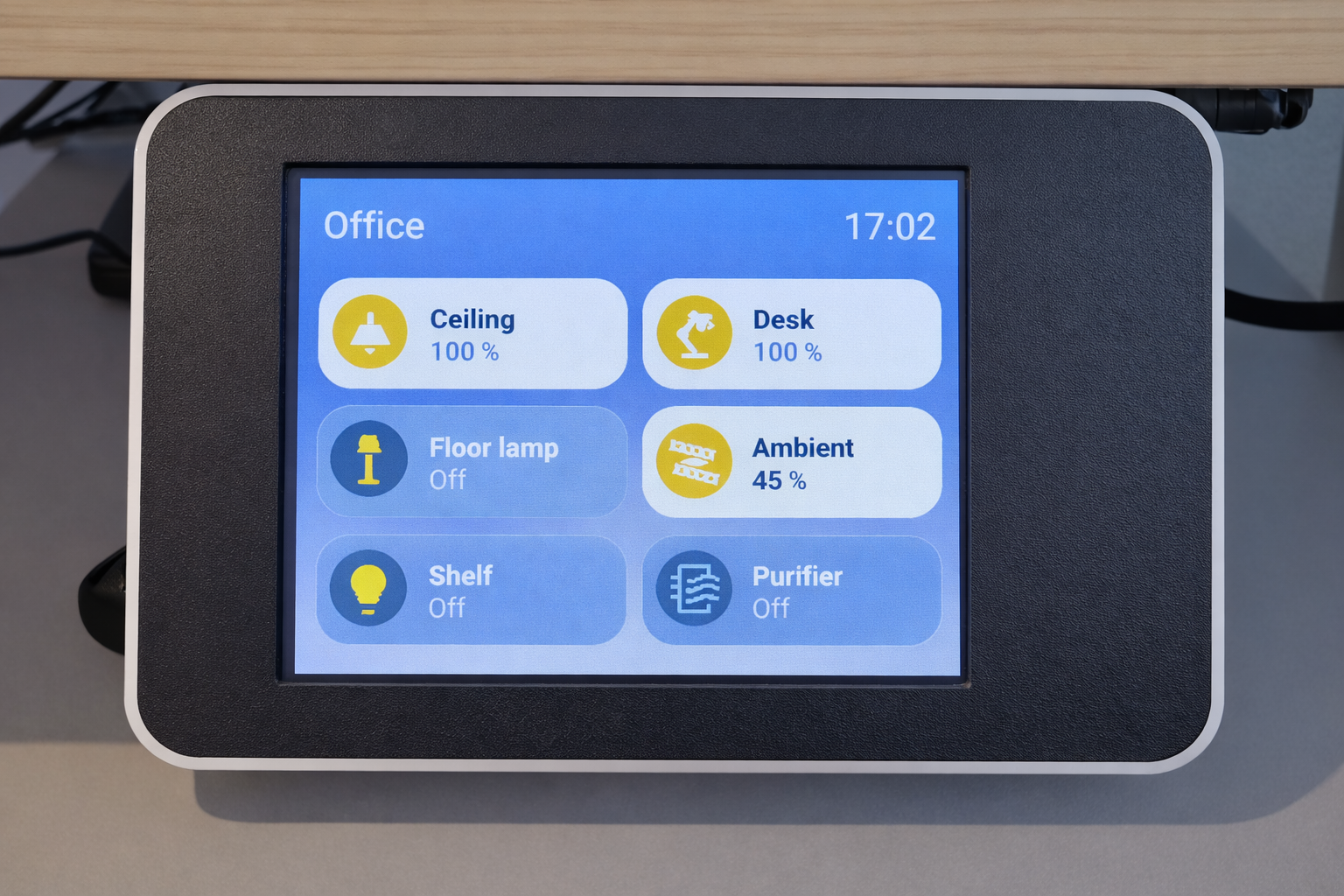
The home-like 2×3 tile UI running on the Cheap Yellow Display (CYD)
- ESP32-2432S028 (Cheap Yellow Display / CYD)
- ILI9341 2.8-inch display
- XPT2046 touchscreen controller
- Guition ESP32-4848S040C_I (4.0-inch, 480×480, capacitive touch)
- ESP32 Wroom 32D (Option B standalone wiring)
- 2× M4 3.5×16 flathead screws
What You Will Build
This project turns a low-cost ESP32 touch display into a polished Home Assistant control panel. You get a tile-based LVGL interface that mirrors the live state of your lights, fans, covers, and climate devices, and lets you toggle or fine-tune them with a tap or a long press — no phone needed.
The repository ships ready-to-flash ESPHome YAML configurations for three hardware variants and a set of 3D-printable enclosures. Mounting options include a tiltable desk stand (±35° adjustable), an under-desk or under-shelf bracket, a wall plate, and a flush mount that fits a standard European electrical box. The result is a compact, professionally finished panel with hidden cable routing that sits or hangs wherever it makes the most sense in your home.
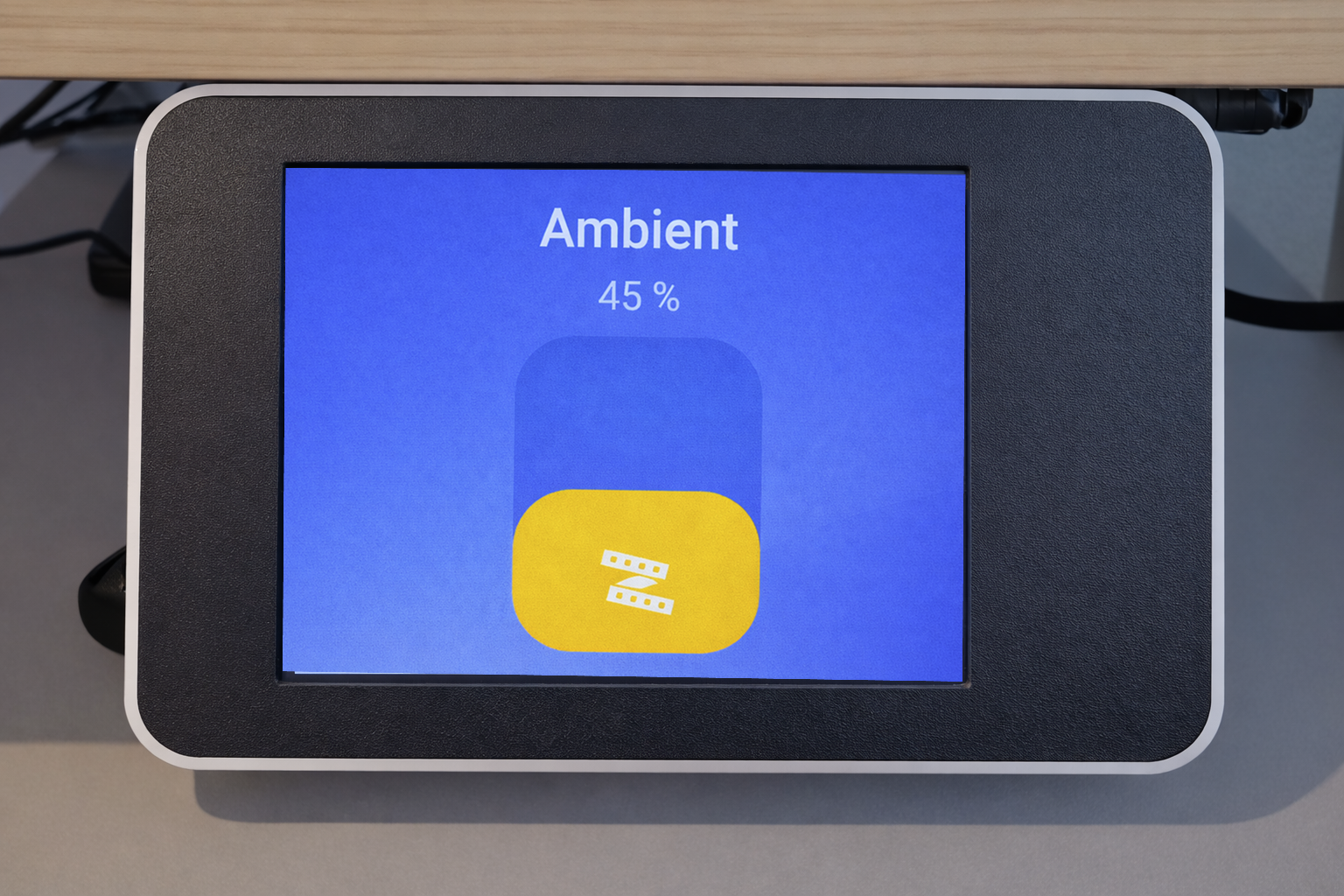 \2
\2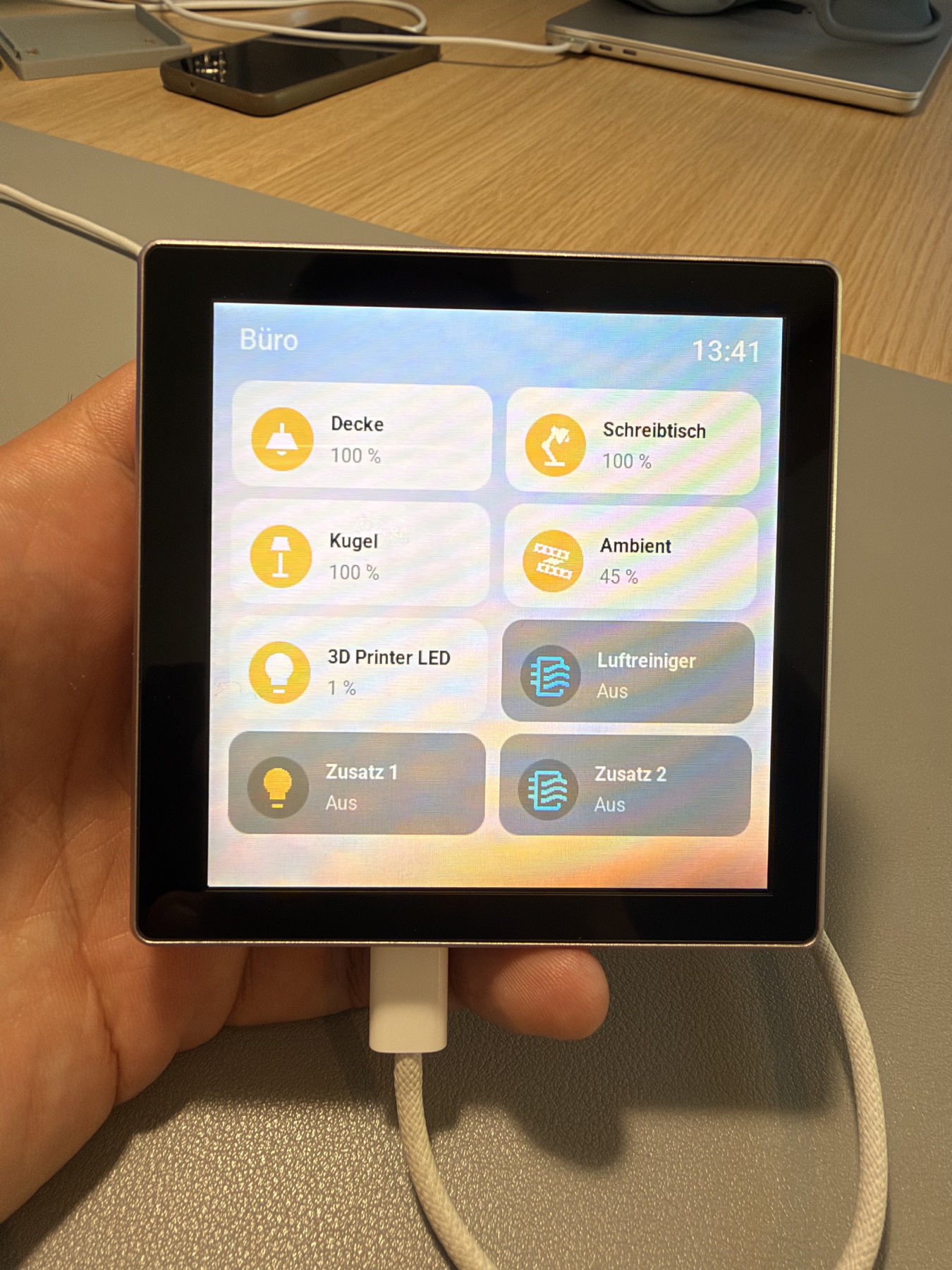 \2
\2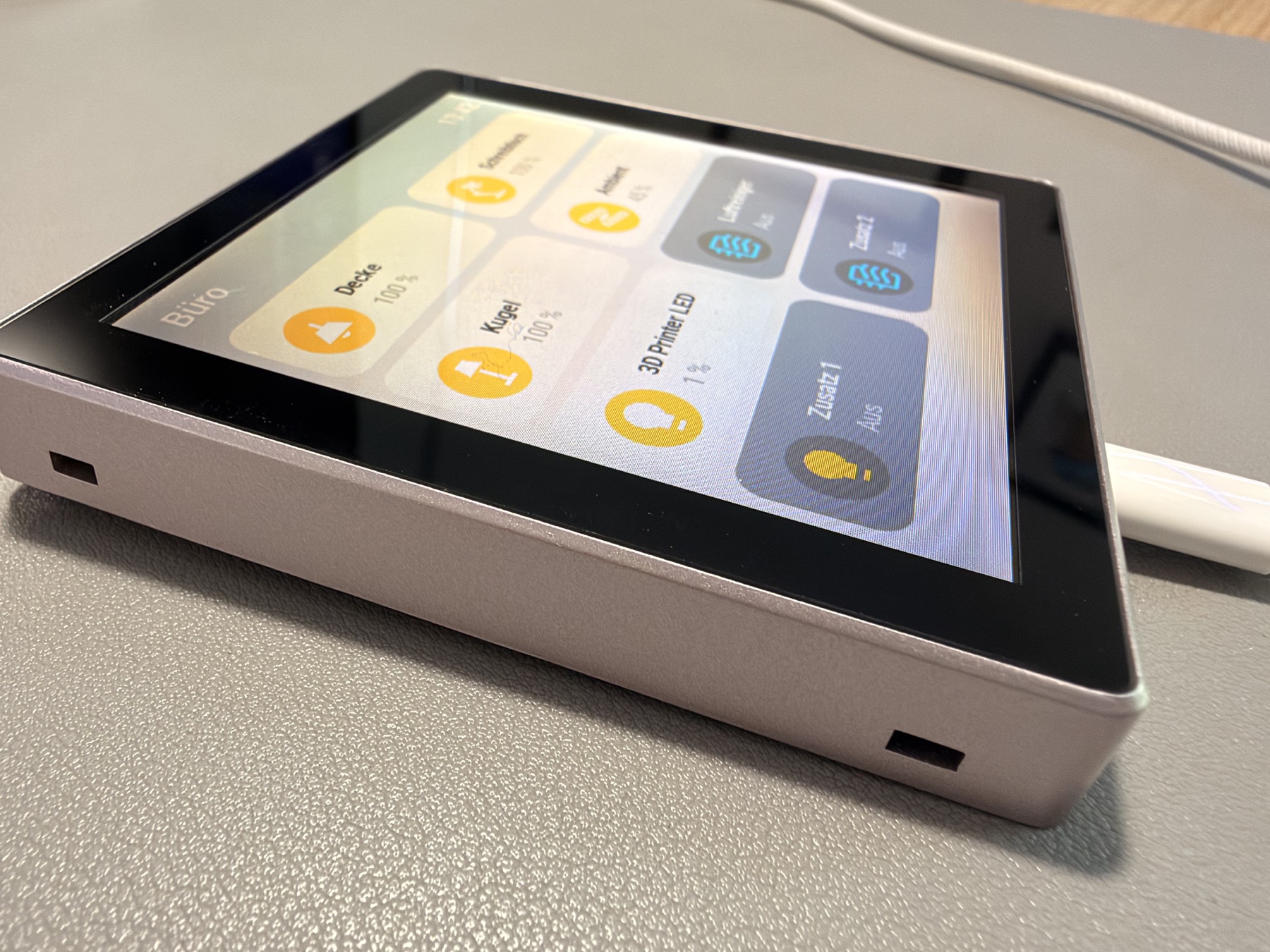 \2
\2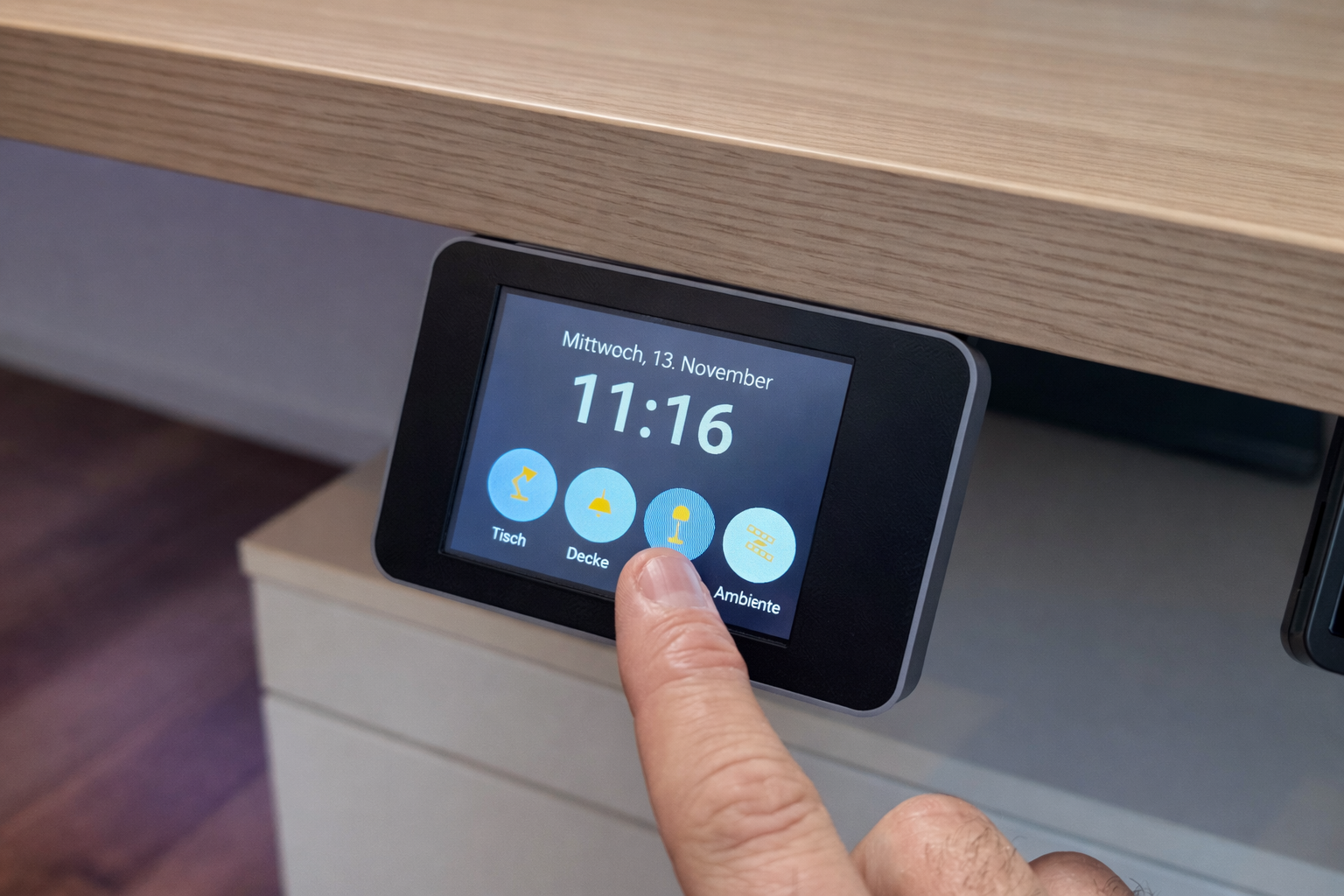 \2
\2Hardware and Software You Need
Choose one hardware option:
Option A — ESP32-2432S028 (Recommended): The Cheap Yellow Display integrates the ESP32 chip, ILI9341 display, XPT2046 touch controller, and backlight driver on one board. It needs only a single USB power cable and no soldering for the display itself. You also need two M4 3.5×16 flathead screws to assemble the 3D-printed enclosure.
Option B — Standalone ILI9341 + ESP32 Wroom 32D: A bare 2.8-inch ILI9341 module wired to a separate ESP32 board. This route requires manual wiring. Connect the display SPI bus: SCK → GPIO18, MOSI (SDI) → GPIO23, MISO (SDO) → GPIO19, CS → GPIO27, D/C → GPIO26, RESET → GPIO16. Connect the XPT2046 touch SPI bus: T_CLK → GPIO25, T_DO → GPIO35 (see the repository for the complete wiring table).
Option C — Guition ESP32-4848S040C_I: A 4.0-inch 480×480 board with capacitive touch. Firmware support is included; a dedicated 3D-printed mount is not yet available.
Software requirements:
- Home Assistant with the ESPHome add-on installed
- ESPHome 2026.9.0 or newer
- Home Assistant 2026.2 or newer
- Basic familiarity with editing ESPHome YAML
- A 3D printer (optional, for the enclosure)
Typical use cases
Place the tiltable desk mount on your work surface for quick one-touch control of desk lights, fans, or any Home Assistant entity without reaching for your phone.
Fit the flush-mount variant into a standard European electrical box for a clean, in-wall panel that replaces a row of physical switches in a hallway or living room.
Mount the display under a desk or shelf edge for a hidden but always-accessible control point — useful in workshops or home offices where surface space is limited.
Use the live state synchronization to show whether lights are on, covers are open, or a climate zone has reached its target temperature at a glance.
How the UI Works
The firmware renders the interface entirely with LVGL widgets rather than drawing pixels manually in a display lambda. Two layouts are available: a simple 4-button screen and a home-like 2×3 tile grid on 320×240 hardware (2×4 on the Guition). A central ui_refresh script keeps every tile in sync with Home Assistant state in real time.
Two control modes let you choose how much automation you write:
- Direct Mode (default): A touch publishes an action string and immediately calls a Home Assistant service —
light.toggleby default. No automations required. - Automation Mode: A touch only publishes the action string (for example
btn1_pressonsensor.smartdisplay_action). You implement all behavior in Home Assistant automations.
Long-press overlay: Holding a tile opens a secondary overlay layer. The firmware detects the entity type and shows the appropriate control — brightness slider, fan speed, cover position, or climate temperature. For color-capable lights the brightness overlay can open a color and color-temperature picker. Releasing the overlay returns to the tile grid, keeping the main screen uncluttered.
Note: before Direct Mode works you must open Home Assistant → Settings → Devices & Services → ESPHome, select your device, and enable "Allow the device to perform Home Assistant actions".
Build, Wire, and Flash
1. Print or source the enclosure
Download the STL files from the repository and print the case and base in the mount style you want (desk, under-desk, wall, or flush). Two M4 3.5×16 flathead screws hold the halves together.
2. Wire the CYD power cable (Option A)
The enclosure design routes power through the CYD's JST power cable rather than the side USB port, which would make the enclosure wider. Cut an old USB-A cable, then connect its red wire to the 5 V pin and black wire to GND on the JST connector labeled VIN / 5V. The CYD board has several identical-looking JST connectors with different pinouts — use only the one labeled VIN / 5V. Connecting 5 V to the 3.3 V connector will damage the board.
3. Wire the standalone display (Option B only)
Follow the full wiring table in the repository README. The ILI9341 VCC connects to 3.3 V on the ESP32, and GND to GND. All SPI lines for both the display and the XPT2046 touch controller connect to the GPIO pins listed in the hardware section above.
4. Configure the YAML
Clone the repository and open the YAML file for your hardware variant from the esphome/home-like/ folder. Edit the substitutions block at the top to set your Wi-Fi credentials, device name, and the entity IDs you want each tile to control. If you are using the ILI9341 variant of the CYD (some boards use ILI9342), the YAML includes presets for both controllers; ILI9341 at 0° is active by default. Check the hardware selection notes in the repository if your display orientation looks wrong.
5. Flash via the ESPHome add-on
Add the edited YAML to your ESPHome add-on, then flash the device over USB for the first time. Subsequent updates can use encrypted OTA once the device is on your network. If you are migrating an existing device, follow the OTA migration steps in the repository before switching to the final encrypted configuration.
6. Enable device actions in Home Assistant
Go to Settings → Devices & Services → ESPHome, select your device, and turn on "Allow the device to perform Home Assistant actions". Without this, Direct Mode will not be able to call services.
Ideas to Extend It and Known Limitations
Ways to take it further:
- Switch to Automation Mode and build conditional logic in Home Assistant — for example, display a tile only when a certain mode is active, or trigger scenes with a single press.
- Assign the long-press overlay to a completely separate entity from the tap action, using the independent entity action option the firmware supports.
- Combine multiple panels in different rooms, each with its own entity assignments, all sharing the same base YAML structure.
- The project README points to Tessera (a separate community project by Max Gramser) if you want a drag-and-drop visual editor, multiple pages, and broader display support without editing YAML.
Current limitations to be aware of:
- ESPHome 2026.9.0 or newer is required; older installs need the OTA migration step before going wireless.
- A dedicated 3D-printed mount for the Guition board is not yet included in the repository.
- The ILI9342 display variant (found on some CYD boards) has not been independently hardware-verified by the maintainer, though the YAML presets were contributed and tested by a community member.
- USB connector type alone does not identify whether your CYD has an ILI9341 or ILI9342; check the hardware selection notes in the repository README.
ESPHome-touch-display-mount is a well-rounded project that takes the Cheap Yellow Display from bare board to a finished, mountable Home Assistant panel with minimal custom code — most of the work is flashing a YAML and printing a case. The two control modes, long-press overlays, and four mounting styles give it enough flexibility for real installations, while the reliance on ESPHome and LVGL keeps the firmware maintainable and familiar to anyone already in the Home Assistant ecosystem.
Sources
github.comakuehlewind/ESPHome-touch-display-mount — repository & READMEFacts in this article come from the project's public README and GitHub metadata at the time of writing. Images belong to their respective owners and link back to the original source.