ESPHome Weather Station: Build a Solar-Powered ESP32 Weather Station
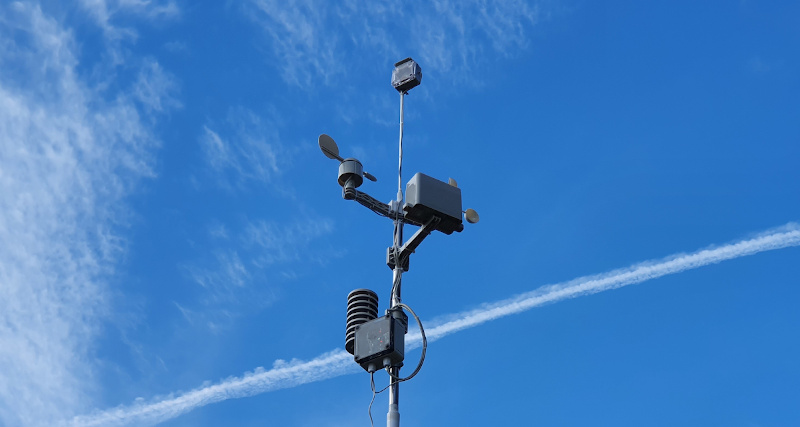
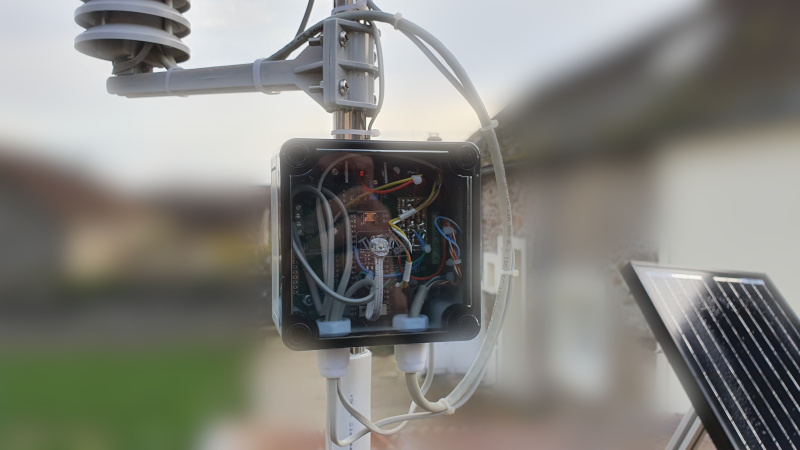
The completed outdoor weather station mounted on a PVC mast, with the rain-detection module visible on top.
- ESP32 Pico Kit
- WH-SP-WS02 weather sensor assembly
- Bosch BME280 (temperature, humidity, pressure)
- TSL2561 (ambient light)
- INA219 (solar current/voltage/power)
- WS2812 RGB LED
- 30W solar panel
- Solar charge controller
- 7A lead-acid battery
- 10kOhm pull-up resistors (x2)
- Elektor weather station PCB (or breadboard equivalent)
What You Will Build
This project turns a commercial WH-SP-WS02 weather sensor assembly into a fully connected, solar-powered outdoor station that reports live data to Home Assistant. You remove the original sensor electronics and wire the mechanical sensors — anemometer, wind vane, and tipping-bucket rain gauge — directly to an ESP32 Pico Kit running ESPHome.
The station measures wind speed and direction, precipitation per minute and daily total, temperature, relative humidity, atmospheric pressure, and ambient brightness. On the power side, an INA219 chip tracks the voltage, current, and accumulated daily output of a 30 W solar panel. A WS2812 RGB LED gives you a local status indicator. Everything appears automatically in Home Assistant through the ESPHome integration, with MQTT and OTA updates included at no extra configuration cost.
Because ESPHome drives the firmware, there is no custom C++ to write. Sensor behaviour, calibration, and automations are all defined in a YAML file that the ESPHome compiler turns into a ready-to-flash binary.
 \2
\2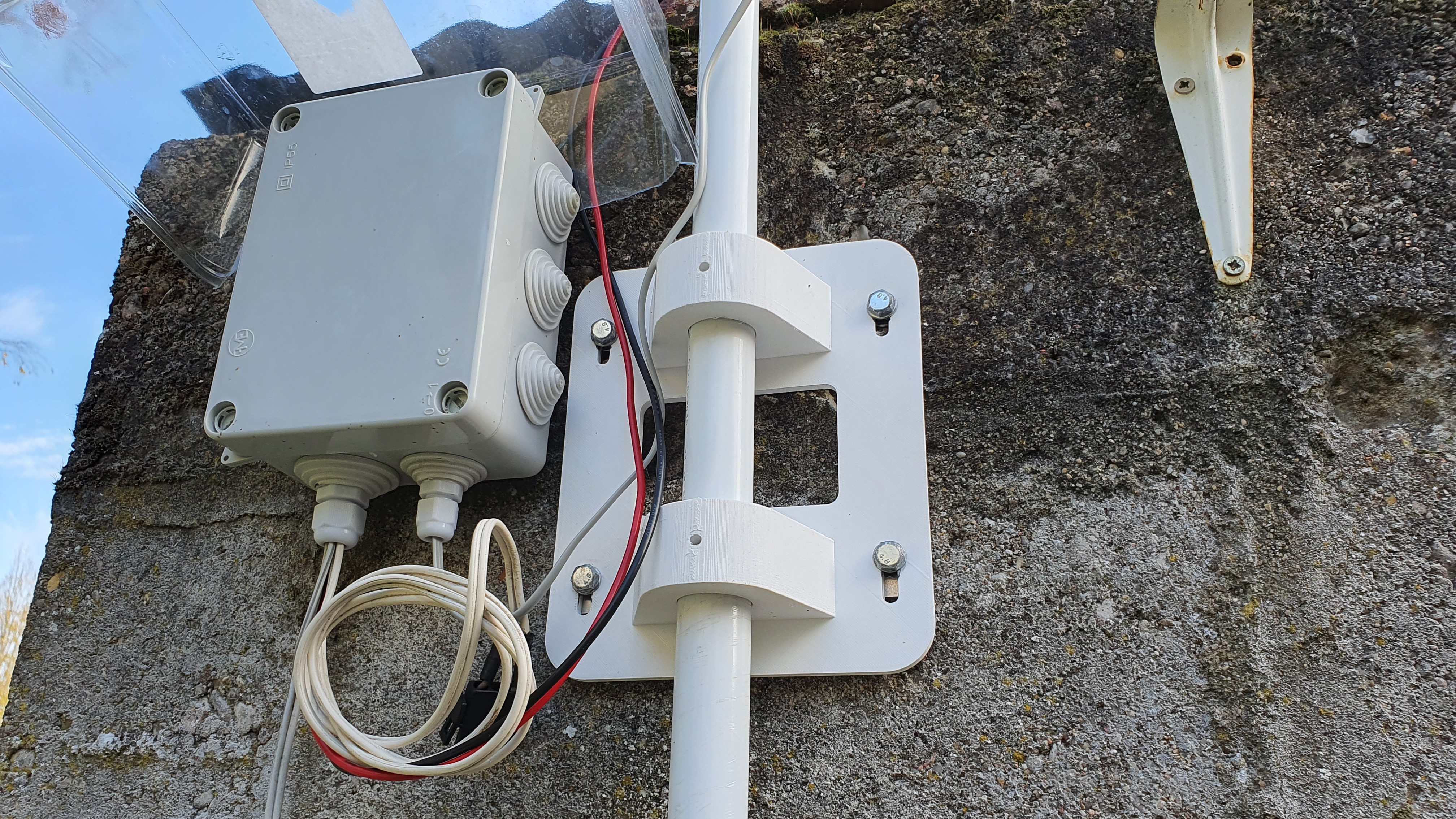 \2
\2What You Need
Hardware
- ESP32 Pico Kit
- WH-SP-WS02 weather sensor assembly (anemometer, wind vane, rain gauge)
- Bosch BME280 breakout (I²C, address 0x76)
- TSL2561 light sensor breakout (I²C, address 0x39)
- INA219 current/power sensor breakout
- WS2812 RGB LED
- Two 10 kΩ pull-up resistors — one for GPIO34 (wind speed) and one for GPIO38 (rain gauge); these GPIOs have no internal pull-up
- Elektor weather station PCB or a breadboard that replicates the voltage converter and 3.3 V level-shifting it provides
- 30 W solar panel, a charge controller, and a 7 Ah lead-acid battery for outdoor autonomous power
- PETG filament and a 3D printer for the OpenSCAD wall-mount bracket (
wall_pipe_support.scad) - Metal-reinforced PVC tube (plumbing section of any DIY store) for the mast
Software
- ESPHome CLI — follow the official Getting Started with ESPHome guide
- The repository files:
weatherstation.yaml,network.yaml,secrets.yaml - Home Assistant instance (optional but recommended)
Typical use cases
Log hyper-local temperature, humidity, pressure, wind, and rain data directly into Home Assistant for dashboards, alerts, and historical trends.
Monitor a solar panel's real-time voltage, current, power output, and daily energy harvest using the INA219 sensor, all visible as Home Assistant entities.
Push all sensor readings to an MQTT broker to feed Node-RED flows, InfluxDB time-series databases, or any other smart-home platform.
Use the project as a real-world ESPHome reference for pulse counting, resistance-based sensors, I²C devices, and template sensors with lambda functions.
How It Works
Wind speed — The anemometer closes a reed switch on every rotation. ESPHome's pulse_meter platform counts pulses on GPIO34 and applies a calibration formula. From the README, using a 9 cm radius anemometer as the example:
meter_per_second = 1.18 * circumference_in_meter * $rotations_per_sec
meter_per_second = 1.18 * circumference_in_meter * 1 / $number_of_pulses_by_revolution / 60
meter_per_second = 1.18 * 0.565486678 / 2 / 60
meter_per_second = 0.005560619
The 1.18 factor compensates for mechanical friction. A five-sample sliding-window average smooths the output.
Wind direction — The vane positions magnets over a resistor ladder. ESPHome reads the resulting resistance via the resistance platform on an ADC pin and maps resistance ranges to compass points (N, NE, E …).
Rain — A tipping-bucket mechanism tips on every 0.2794 mm of rainfall and closes a reed switch on GPIO38. ESPHome's pulse_counter counts falling edges and multiplies by 0.2794 to give millimetres. Integration and total_daily_energy sensors then derive mm/min and the daily total.
Environment — The BME280 on I²C measures temperature, humidity, and pressure every 60 seconds with a 16× IIR filter for stable readings. The TSL2561 reports ambient lux every 5 seconds.
Solar monitoring — The INA219 sits between the solar panel and the charge controller and reports voltage, current, power, and accumulated daily energy.
Important hardware note from the author: GPIO34 and GPIO38 have no internal pull-up. You must add an external 10 kΩ resistor to 3.3 V on each pin, or the wind speed and rain readings will be unreliable. The Elektor publication omits this — the repository README flags it explicitly.
Build and Flash Steps
-
Prepare the sensor assembly — Disassemble the WH-SP-WS02 to remove its original electronics. Keep the anemometer, wind vane, and rain gauge mechanisms intact.
-
Wire the ESP32 — Use the pin assignments in
weatherstation.yamlas your wiring reference. Add a 10 kΩ pull-up resistor from GPIO34 to 3.3 V (wind speed) and another from GPIO38 to 3.3 V (rain gauge). Connect the BME280 and TSL2561 to the I²C bus, and the INA219 in series with the solar panel output lead. -
Print the wall bracket — Open
wall_pipe_support.scadin OpenSCAD, export to STL, and print in PETG. PETG handles outdoor UV and temperature cycles better than PLA. -
Configure ESPHome — Clone the repository. Edit
network.yamlwith your Wi-Fi SSID andsecrets.yamlwith your password and API key. Reviewweatherstation.yamland adjust the anemometer radius if yours differs from the 9 cm example, then recalculate the multiply filter value:
filters:
  - multiply: 0.005560619
-
Flash the ESP32 — Follow the procedure described on the ESPHome website: Getting Started with ESPHome. ESPHome compiles the firmware and flashes it over USB on first run; subsequent updates use OTA over Wi-Fi.
-
Add to Home Assistant — Once the ESP32 is on your network, Home Assistant will discover it automatically via the ESPHome integration. All sensors appear as entities immediately.
-
Mount outdoors — Fix the PVC mast to the wall bracket. Position the TSL2561 as high as possible on the mast so the mast itself does not cast a shadow on the sensor. House the ESP32 and BME280 inside the original sensor enclosure.
Power Setup
The author powers the station with a 30 W solar panel feeding a basic charge controller, which charges a recovered 7 Ah lead-acid battery. The charge controller handles battery protection independently, making the cut-off circuit on the Elektor motherboard redundant.
If you use the Elektor PCB with its MAX8212 under-voltage cut-off alongside an external charge controller, lower the MAX8212 threshold so the two protection circuits do not conflict — the repository README calls this out specifically.
To size your panel and battery for your location and consumption, the author recommends the BatteryStuff Solar Calculator. Note that the author's own installation is not yet fully energy-independent due to suboptimal panel orientation and the current draw of an additional rain-detection module connected to the station.
Ideas to Extend and Limitations
Extend it
- Replace the INA219 with an INA3221 to simultaneously monitor solar input and total station consumption on three channels — the author flags this as a planned upgrade.
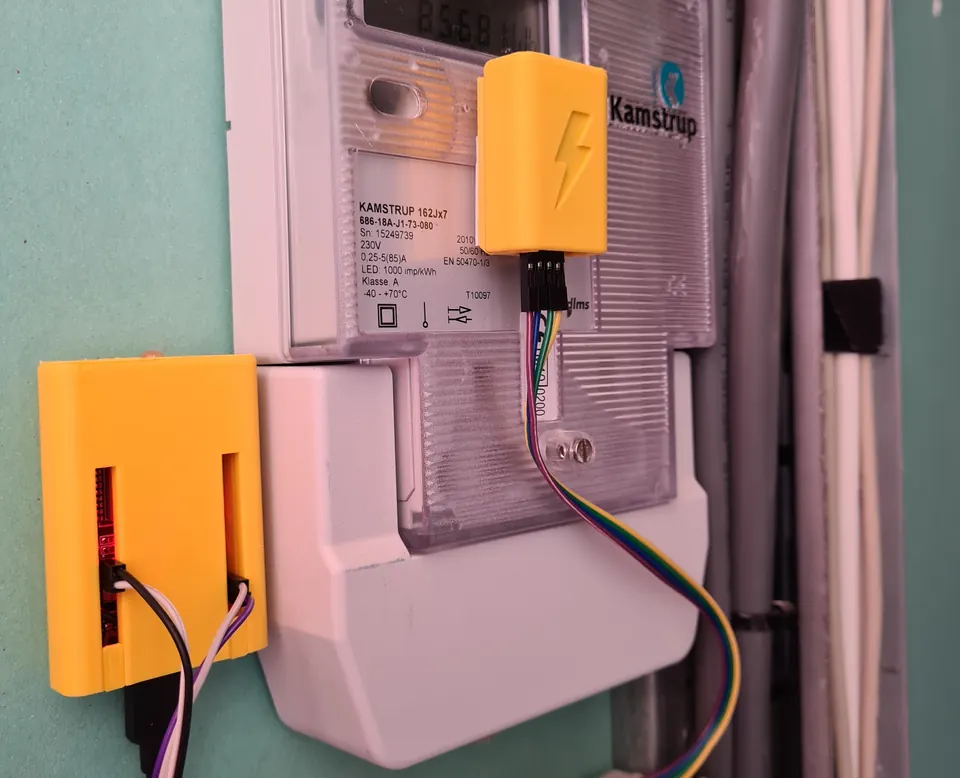
- Add the companion esphome-rain-detector module (visible on top of the mast in the main photo) for drop-level rain detection independent of the tipping bucket.
- Use ESPHome's MQTT output to feed data into InfluxDB and Grafana for long-term trend graphs.
- Expose sensors to Apple HomeKit or Google Home through Home Assistant automations without touching the firmware.
- Dual-sensor averaging: the README shows how to wire an AM2320 alongside the BME280 and average their readings in a template sensor — useful if you want redundancy.
Limitations
- The project targets the specific WH-SP-WS02 sensor assembly from the Elektor article; adapting it to other sensor kits requires recalculating the pulse-to-speed and resistance-to-direction mappings.
- The Elektor PCB is not strictly required — the README states the board is essentially a voltage converter and level shifter that is simple enough to reproduce on a breadboard — but you do need the schematic from the repository's
schematics/folder. - Last firmware commit is from 2022; ESPHome evolves quickly, so some platform names or filter syntax in the YAML may need minor updates for current ESPHome versions.
The esphome-weather-station project is a well-documented, hardware-complete reference build that shows exactly how to take a commercial sensor kit beyond its factory firmware. By delegating the heavy lifting to ESPHome, it turns a complex multi-sensor outdoor station into a YAML configuration exercise, with Home Assistant integration, OTA updates, and MQTT included for free. The main investment is in sourcing the WH-SP-WS02 assembly and building or replicating the Elektor interface board, but the schematics and wiring notes in the repository give you everything you need to get started.
Sources
github.comhugokernel/esphome-weather-station — repository & READMEFacts in this article come from the project's public README and GitHub metadata at the time of writing. Images belong to their respective owners and link back to the original source.