ESPHome PC Power Control with ESP32 and Home Assistant
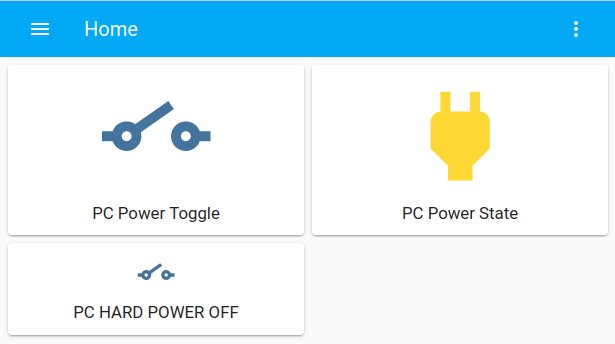
Home Assistant dashboard showing the three PC power control cards: power toggle, power state indicator, and force power off.
- ESP8266 NodeMCU
- ESP8266 or ESP32 board (any)
- ATX motherboard with 2x5 system-panel header
- Transistor Q1
- Resistor R1
What You Will Build
This project turns a spare ESP8266 or ESP32 into a hardware-level PC power controller that integrates directly into Home Assistant. Once wired to your motherboard's ATX system-panel header, Home Assistant gains three controls: a short press to power the machine on or trigger a graceful OS shutdown, a long press to force power off, and a binary sensor that reports whether the PC is currently on or off — all without any software running on the PC itself.
This is a practical upgrade for anyone running a home lab, NAS, or shared workstation that needs to be switched on or off remotely. Wake-On-LAN is the common alternative, but it carries real limitations: no authentication (any device on the LAN can send a magic packet), no shutdown capability, and it does not work until the OS has run at least once to arm the WOL hardware. Forwarding WOL packets through a Docker-based Home Assistant setup adds further complexity. The ESP approach bypasses all of that by acting as a physical finger on the power button. It works from any power state — off, suspended, or hibernated — and is protected by Home Assistant's own user authorization.
 \2
\2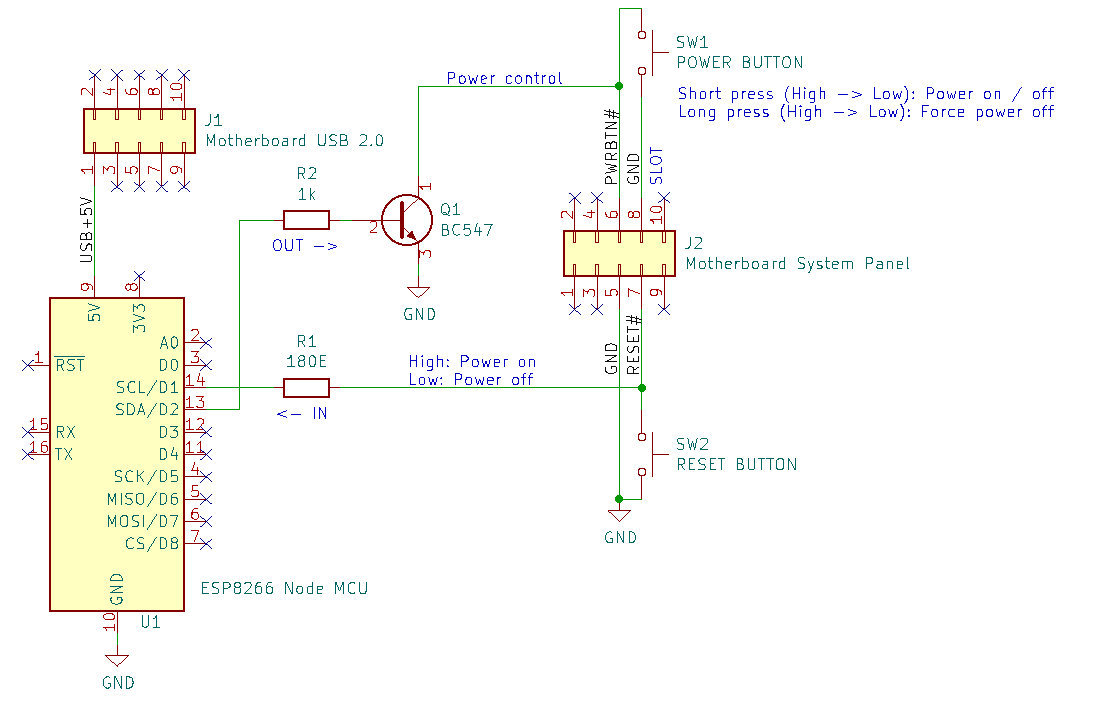 \2
\2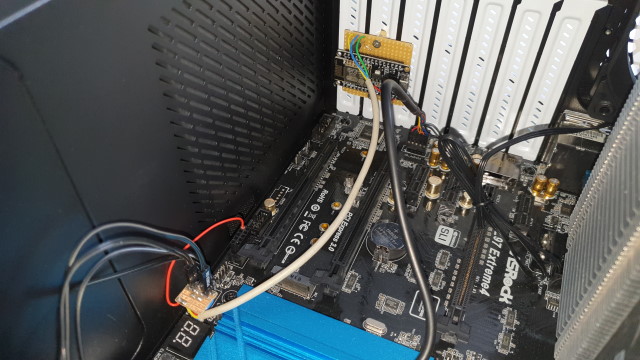 \2
\2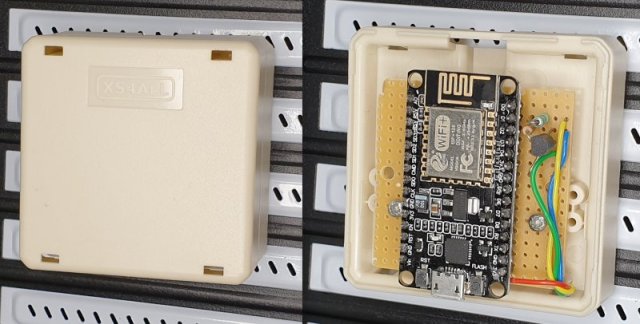 \2
\2What You Need
Hardware
- ESP8266 or ESP32 board — the author uses a NodeMCU ESP8266; theoretically any ESP8266 or ESP32 board works
- ATX computer motherboard with a standard 2x5 system-panel header (micro/mini/full ATX all use the same pinout)
- Transistor Q1 — for electrically isolating the ESP from the motherboard power-button circuit
- Resistor R1 — to limit current on the power-status input pin and protect against accidental output drive
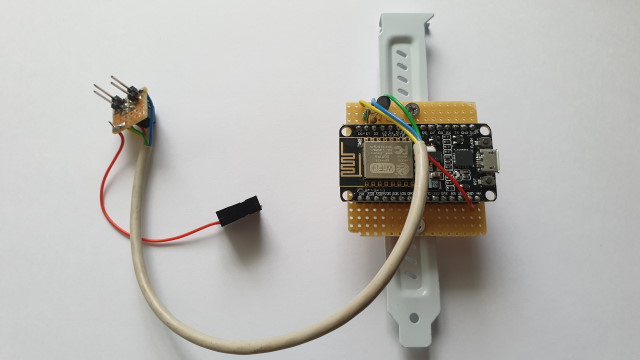
- Optional: a PCI slot bracket or suitable mount to position the ESP inside or behind the PC case
Software
- Python 3 with
virtualenv - ESPHome (installed via pip)
- A running Home Assistant instance
- The project files:
pc-power.yamlandsecrets.yamlfrom the repository
The KiCad schematic file is also included in the repository if you want to fabricate a dedicated breakout PCB for the system-panel header.
Typical use cases
Power a home NAS on and off from Home Assistant without relying on Wake-On-LAN or leaving the machine running continuously.
Control lab servers and workstations remotely from any power state, including when the OS is fully off or unresponsive.
Replace unauthenticated Wake-On-LAN with a Home Assistant-protected control that also supports graceful shutdown and force-off.
Combine with Home Assistant automations to boot or shut down machines on a schedule or based on presence and time-of-day rules.
How It Works
The ESP uses two GPIO pins to interface with the motherboard:
Pin D1 — power status input. This pin connects through resistor R1 to the motherboard's reset-button header pin (J2 pin 7). When the line is high, the PC is on; when low, it is off. R1 limits current in case D1 is accidentally configured as an output, protecting both the ESP and the motherboard.
Pin D2 — power button output. This pin drives transistor Q1, which in turn pulls the motherboard's power-button line (J2 pin 6) low. A brief pulse produces a short press, which powers the PC on or triggers a graceful OS shutdown depending on current state. Holding the line low longer produces a long press, forcing power off. The transistor provides secure electrical isolation between the ESP's 3.3 V logic and the motherboard circuit.
Power for the NodeMCU comes from the ATX USB 2.0 header (J1 pin 1), which supplies a constant +5 V even when the PC is completely off. The ESP's onboard regulator steps this down to 3.3 V. All ATX header pins and ESP pins operate at 3.3 V.
Importantly, all button timing — the difference between a short press and a long press — is controlled inside the ESPHome firmware, not by Home Assistant scripts. This was an explicit fix introduced in the February 2022 update after timing from HA scripts proved unreliable.
Build and Flash
Connect the ESP to the ATX headers following the schematic in images/Schematic.png:
- J1 pin 1 (+5 V USB header) → ESP VIN (constant power, PC on or off)
- J2 pin 5 (GND) → ESP GND
- J2 pin 6 (power button) → switched by transistor Q1, controlled by ESP pin D2
- J2 pin 7 (reset button) → through resistor R1 → ESP pin D1 (power status read)
The front-panel power and reset buttons remain fully functional alongside the ESP — they are wired in parallel, not replaced.
Edit pc-power.yaml to set your platform and board values, then fill in secrets.yaml with your WiFi SSID and passwords.
# Clone the repository
git clone [email protected]:Erriez/ESPHomePCPowerControlHomeAssistant.git

# Set up a Python virtual environment
sudo apt install python3-virtualenv
virtualenv venv
source venv/bin/activate

# Install ESPHome
pip install esphome

# Optional: grant serial port access (then reboot)
sudo usermod -a -G dialout <USERNAME>

# Compile and upload via USB
esphome run pc-power.yaml

# Monitor logs
esphome logs pc-power.yaml
Once the device is running, future firmware updates can be pushed over WiFi using ESPHome's OTA feature — no need to open the PC case again. If OTA fails (for example, after a WiFi credentials change), fall back to USB or configure the ap fallback access point in the YAML file.
Home Assistant Setup
Add the ESP to Home Assistant through Configuration → Integrations → Add Integration → ESPHome. Enter the hostname or IP address of the ESP device and the API password from your secrets.yaml.
Then open your dashboard, click Edit Dashboard → RAW Configuration Editor, and add the following card configuration:
title: Home
views:
  - title: PC
    path: pc
    badges: []
    cards:
      - type: button
        entity: switch.pc_power_toggle
        show_name: true
      - type: button
        tap_action:
          action: none
        entity: binary_sensor.pc_power_state
        hold_action:
          action: none
      - type: button
        tap_action:
          action: toggle
        entity: switch.pc_hard_power_off
        show_state: false
        show_name: true
        show_icon: true
This adds three dashboard cards: switch.pc_power_toggle (short-press the power button), binary_sensor.pc_power_state (live on/off indicator), and switch.pc_hard_power_off (long-press force shutdown). Restart Home Assistant and the controls are ready to use.
Extend It and Know the Limits
Ideas to go further
- Use Home Assistant automations to shut the PC down on a schedule or when the household presence sensor shows everyone has left.
- Trigger other smart devices — monitors, a network switch, or smart plugs — from the
binary_sensor.pc_power_stateentity when the PC powers on or off. - Mount the ESP on a PCI slot bracket so it sits flush at the back of the case and draws power from the internal USB 2.0 header. The repository includes a photo of exactly this mounting approach.
- Use ESPHome's OTA to push firmware improvements remotely once the device is installed, avoiding any need to reopen the case.
Limitations to keep in mind
- The metal PC case shields the ESP's antenna and reduces WiFi range to the access point. If the connection is unstable, the author recommends placing the ESP outside the case.
- All ATX header and ESP pins must operate at 3.3 V. Verify your board and motherboard voltages before wiring.
- OTA updates require an active WiFi connection. If the ESP cannot reach the network, a USB cable is needed for firmware updates.
- ESPHome YAML format changed with version 2024.6.0. If you see errors about a missing
platformkey underotaor pins used in multiple places, update to the current YAML files in the repository — the October 2024 update addresses this exactly.
ESPHome PC Power Control is a well-documented, hardware-level solution for anyone who needs reliable remote power management without depending on Wake-On-LAN or a running operating system. The ESPHome YAML approach keeps configuration minimal and OTA updates practical. The main trade-off is that it requires careful wiring to your motherboard's system-panel header, which makes it intermediate rather than beginner territory — but the schematic and photos in the repository make that step approachable.
Sources
github.comErriez/ESPHomePCPowerControlHomeAssistant — repository & READMEFacts in this article come from the project's public README and GitHub metadata at the time of writing. Images belong to their respective owners and link back to the original source.