HASS-epaper-display: ESP32 E-Paper Smart Home Dashboard
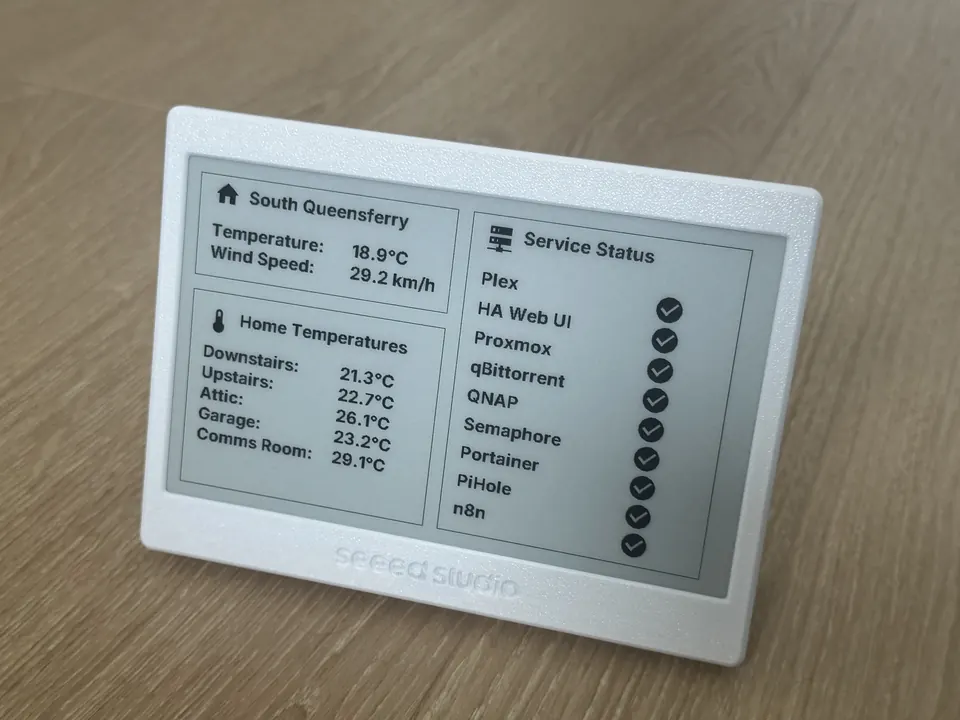
The completed dashboard mounted showing the home screen with weather icon, temperature readings, and service status list.
- Seeed Studio XIAO 7.5" ePaper Panel
- XIAO ESP32-C3 (built into the panel)
What You Will Build
This project gives you a wall-mounted, always-on information panel that quietly reflects what your Home Assistant instance already knows — no app, no touchscreen, no unlocking required. The 7.5" e-paper display alternates between two screens every 30 minutes:
- Home screen: weather condition icon, outdoor temperature and wind speed, up to five indoor/outdoor temperature readings, and a service status list showing up/down state for up to nine monitored services.
- Proxmox screen: a 10-row table of per-container or per-VM CPU, RAM, and disk usage, plus a summary of three storage pools.
A status footer on both screens shows the time of the last redraw and whether the ESP32 currently has a live Home Assistant API connection. That means a frozen or offline panel is immediately obvious rather than silently showing hours-old data.
Because e-paper holds its image with zero power draw between refreshes, the panel draws very little energy, makes no noise, and remains readable in direct sunlight. It is a practical fit for a utility room, home office wall, or server room where a glanceable summary matters more than interactivity.
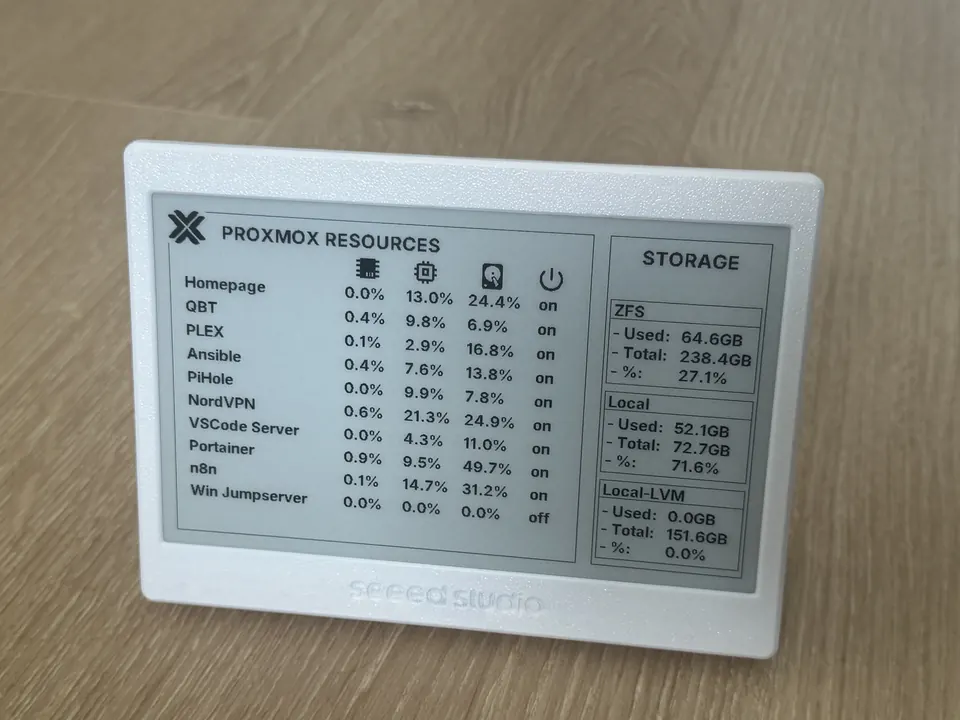 \2
\2What You Need
Hardware
- Seeed Studio XIAO 7.5" ePaper Panel — this is an integrated unit. The XIAO ESP32-C3, SPI e-paper driver, USB-C port, boot and reset buttons, and an optional battery connector are all on one board. No soldering or wiring is required; the SPI pins listed in the README (CLK on GPIO8, MOSI on GPIO10, CS on GPIO3, DC on GPIO5, BUSY on GPIO4, RESET on GPIO2) are pre-wired on the board and already match the dashboard.yaml defaults.
- A USB-C cable for the first flash.
Software and services
- Home Assistant with the ESPHome add-on installed (Settings → Add-ons → Add-on Store). If you run Home Assistant Container, use the ESPHome Device Builder via Docker instead.
- The project files from the GitHub repository:
dashboard.yaml,secrets.yaml.example, and theesphome/fonts/andesphome/image/folders.
Optional integrations (for full screen use)
- Proxmox VE integration in Home Assistant, which exposes per-container CPU, RAM, and disk sensors. Without it, the Proxmox screen will show empty or unavailable values.
- Uptime Kuma or any Home Assistant integration that produces
binary_sensorentities for service up/down state, used by the service status list on the home screen.
Typical use cases
Mount it in a hallway or utility room to see indoor temperatures, weather conditions, and the up/down status of critical home automation services at a glance, without unlocking anything.
Track CPU, RAM, and disk usage across up to ten LXC containers or VMs, plus a summary of three storage pools, on a panel that requires no screen-on time between updates.
E-paper draws power only while redrawing, making this a practical always-on display even in battery-powered or solar-supplemented setups where a backlit screen would be impractical.
Use any Home Assistant binary_sensor — from Uptime Kuma, ping integrations, or custom automations — to show the live up/down state of up to nine services on the home screen.
How It Works
The ESP32 does no data processing of its own — it is a thin renderer. Home Assistant owns every value shown. The ESPHome api: component mirrors selected HA entities (weather conditions, temperatures, binary sensors, Proxmox metrics) to internal ESPHome sensors over the native encrypted API. A display lambda then runs on a timer and paints those values onto the panel at fixed pixel coordinates on the 800×480 canvas.
Entity state pushes from Home Assistant update the ESP's internal sensors continuously, but the panel itself only redraws every refresh_interval (30 minutes by default) to save power and avoid wearing out the e-paper.
Screen switching is handled by a single global variable, current_display_page, which flips after every redraw. On boot, the Proxmox screen is shown for splash_duration (10 seconds by default) before the normal alternation begins — this doubles as a splash screen with no extra code needed.
All layout is hand-placed at fixed x, y coordinates in a C++ lambda inside the YAML. There is no auto-layout engine. The substitutions: block at the top of dashboard.yaml exposes the settings people change most often — device name, location label, refresh timing, and row spacing — so you can tune those without touching the drawing code at all.
Build and Flash Steps
Step 1 — Install ESPHome in Home Assistant
Go to Settings → Add-ons → Add-on Store, find ESPHome, click Install, then Start. If it is missing, your installation type may not support add-ons; use the ESPHome Device Builder via Docker instead.
Step 2 — Create a new device
In the ESPHome dashboard, click New Device, give it a name such as epaper_dashboard, select ESP32-C3 as the board, then click Edit.
Step 3 — Configure secrets
Copy secrets.yaml.example from the repository to secrets.yaml in your /config/esphome/ folder and fill in your Wi-Fi credentials. The dashboard.yaml file reads them with !secret wifi_ssid and !secret wifi_password.
Step 4 — Copy project files
Replace the auto-generated YAML with dashboard.yaml from the repository. Then copy the esphome/fonts/ and esphome/image/ folders into /config/esphome/ so they sit flat alongside your YAML file. ESPHome resolves font and image paths relative to /config/esphome/, so the directory layout matters.
Step 5 — Fill in credentials and entity IDs
Paste the api.encryption.key and ota.password values that ESPHome generated when you created the device — do not invent your own. Then update the substitutions: block and all entity_id values under sensor: and text_sensor: to match your Home Assistant setup.
Step 6 — Flash over USB
Connect the panel via USB-C. In the ESPHome dashboard, click Install → Manual Download, then flash using the ESPHome web uploader. After this first wired flash, all future updates can be pushed wirelessly over OTA.
Common gotchas
- If an icon renders as a blank box, its MDI codepoint is missing from that font's
glyphs:list indashboard.yaml. - If a value shows
nanor0.0, theentity_iddoes not exist in Home Assistant or the entity isunavailable— check Developer Tools → States in HA. - If the footer always shows "API disconnected", the
api.encryption.keyindashboard.yamldoes not match what Home Assistant has stored for this device. Re-add the ESPHome integration in HA or re-copy the key.
Customizing the Dashboard
The substitutions: block at the top of dashboard.yaml covers the values you are most likely to change without needing to touch any drawing code:
| Substitution | Default | What it controls |
|---|---|---|
device_name |
ha-dashboard |
ESPHome node name |
friendly_name |
HA Dashboard |
Name shown in Home Assistant |
location_name |
South Queensferry |
Text in the top-left box on the home screen |
refresh_interval |
1800s |
How often the panel redraws and flips screens |
splash_duration |
10s |
How long the boot splash is held |
proxmox_row_height |
32 |
Vertical pixel spacing between Proxmox table rows |
service_row_height |
40 |
Vertical pixel spacing between service status rows |
Adding a Proxmox container row requires three steps: adding three sensor: entries (CPU, RAM, disk) and one text_sensor: entry pointing at your HA entity IDs, then calling draw_resource_row() in the lambda for the new row. The README includes copy-paste YAML for each step.
Adding a temperature sensor follows the same pattern: add a platform: homeassistant sensor entry, then add a matching it.printf() call in the Temperature Box section of the home screen lambda.
Swapping a weather icon: look up the MDI codepoint at pictogrammers.com (for example, F0599), prefix it as \U000F0599, and add it to the relevant font's glyphs: list. Skipping the glyphs: entry is the most common reason an icon appears as a blank box, because ESPHome only bakes in the glyphs you explicitly declare.
Ideas to Extend It and Known Limitations
Ways to extend the project
- Add a battery and mount the panel cable-free on a wall; the board includes an optional battery connector.
- Replace the Uptime Kuma binary sensors with any
binary_sensorfrom Home Assistant — the service status list is not tied to a specific integration. - Shorten
refresh_intervalfor more frequent updates, or lengthen it to further reduce e-paper wear. - Add humidity, CO₂, or air quality sensors by following the existing temperature row pattern in the lambda.
- Prepare a custom boot splash image — convert it to true 1-bit binary format first using a tool such as onlinejpgtools.com, or it will appear inverted or noisy on the monochrome display.
Limitations to plan around
- The layout is fully hand-coded at fixed pixel coordinates. Moving a box or adding many new rows requires coordinate arithmetic and a re-flash (or OTA update) to check the result — there is no auto-layout.
- The Proxmox table has a practical limit of 10 rows before they collide with the box edge. Adding an 11th row requires either shrinking
proxmox_row_heightor enlarging the bounding rectangle in the lambda. - Data shown between refreshes may be up to
refresh_intervalold; the status footer makes this visible, but it is worth setting expectations for anyone who glances at the panel mid-cycle. - The first flash must be done over USB. OTA works only after that initial wired setup.
- The author notes that the code is manual and hardcoded, and that small tweaks often involve trial and error with coordinates. It is not plug-and-play — expect to spend time aligning entity IDs and testing your layout.
HASS-epaper-display is a well-documented, practical project for anyone already running Home Assistant who wants a permanent, glanceable status panel without the energy cost of a backlit screen. The integrated Seeed Studio panel removes all wiring work, and the substitutions block makes the most common customizations accessible without editing C++ lambdas. The hand-coded fixed-coordinate layout takes patience to adapt, so treat this as a strong starting template rather than a drop-in solution — plan to spend time matching entity IDs and tuning row spacing to your own setup.
Sources
github.comr-morato/HASS-epaper-display — repository & READMEFacts in this article come from the project's public README and GitHub metadata at the time of writing. Images belong to their respective owners and link back to the original source.