Orion: Build a Voice Assistant on ESP32-S3 You Own
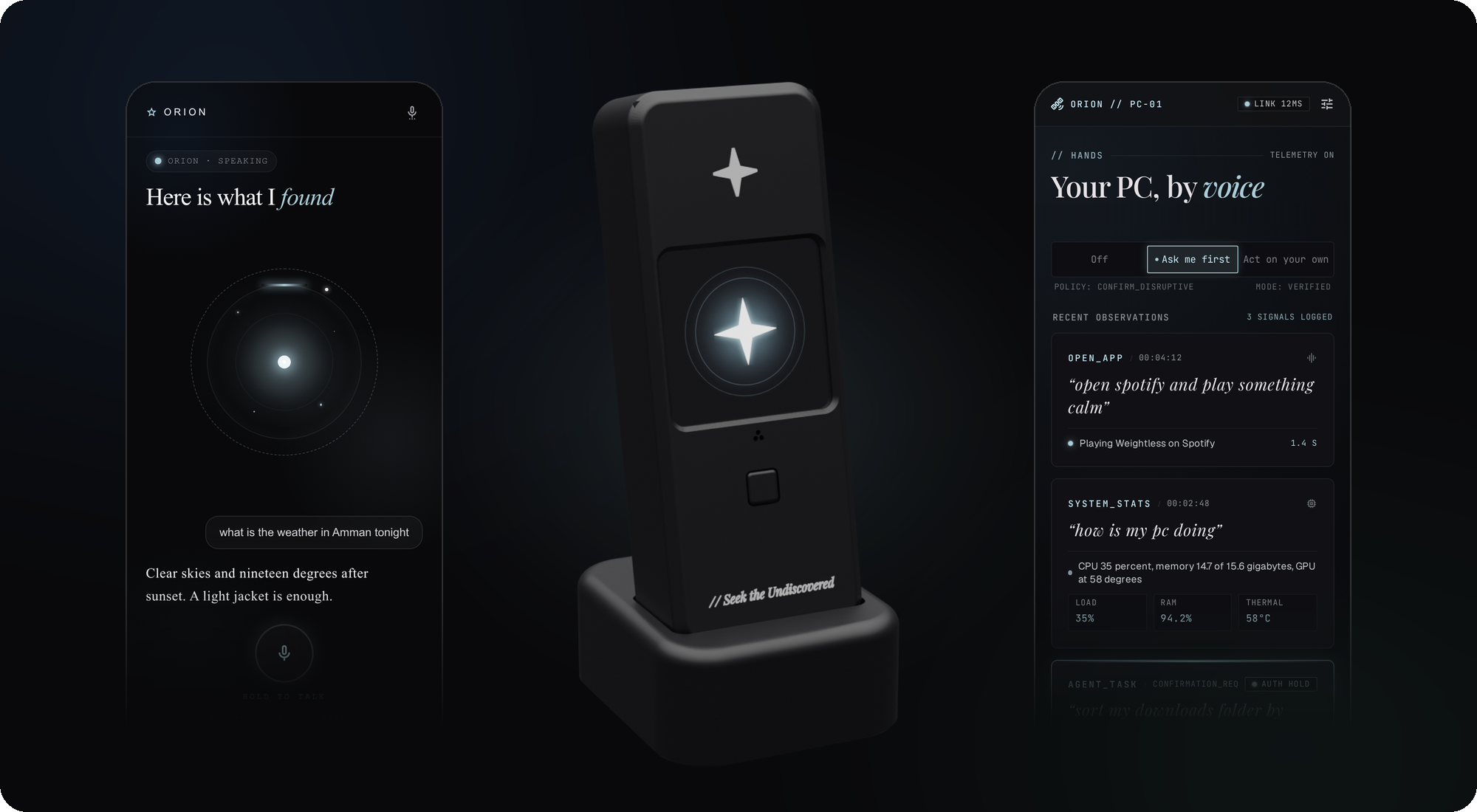
The Orion app on a phone, the board in its printed case, and the PC control screen
- LilyGO T-CameraPlus-S3 (ESP32-S3)
- USB-C data cable
What you will build
Orion is a compact desk voice assistant that lives entirely on one ESP32-S3 board. Say "Orion", ask a question in Arabic or English, and the board speaks back through its built-in amplifier and speaker — no cloud subscription, no Orion account, nothing routed through a server owned by the project.
The wake word runs on the board itself using TensorFlow Lite Micro, so audio only leaves your home after you call Orion's name. Once set up, plug the board into any USB charger and it is ready. Leave the companion app open on your PC or Android phone and Orion gains extra abilities: opening apps, controlling media, reading system stats, searching the web, and remembering what you talked about. It can also look through its camera and describe what it sees when you ask.
 \2
\2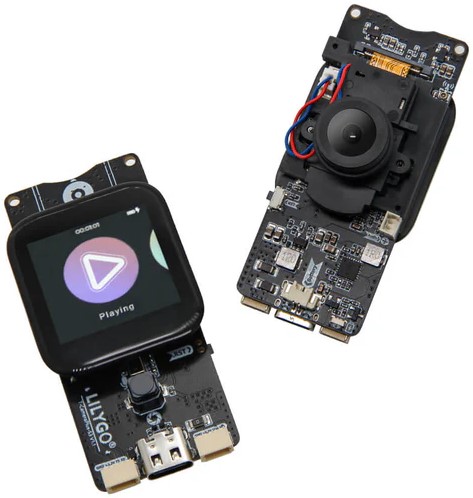 \2
\2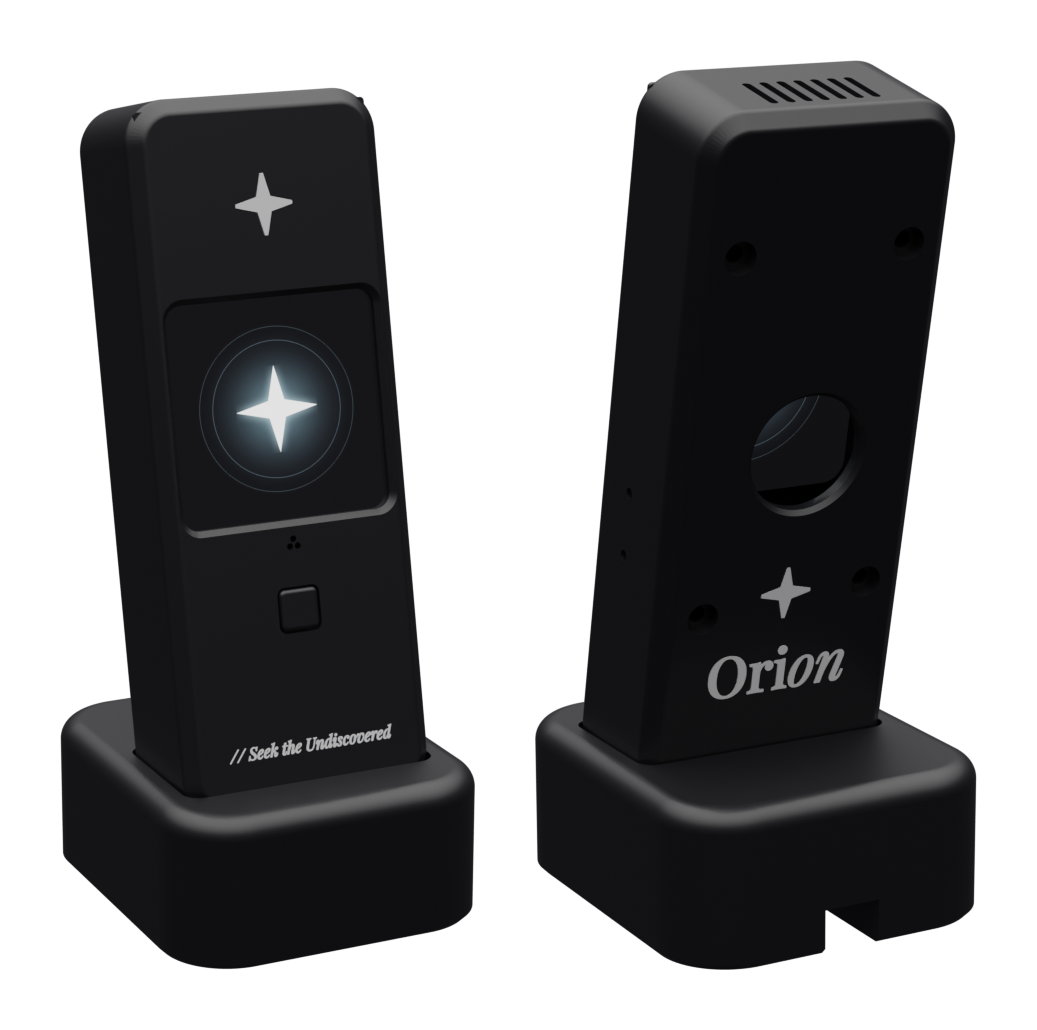 \2
\2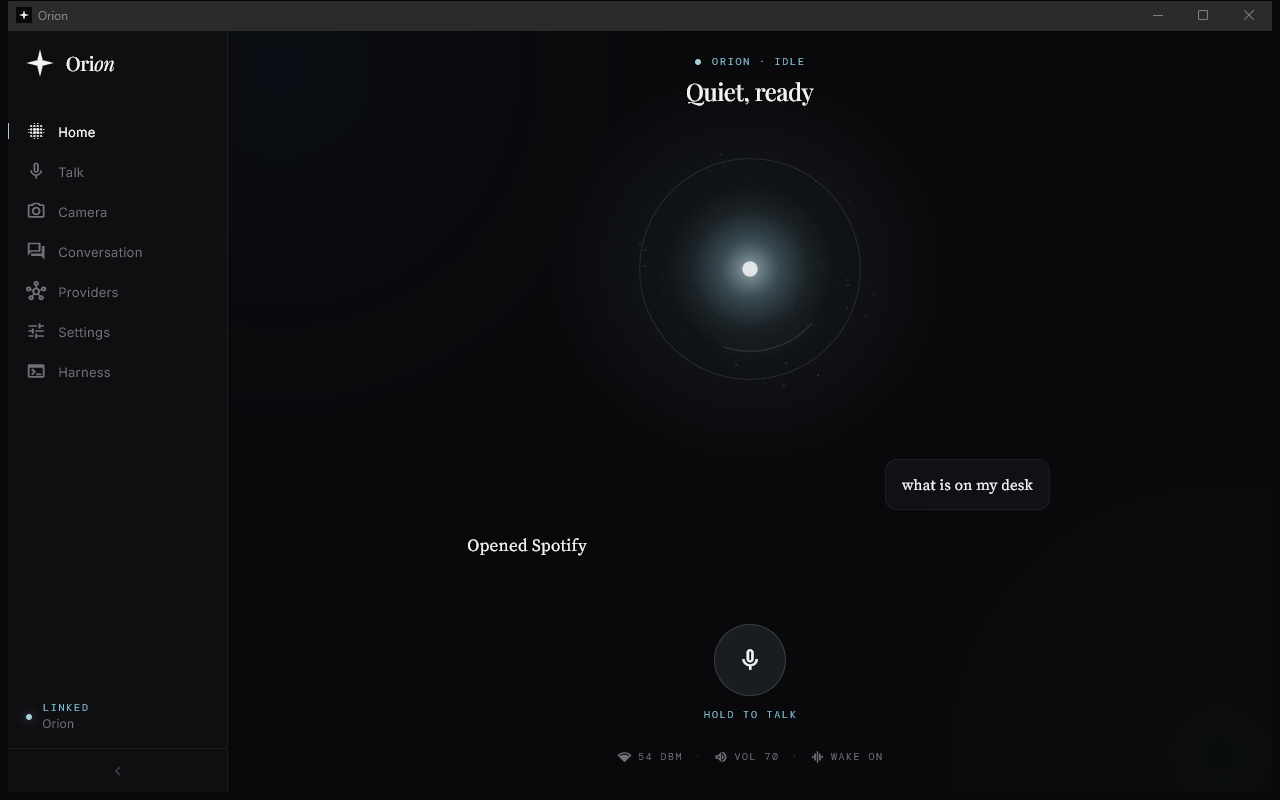 \2
\2What you need
Hardware
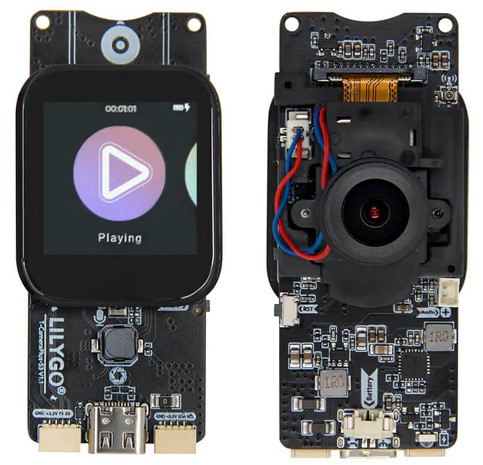
- LilyGO T-CameraPlus-S3 — available from LilyGO's store. Everything Orion needs is on this one board: ESP32-S3 dual-core processor, 16 MB flash, 8 MB PSRAM, 1.3-inch 240×240 touchscreen (ST7789 + CST816), OV2640 camera, MP34DT05 digital microphone, MAX98357 amplifier with speaker socket, USB-C port, and a SY6970 battery charger.
- USB-C cable that carries data (not a charge-only cable).
- Optional: a small speaker connected to the Audio socket if the board's onboard speaker is not enough for your space.
- Optional: a 3D printer for the desk case (PLA or PETG, 0.2 mm layers, four M2×16 self-tapping screws, four rubber feet).
Accounts and keys
- A Fish Audio API key — used for speech recognition and Orion's voice.
- An API key from a language model provider. DeepInfra is the default, but any OpenAI-compatible endpoint works (OpenAI, Anthropic, Groq, OpenRouter, or a local Ollama instance on your network).
Software (for flashing)
- Windows 10/11: no extra tools. The installer handles everything.
- Linux or macOS:
curlavailable in a terminal. The script downloads esptool automatically if Python is not present.
Typical use cases
Ask questions in Arabic or English and hear spoken answers without routing audio through any Orion-owned server. The wake word runs fully on the ESP32-S3.
Say "Orion, what do you see?" and the board takes a photo with its OV2640 camera, sends it to the language model, and reads back a description.
With the Windows app open, Orion can open and close apps, control media playback, read system stats, take screenshots, and hand multi-step tasks to the Harness agent in a sandbox folder.
The wake word model was trained for both Arabic and English speakers. Conversation, web search, and system queries all work in either language.
How it works
A single voice turn moves through these stages:
- The board listens continuously for the wake word "Orion" using its on-device TensorFlow Lite Micro model. No audio leaves the board at this stage.
- When the wake word fires, the animated orb on the screen changes state and the board records your question.
- Recorded speech is sent to Fish Audio, which returns text.
- The text goes to the "brain" — whichever is available first: the PC app (if PC control is enabled), a linked phone app, or the board calling the model directly.
- The brain sends a chat request to your chosen language model, with tool access added when a PC or phone is linked (web search, app control, system stats, memory of recent turns).
- The model streams its answer back sentence by sentence. Each sentence goes to Fish Audio for synthesis, and the board starts speaking the first sentence while the rest is still being written.
The result is a response that feels fast: Orion begins speaking before it has finished thinking.
Flash and first boot
You do not need to write code or install developer tools.
Step 1 — Connect the board. Plug the LilyGO T-CameraPlus-S3 into your computer with a USB-C data cable.
Step 2 — Flash the firmware.
Windows 10 or 11: Download flash-orion.bat from the repository (open the file on GitHub, use the download button at the top right), then double-click it. If Windows shows a "protected your PC" warning, choose More info, then Run anyway. That one double-click is the complete install.
Linux or macOS: Open a terminal and run:
bash <(curl -fsSL https://raw.githubusercontent.com/MultiX0/orion/main/tools/install/flash-orion.sh)
The installer locates the board, fetches Espressif's flashing tool, downloads the latest Orion firmware, verifies the checksum, and writes it. No admin rights are needed and it takes a few minutes.
If the installer cannot find the board: try a different cable, or hold the BOOT button on the side of the board, tap RST, release BOOT, then run the installer again.
Step 3 — Open the app.
Download the Orion app for Android or Windows from the releases page. On Windows, run Orion-1.0.0-windows-x64-setup.exe (no admin rights needed). Tap Find my Orion.
The app finds your board over Bluetooth, walks you through Wi-Fi setup, and asks for your two API keys. Each key is checked against the real service before it is saved. If your board is already on Wi-Fi, you can pair over the network using a six-digit code shown on the board's screen.
When the board shows its idle orb, say "Orion".
Things to try first:
- "Orion, what's the weather in [your city] tonight?"
- "Orion, what do you see?" (the camera takes a photo and describes it)
- "Orion, how is my PC doing?" (with the Windows app open)
- "أوريون، احسب ١٢٨ ضرب ٤٦"
Print the case (optional)
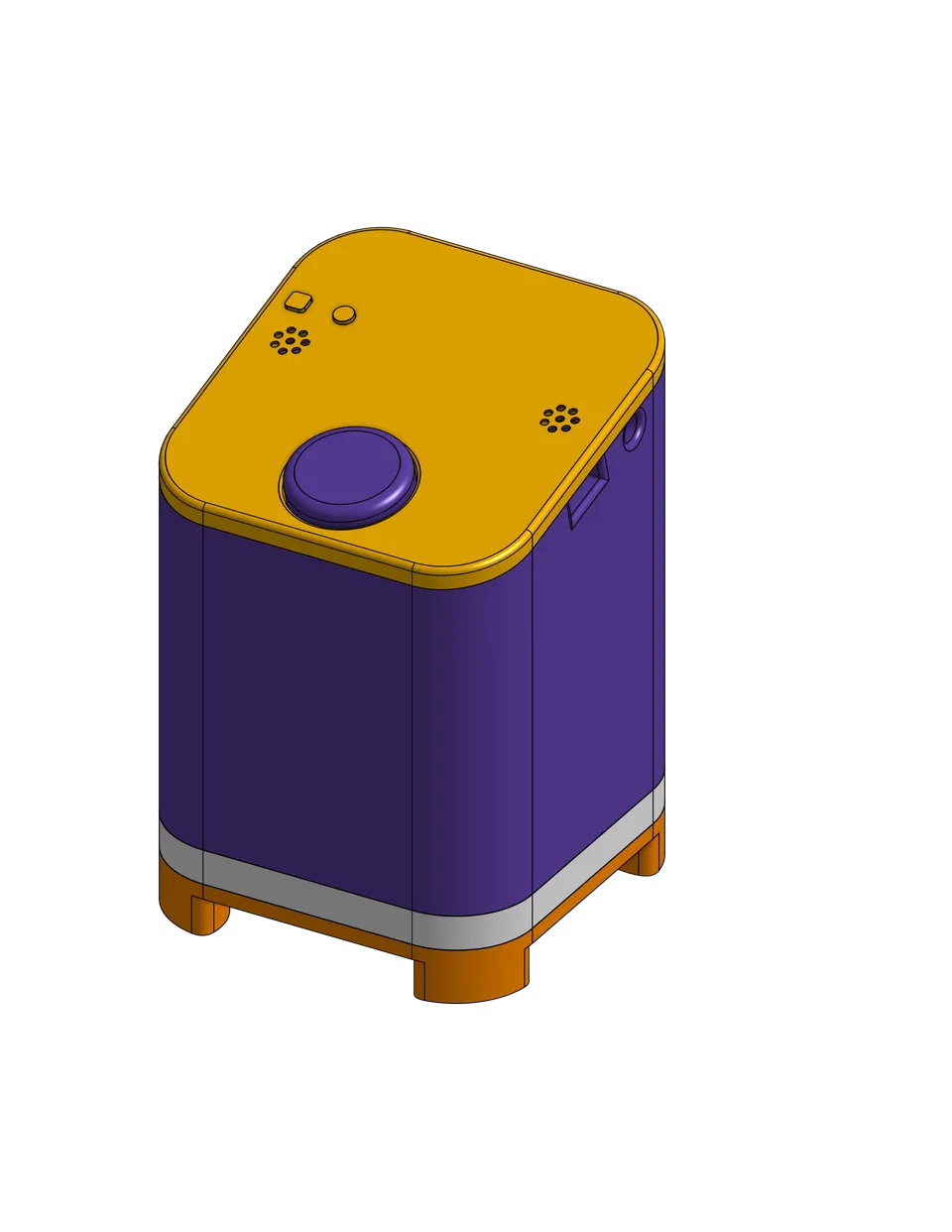
The repository includes a two-part desk case with a stand, designed for version 1.2 of the board. The screen sits behind a lip, the push-to-talk button has its own plunger, and the microphone and speaker channels are sealed. STL files are in case/stl/. A multi-colour printer can use case/orion_case.3mf, which has the white logo inlays in place.
Print settings: PLA or PETG, 0.2 mm layers, no supports. Do not use carbon fibre, metal-filled, or conductive filament — these block Wi-Fi. You also need four M2×16 self-tapping screws and four small rubber feet.
Before printing the full case, print the two small fit-test parts in case/fit_test and check the fit on your board. The README notes that measurements are not fully accurate yet and a fix is in progress.
Full dimensions, print settings, and assembly order are in case/SPEC.md.
Extend it and known limits
Ideas to build on:
- Swap the default DeepInfra endpoint for any OpenAI-compatible provider, including a local Ollama model on your own network, by changing the endpoint and key in the app.
- Use any Fish Audio-compatible voice, or point Orion at a different OpenAI-compatible speech endpoint.
- Enable all three levels of PC trust (off, ask first, act on your own) and experiment with multi-step tasks routed to DeepSeek Harness, which works in a sandboxed folder.
- Modify or retrain the wake word — the training pipeline is in
wakeword/and uses Python and WSL2 on Windows. - Change the case dimensions by editing a single parameter file (
case/cad/params.py) and regenerating the STL files.
Building from source (for those who want to go deeper): the firmware uses ESP-IDF v5.5.5 (idf.py build in firmware/), and the app uses Flutter stable (flutter pub get then flutter run). A mock device (dart run tool/mock_device/main.dart) lets you develop the app without a board attached.
Current limits to know before you build:
- The 3D case measurements are acknowledged as not fully accurate — fit-test parts first.
- iOS is set up in the Flutter codebase but has not been built or tested on a device; there is no iOS release.
- macOS flashing is supported by the same shell script as Linux but has been tested less.
- PC control tools (app launching, media control, Harness agent) require the Windows desktop app; the Android app does not expose those features.
Orion is the most complete no-code ESP32 voice assistant project available today: one double-click flashes the firmware, the companion app handles Wi-Fi and key setup over Bluetooth, and the board is ready to answer questions in Arabic or English from a USB charger. The on-device wake word, bring-your-own-keys design, and optional 3D-printed case make it a serious desk tool rather than a demo, though the case fit and macOS support are still being refined.
Sources
github.comMultiX0/orion — repository & README joinorion.ioOfficial websiteFacts in this article come from the project's public README and GitHub metadata at the time of writing. Images belong to their respective owners and link back to the original source.