PadSpan HA: BLE Room-Presence Tracking for Home Assistant
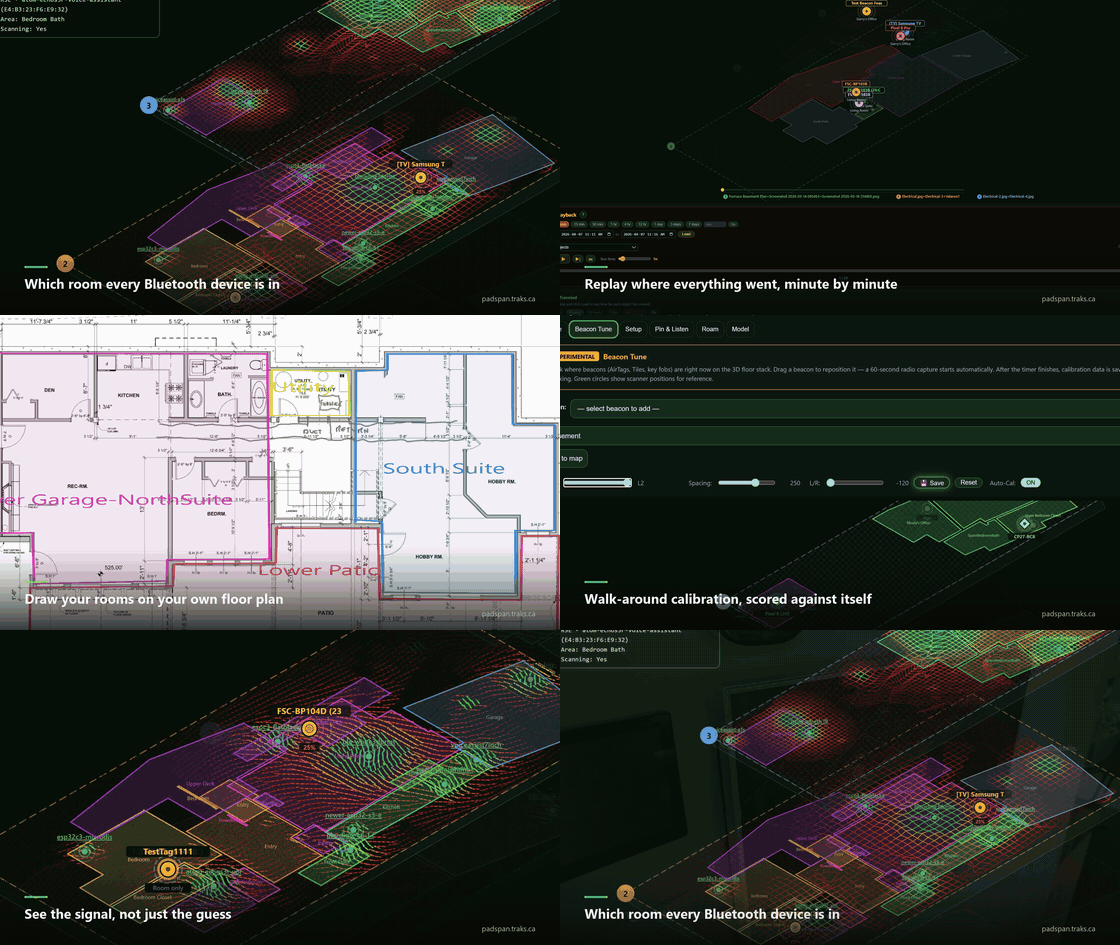
20-second tour of PadSpan HA showing room tracking, 3D maps, and calibration views
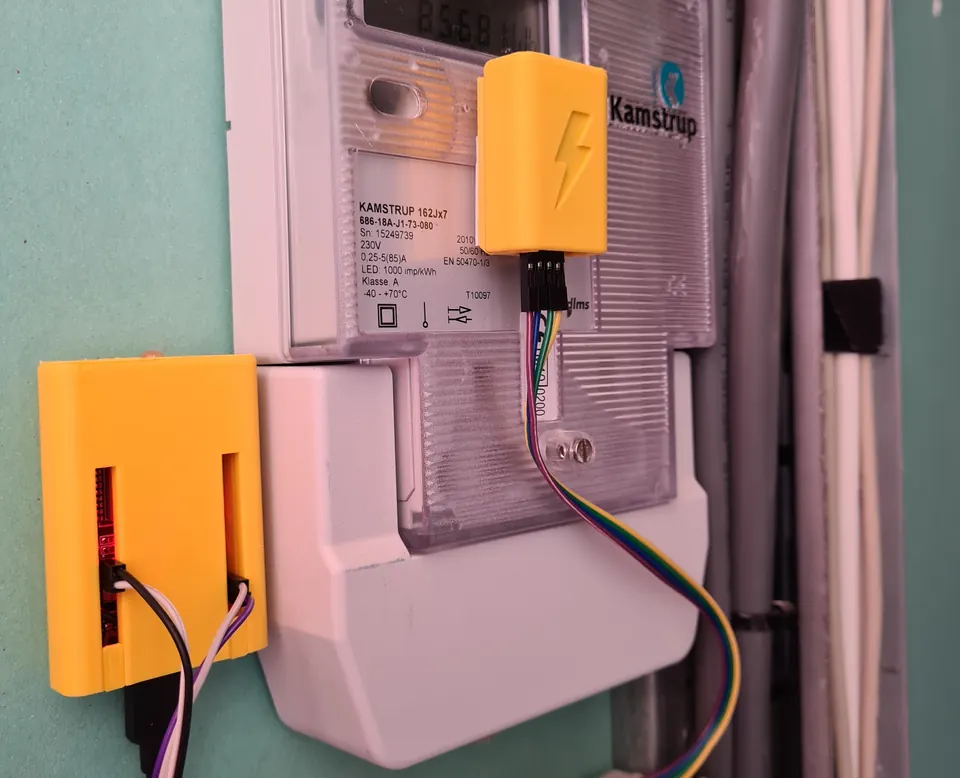
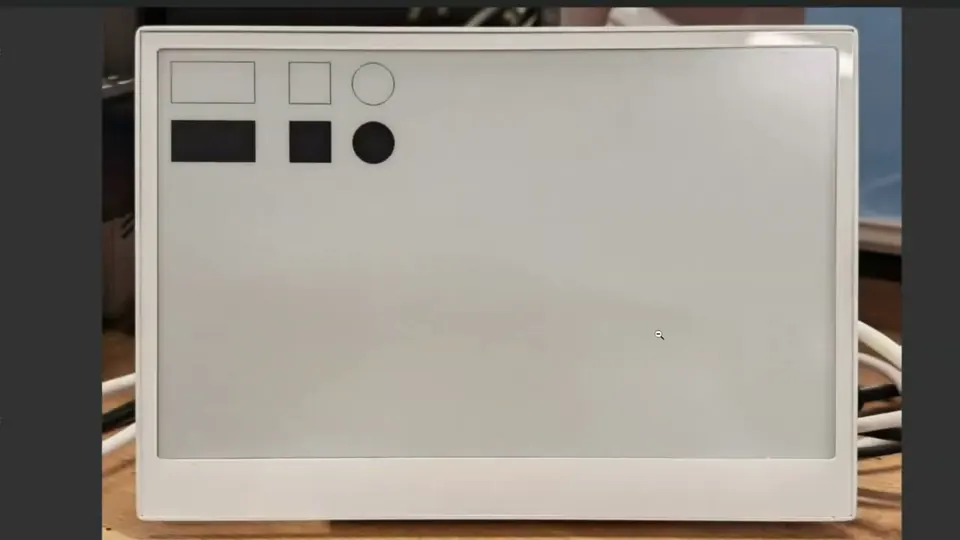
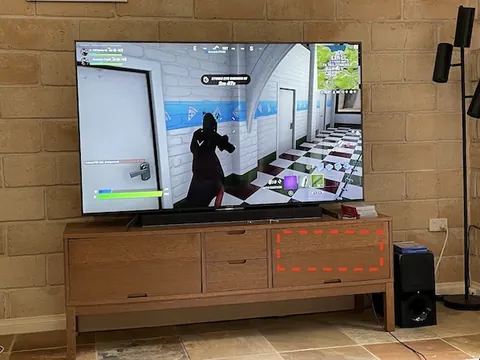
- ESP32-S3 with Ethernet and external antenna
- ESP32-S3 with WiFi and external antenna
- ESP32-C3 with external antenna
- Spare ESP32 (for irk-capture phone tracking)
What You Will Build
PadSpan HA turns your Home Assistant installation into a full room-level Bluetooth presence workstation. Instead of a single "home or away" sensor, you get a live map showing exactly which room every tracked Bluetooth device is in — phones, watches, tags, and sensors — refreshed every 5 seconds.
The integration layers on top of your existing BLE scanner hardware: HA Bluetooth proxies, Bermuda proxies, and ESPresense nodes are all supported without reflashing. On top of the raw scanner data, PadSpan adds interactive floor plan editing, 3D isometric multi-floor visualizations, a walk-around fingerprint calibration system, NVR-style movement playback, follow mode with email alerts, and a training hub with 16 animated walkthroughs.
Everything runs locally inside Home Assistant. There is no cloud dependency and no third-party service involved.
 \2
\2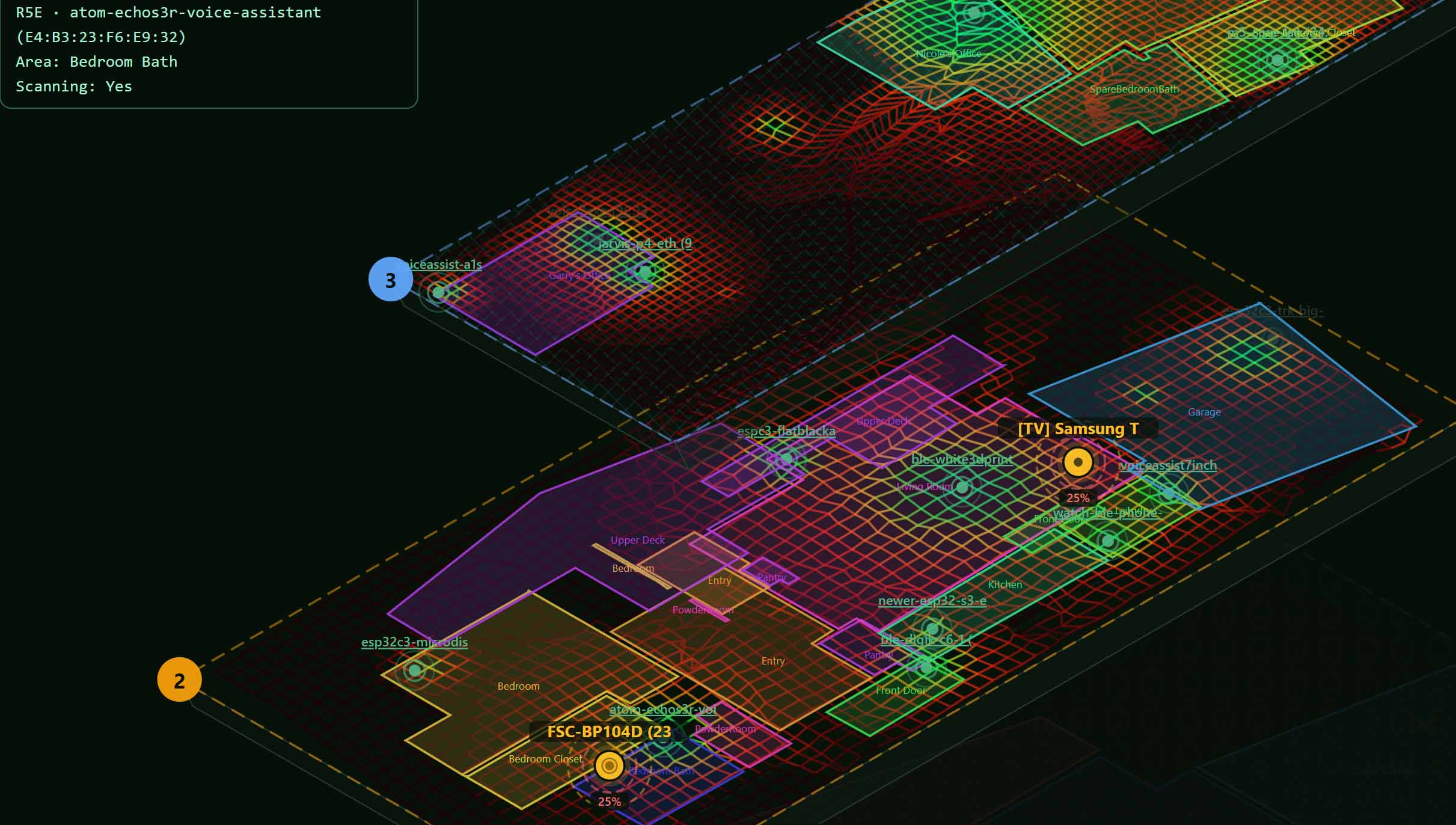 \2
\2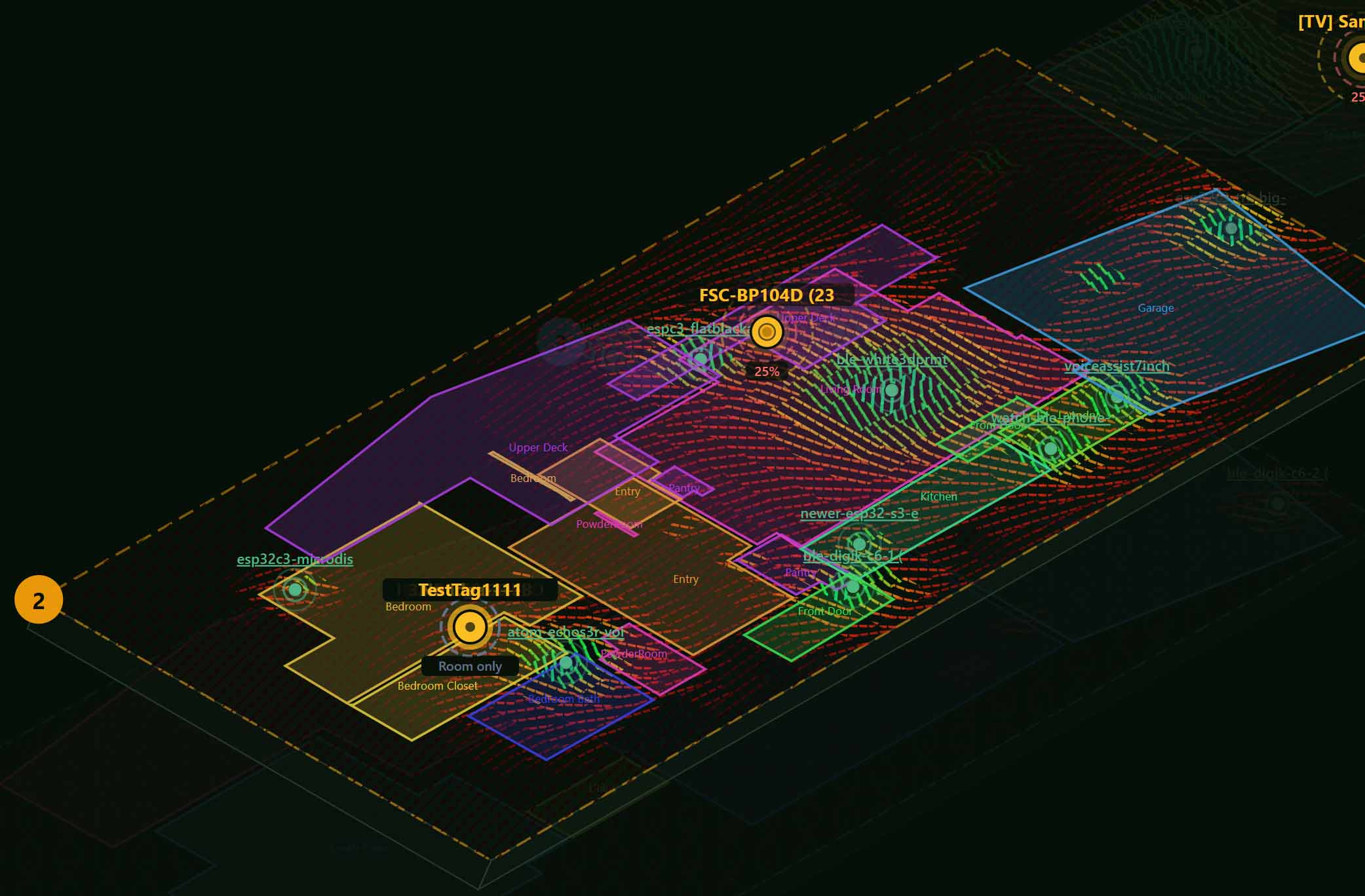 \2
\2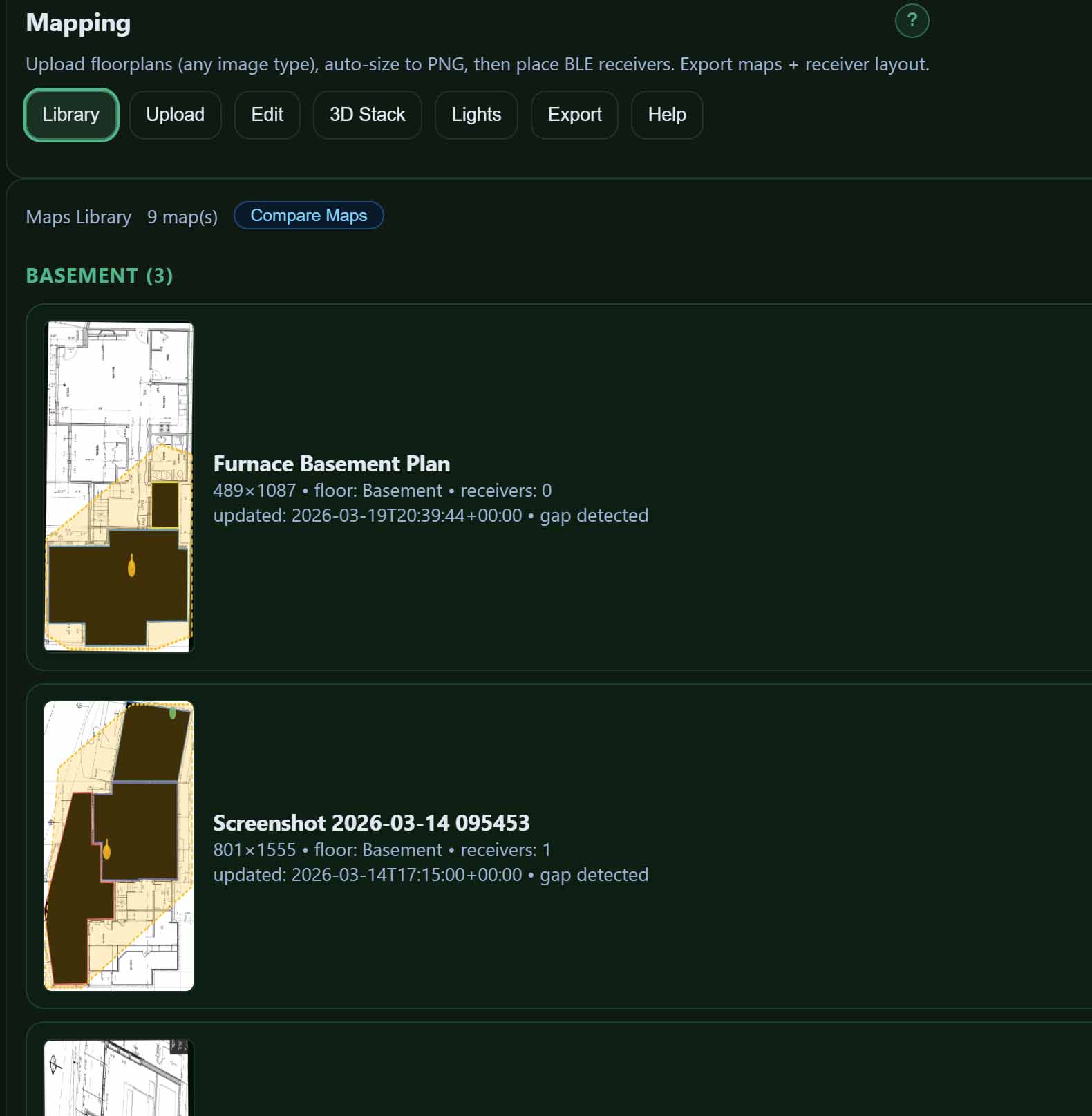 \2
\2What You Need
Hardware
You need at least one ESP32-based BLE scanner node per room or zone you want to cover. The README recommends boards with full-size external antennas over chip or PCB antennas for room-level accuracy. The three top picks called out are:
- ESP32-S3 with Ethernet and an external antenna
- ESP32-S3 with WiFi and an external antenna
- ESP32-C3 with an external antenna
PadSpan has been tested with 20+ ESP32 boards. The antenna matters more than the specific chip variant.
For phone tracking via IRK (Identity Resolving Key) — the method used to track iPhones and Apple Watches that rotate their Bluetooth MAC address — you also need a spare ESP32 to run the separate irk-capture tool.
Software and integrations
- Home Assistant with HACS installed
- One of the supported scanner integrations already running: HA Bluetooth integration (proxies), Bermuda, or ESPresense
- If using ESPresense nodes: HA's MQTT integration configured and ESPresense MQTT enabled inside PadSpan under Manage → ESPresense MQTT
- For Android phone tracking: the HA Companion App with BLE Transmitter enabled
- For iPhone / Apple Watch tracking: the irk-capture firmware flashed to a spare ESP32, paired once per device
Typical use cases
Know which room every tracked device is in and trigger HA automations — lights, HVAC, alerts — the moment presence changes, updated every 5 seconds.
Visualize all floors simultaneously on an interactive 3D isometric map with live device positions, scanner sonar, and RSSI heatmap overlays.
Track iPhones, Android phones, and Apple Watches by resolving their rotating Bluetooth addresses using IRK extraction or iBeacon broadcasting.
Replay movement history, measure time-in-room per device, count peak concurrent occupancy, and export reports as CSV or JSON for further analysis.
How It Works
Each ESP32 scanner node continuously advertises the RSSI (signal strength) it measures from every nearby Bluetooth device. PadSpan collects those RSSI readings across all your scanners and applies Kalman-filtered smoothing — replacing simpler moving averages — to reduce noise before making a room decision.
Room assignment uses a hybrid of two models: a k-NN fingerprint matcher built from your walk-around calibration data, and an OLS path-loss model fitted per scanner. When you walk through your home during calibration, PadSpan records what the signal looks like from each scanner in each room and stores that as a fingerprint. At runtime it compares live readings against the library and picks the closest match.
For phones, which rotate their Bluetooth MAC address every ~15 minutes to prevent tracking, PadSpan offers several resolution paths. Android phones broadcast a stable iBeacon UUID through the HA Companion App. iPhones and Apple Watches expose an IRK that the irk-capture ESP32 extracts during a one-time pairing; PadSpan then resolves rotating addresses back to the same stable identity automatically. For devices where neither method is available, an experimental MAC Rotation Bridging feature matches advertisement patterns across rotations to maintain continuity.
Every physical device is assigned an immutable padspan_id that survives MAC rotation, iBeacon UUID changes, and firmware updates, so the device registry stays consistent over time.
Installation and Setup
Step 1 — Install scanner firmware
Flash your ESP32 boards with one of the supported scanner firmwares before touching PadSpan. The three options are:
- ESPHome Bluetooth proxy — flash via the ESPHome dashboard and add the device to HA
- Bermuda — follow the Bermuda project's own setup
- ESPresense — flash the ESPresense firmware and configure MQTT
Position scanners centrally in each room at a consistent height. External antenna boards give better room separation than PCB-antenna boards.
Step 2 — Install PadSpan HA via HACS
Open Home Assistant → HACS → Integrations, search for PadSpan, and install it. Restart Home Assistant when prompted.
Step 3 — Run the 5-step onboarding wizard
PadSpan's onboarding wizard auto-detects your BLE scanners and walks you through initial configuration. If you are using ESPresense, enable the MQTT bridge under Manage → ESPresense MQTT after your HA MQTT integration is already working.
If you want to explore every feature before committing hardware, enable Sample Mode during onboarding. It runs the full interface with synthetic data — all 19 views, all calibration tools — so you can plan your layout before placing scanners.
Step 4 — Build your floor plan
Upload a PNG or JPG of each floor's architectural plan under Maps. Use the two-point measure tool to set real-world scale: click two points whose distance you know, enter the measurement, and PadSpan locks the aspect ratio. Then draw room boundary polygons directly over the blueprint. Drag scanner markers onto the map and assign each to its floor.
Step 5 — Calibrate
Open the standalone calibration panel (phone-friendly URL) and walk slowly through each room while PadSpan records fingerprints. The coverage heatmap shows which areas need more samples and suggests "walk here next" targets. Leave-one-out cross-validation scores the model quality so you can see when you have enough data.
Step 6 — Add phone tracking (optional)
For Android: open the HA Companion App, enable BLE Transmitter, and tag the resulting beacon in PadSpan's device registry.
For iPhone or Apple Watch: flash irk-capture to a spare ESP32, pair the target device to it once, and paste the extracted IRK into PadSpan's Phone Setup Wizard (or let PadSpan auto-detect the irk-capture device on your network and import the IRK automatically).
Extending the Build and Known Limits
Ideas to extend it
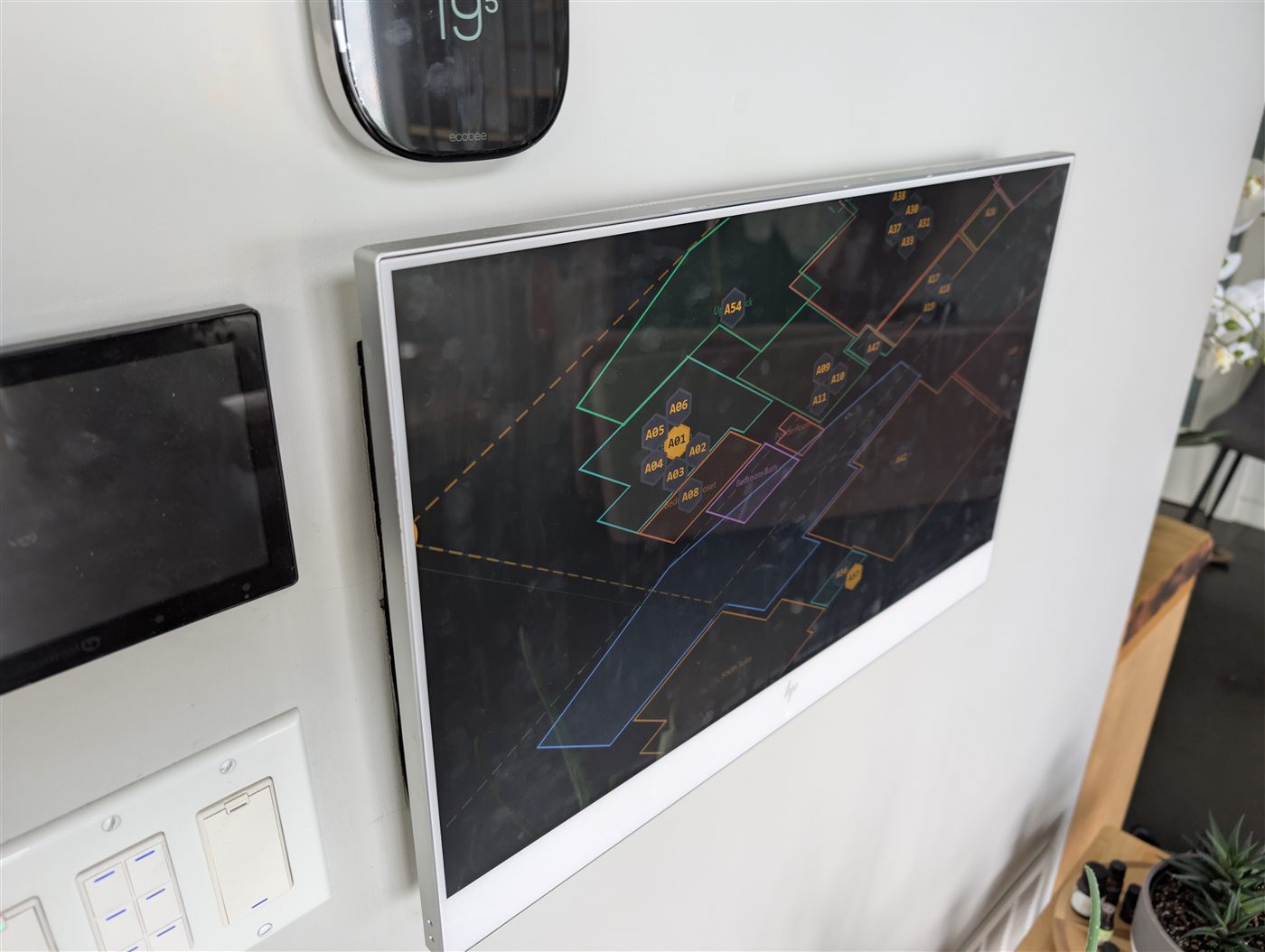
- Mount a wall panel (tablet or small screen) running PadSpan's Pure Live mode for an always-on immersive 3D map. The screenshot in the README shows exactly this — a wall-mounted panel in daily use next to a thermostat.
- Use the HA entities PadSpan creates (area sensors, distance sensors, device trackers, binary sensors) to drive automations: turn lights on when someone enters a room, trigger an alert when a child leaves a zone, or log room occupancy over time.
- Pull movement history with the Traceback playback view to understand patterns — which rooms are used at what times, how far devices travel, and how long they spend in each room. Insights mode exports this data as CSV or JSON.
- The Atlas view lets you place real fixtures (lights, fans, locks, sensors) at their physical positions on the isometric map and control them from there, bridging presence tracking with device control.
- The full WebSocket API is available for custom dashboards and external automation scripts.
Limitations to keep in mind
- Room-level BLE accuracy depends heavily on scanner placement and antenna quality. Boards with PCB or chip antennas are noted as consistently less accurate than those with full-size external antennas.
- ESPresense integration requires HA's MQTT integration to be configured separately before enabling the ESPresense MQTT bridge.
- AirTag and Samsung SmartTag tracking is explicitly experimental — both devices rotate both their MAC address and their Find My key without exposing a stable identifier, so the probabilistic bridging may occasionally link the wrong device, especially in crowded RF environments.
- Phone tracking without an IRK or iBeacon relies on MAC Rotation Bridging, which is probabilistic by design.
PadSpan HA is the most fully realized BLE room-presence system available for Home Assistant, combining floor plan editing, 3D visualization, fingerprint calibration, and phone tracking in a single locally-hosted integration. The hardware requirement is simply ESP32 scanner nodes you likely already own or can build cheaply, and the 5-step onboarding wizard and sample mode make the learning curve manageable. If you want room-level tracking that goes well beyond a basic sensor, this is the build to follow.
Sources
github.comgbroeckling/padspanHA — repository & README padspan.traks.caOfficial websiteFacts in this article come from the project's public README and GitHub metadata at the time of writing. Images belong to their respective owners and link back to the original source.